Marketing
What Is Decktopus? The Complete Guide to the AI Presentation Tool Modern Teams Actually Use (2026)
Decktopus is an AI presentation tool that generates full on-brand decks from a topic description. Full guide to features, use cases, and getting started.


Decktopus Content Team
Most people learn about Decktopus the same way: they spent three hours building a deck in PowerPoint, hated every minute of it, and someone told them there had to be a faster way.
There is.
Decktopus is an AI presentation tool that generates complete, on-brand slide decks from a topic description. It works by taking your topic, applying your brand automatically from your website URL, and producing structured slides with content, layout, and design handled for you. The main benefit is going from idea to a finished, on-brand deck in 15 minutes instead of the three hours the average user spends building the same deck in PowerPoint.
That’s a 12x speed gain, on average, without sacrificing brand consistency or design quality.
This is the complete guide to Decktopus. What it does, who uses it, every feature explained, real workflows for sales teams, founders, marketers, and educators, and the tips that separate casual users from power users.
You’ll get:
A clear answer to “what is Decktopus” in under 60 seconds
The 5-step Decktopus workflow walked through
A deep dive into every feature and what it actually does
Real use cases for sales, founders, marketers, teams, students, and consultants
Tips and tricks for power users
How Decktopus compares to other presentation tools
The named mistakes new users make in their first week
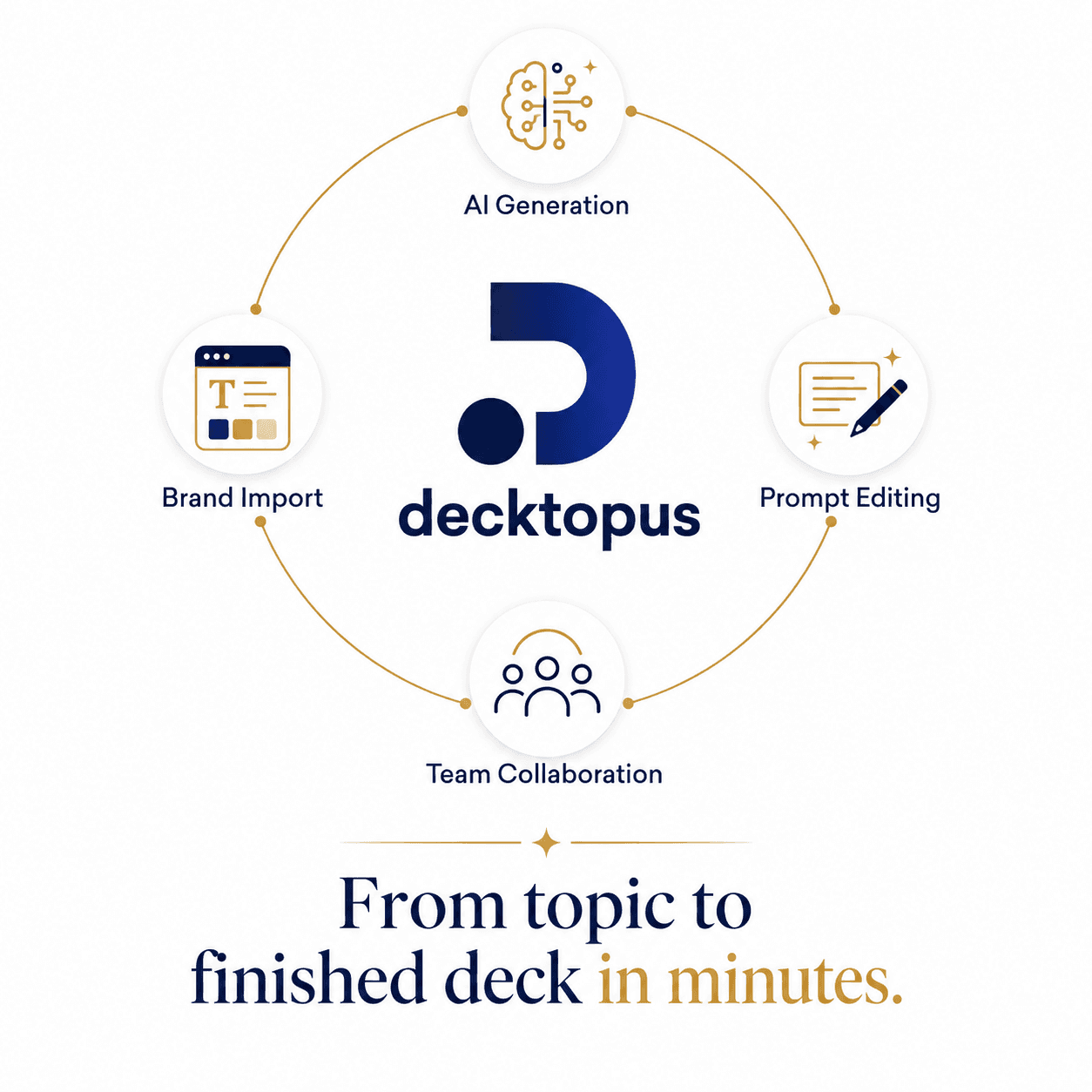
What Is Decktopus? The Short Answer
Decktopus is an AI-powered presentation tool that generates complete, on-brand slide decks from a topic description.
Instead of opening a blank slide editor and building each slide manually, you type what your presentation is about, paste your website URL to apply your brand automatically, or let AI generate the full deck. You refine specific slides by typing prompts like “make this more concise” or “switch this chart to a bar graph.”
The result: a finished, presentation-ready deck in minutes, on-brand from the first slide.
Who uses Decktopus:
Sales teams building proposals and demos
Founders pitching to investors
Marketers creating campaign decks and reports
Consultants delivering client work
Educators building course materials
Teams collaborating on internal presentations
What makes it different:
Starts from a topic description, not a blank canvas
Applies your brand automatically from your website URL
Edits any slide with a prompt, no manual menu navigation
Generates visuals, charts, and layouts as part of the deck
If you’ve ever wondered whether Decktopus is your next online presentation maker, the rest of this guide answers that fully.
The Problem Decktopus Was Built to Solve
Most presentation tools were built for a world that no longer exists.
PowerPoint was designed in 1987. Google Slides in 2006. Both assumed a workflow where one person opens a blank slide editor, picks a layout, drags elements around, and manually applies brand colors, fonts, and logos.
That workflow doesn’t fit how modern teams work. Today:
Teams are distributed, often across time zones
Brand consistency needs to happen automatically, not through review rounds
Content cycles are faster, so iteration speed matters more than design control
AI can handle what used to require design skills
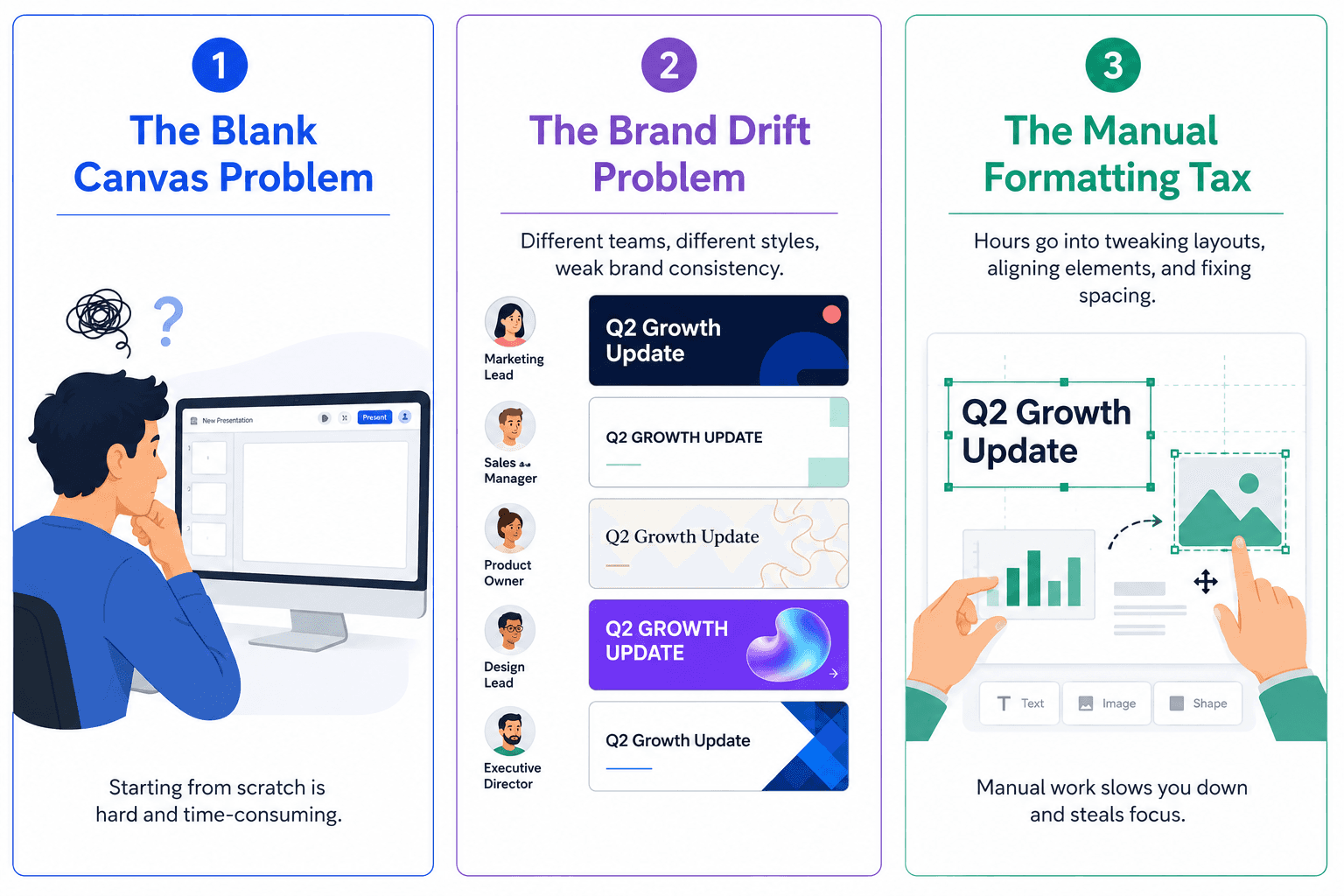
Three specific problems Decktopus exists to solve:
The Blank Canvas Problem. Opening a blank presentation eats hours before any real work starts. Decktopus generates the structure for you from a topic description.
The Brand Drift Problem. Five team members create decks. Each one applies brand slightly differently. The company looks like five different companies. Decktopus applies your brand automatically from your website URL.
The Manual Formatting Tax. Adjusting fonts, alignment, spacing, and layouts manually on every slide steals hours per deck. Decktopus handles formatting automatically and lets you refine with prompts.
For more on how AI is reshaping presentation workflows, see our guide on how modern teams create, organize, and share presentations faster than ever.
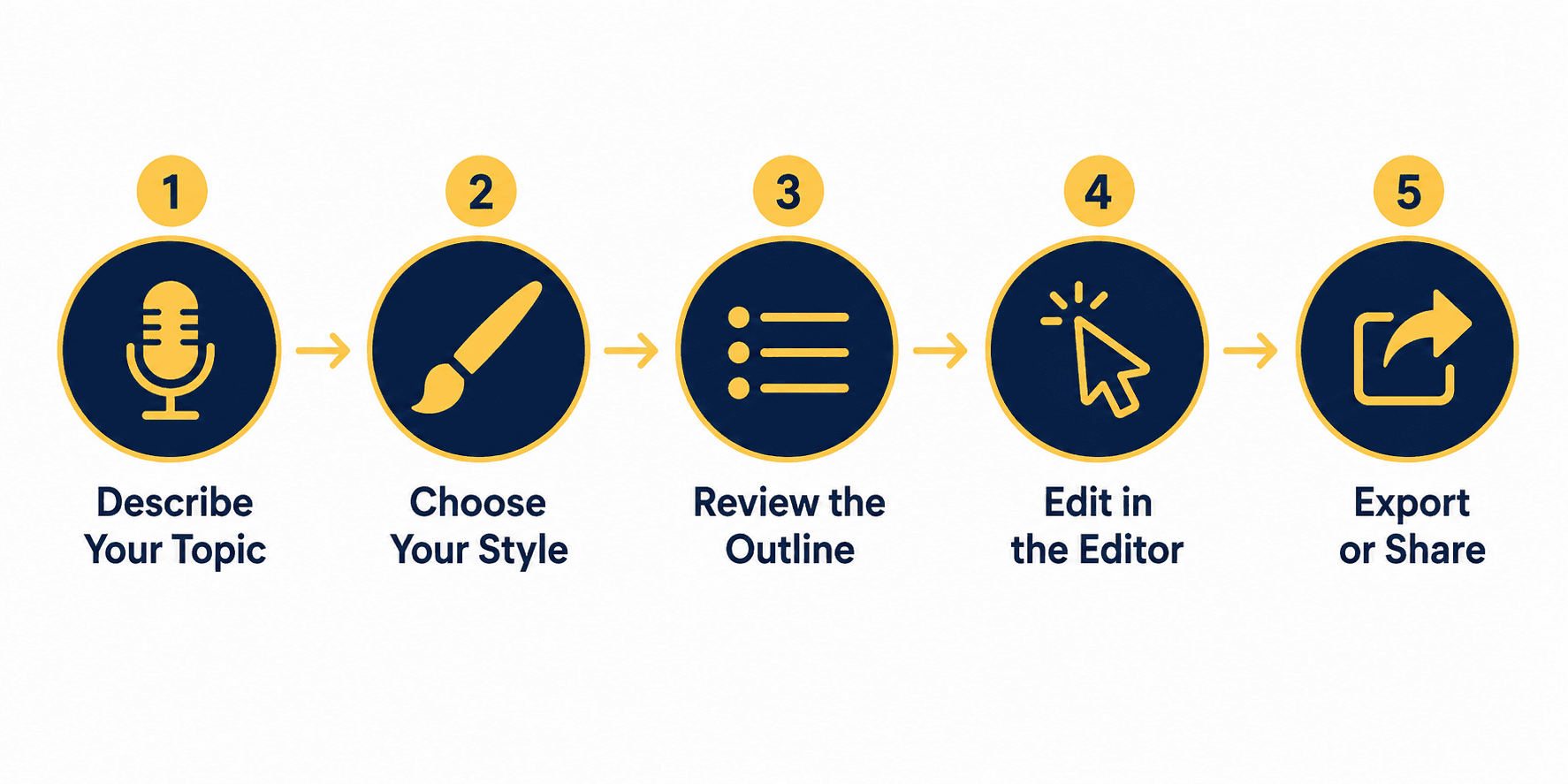
The 5-Step Decktopus Workflow
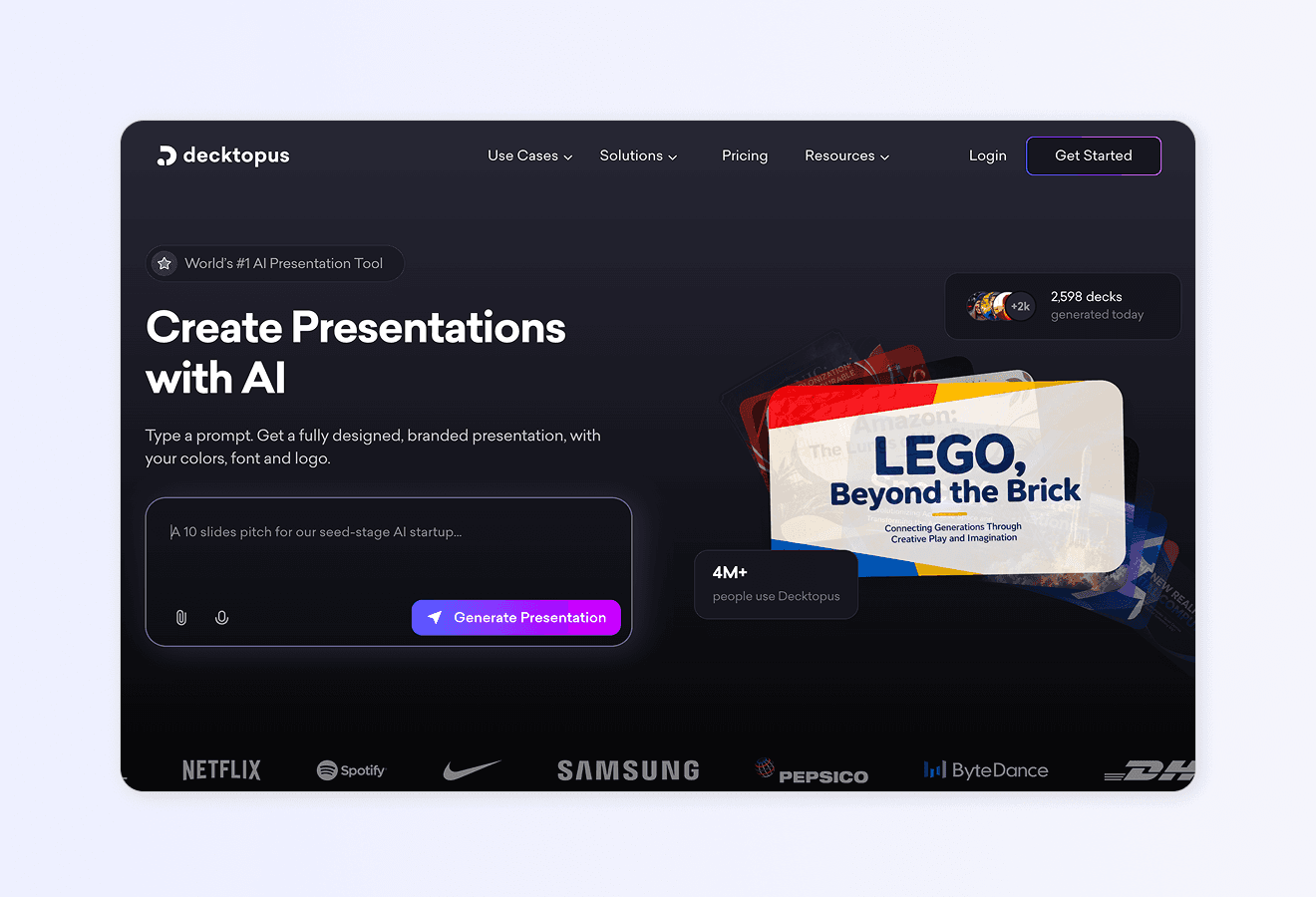
Here’s how building a deck in Decktopus works from start to finish.
Step 1: Describe Your Topic
Open Decktopus and type what your presentation is about. Examples:
“Quarterly sales review for the marketing team, focused on Q3 wins and Q4 priorities”
“Pitch deck for a SaaS startup targeting enterprise HR teams”
“Course intro for a 6-week digital marketing program for beginners”
You can also upload supporting files (PDFs, research docs, notes) to give the AI more context.
Step 2: Choose Your Style
Three options for applying your brand or style:
Paste your website URL to auto-import your logo, colors, and fonts
Apply a saved Brand Kit if your team has set one up
Let AI generate a style if you don’t have a brand yet
This step takes 10 seconds and ensures every slide stays on-brand.
Step 3: Review the AI-Generated Outline
Decktopus generates a slide-by-slide outline based on your topic. You can:
Reorder sections
Remove slides
Add new slides
Adjust the focus before the full deck is generated
This is your chance to catch structural issues before AI builds the full presentation. Most users spend 1 to 2 minutes here.
Step 4: Edit in the Editor
Your full deck is ready. From here, you have two ways to refine:
Edit with AI. Click Edit with AI and type instructions like:
“Make this slide more concise”
“Switch this chart to a stacked bar graph”
“Generate a more editorial-style image for the team slide”
“Rewrite the intro for a technical audience”
Manual editing. Click the Edit Text button. The text elements on the slide appear in the right-side panel where you can edit each one individually. Make your changes, then apply them.
Brand Compliance auto-checks every slide for consistency. If something looks off, Decktopus regenerates the slide on-brand.
Step 5: Export or Share
When the deck is ready:
Download as PDF
Download as PPT
Share via link
Present directly from the Decktopus editor
For PDF and PPT exports, you can choose Compressed (smaller file) or Standard (higher resolution) quality.
That’s the full workflow. From idea to ready-to-present in under 15 minutes for most decks.
Decktopus Features Deep Dive
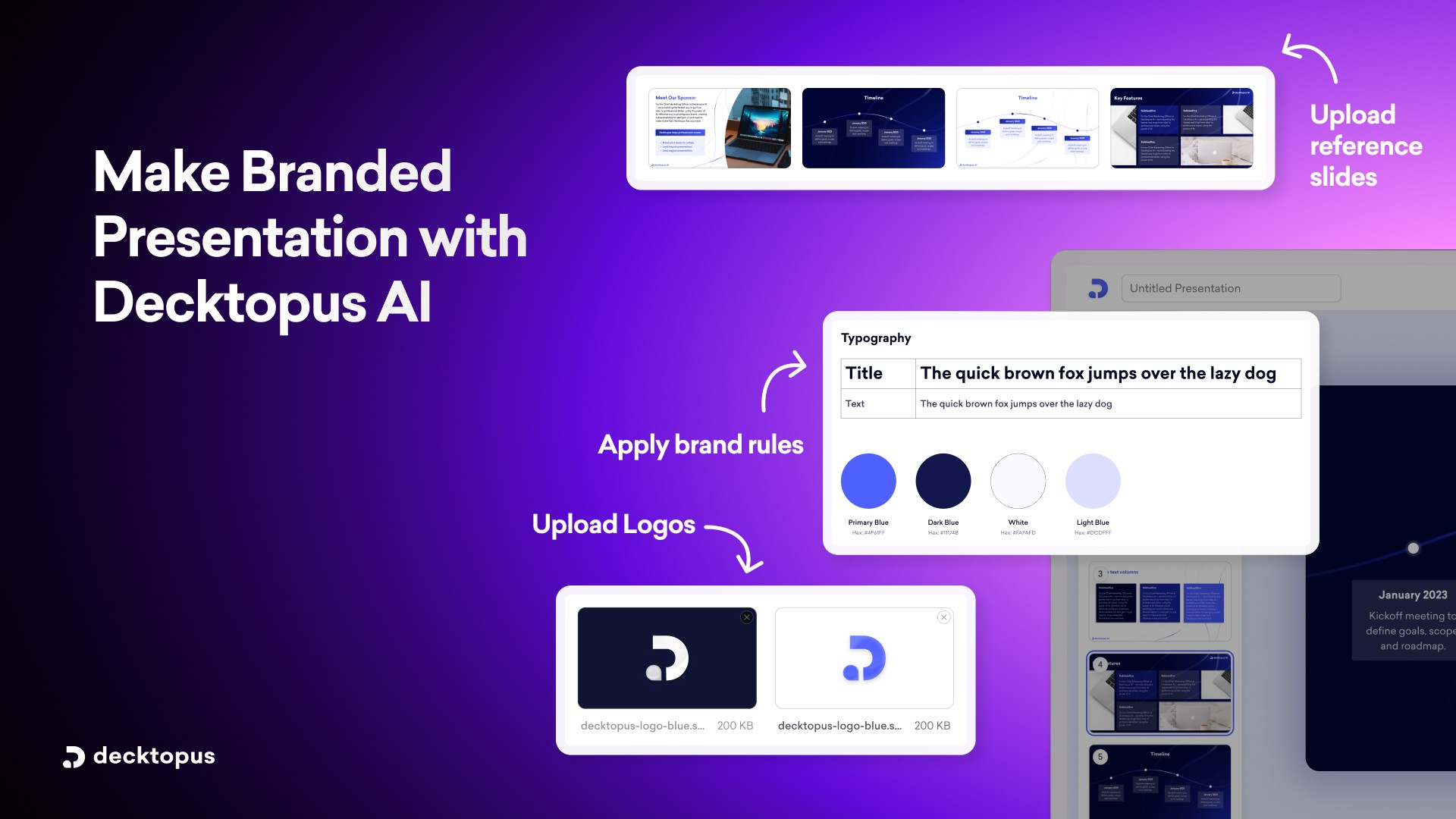
Here’s every major feature explained with what it actually does.
AI Presentation Generation
What it does: Generates a complete slide deck from a topic description.
Why it matters: Removes the blank canvas problem entirely. You start with a structured draft instead of nothing.
How to use it well: Be specific in your topic description. “Pitch deck” produces a generic deck. “Series A pitch deck for a B2B SaaS company targeting mid-market sales teams, with traction focus” produces a much sharper one.
AI-Generated Outline
What it does: Creates a slide-by-slide structure before the full deck is built.
Why it matters: Lets you catch structural issues early. Rearranging an outline takes seconds. Rearranging a built deck takes longer.
How to use it well: Read every slide title and ask “does this move the audience closer to the goal?” Remove any that don’t.
AI-Generated Slide Content
What it does: Writes the headlines, body copy, and supporting content for each slide.
Why it matters: First drafts that would take hours appear in seconds. You refine instead of write from scratch.
How to use it well: Treat AI output as a strong first draft, not a final version. Use the Edit with AI to tighten, sharpen, or adjust tone.
Brand Import
What it does: Pulls your logo, colors, and fonts from your website URL and applies them across the deck automatically.
Why it matters: Eliminates manual brand application. Every deck looks like it came from your company without any review work.
How to use it well: Use your most polished landing page URL. Decktopus extracts brand assets from what it sees there.
For more on how AI handles brand assets, see our guide on can AI generate presentations using my company logo, colors, and tone.
Brand Kit
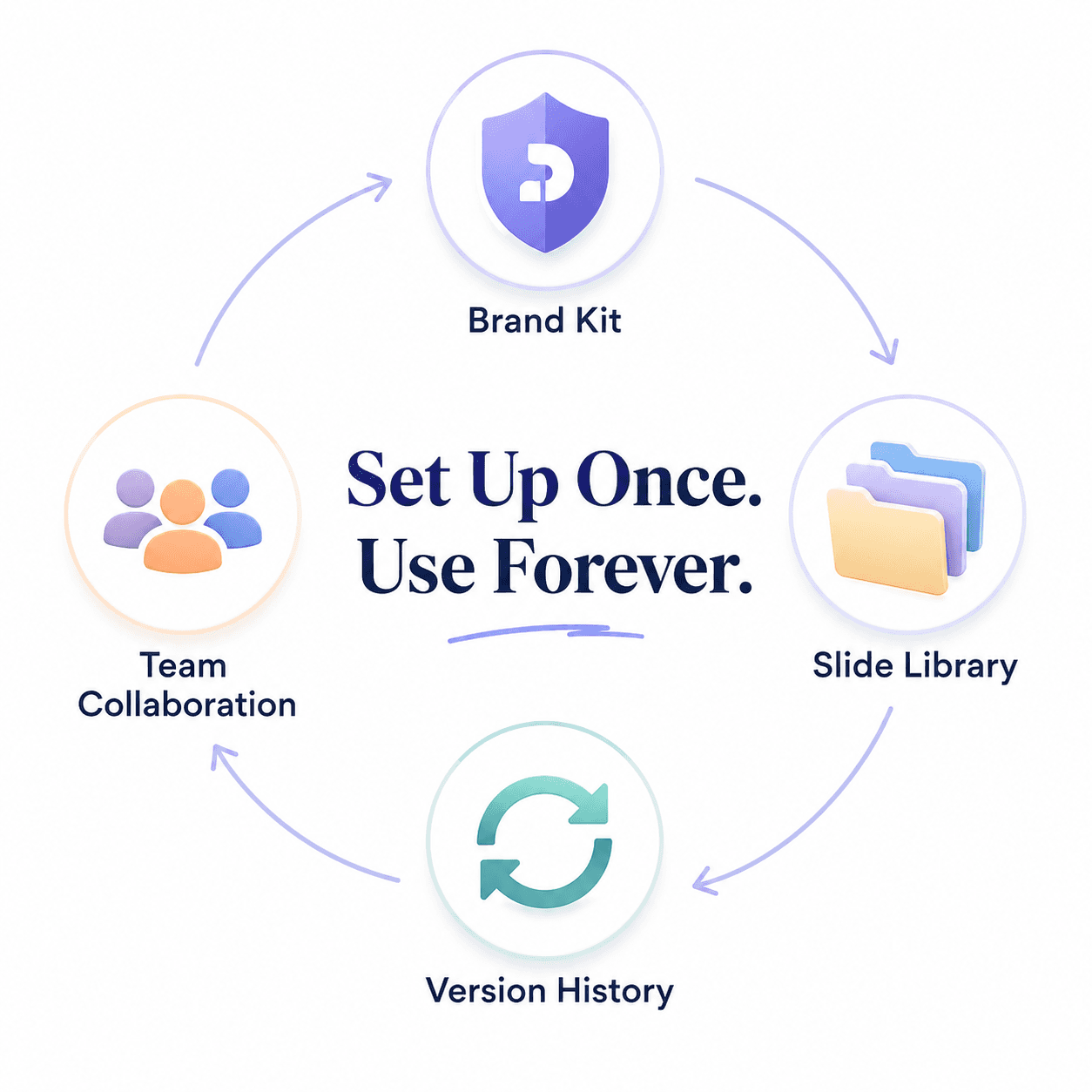
What it does: Lets you upload your logo, colors, and fonts once. Every deck your team creates inherits the Brand Kit automatically.
Why it matters: Solves brand consistency at the team level. No more “I’ll just change the fonts after” situations.
How to use it well: Set up your Brand Kit before your team starts using Decktopus. Make sure everyone is on the same Brand Kit, not their own version.
Brand Compliance
What it does: Auto-checks every generated slide for brand consistency (logo presence, color palette, font usage).
Why it matters: Removes off-brand slides at the source. No more catching them in review.
For deeper context on this, see our breakdown on can AI really follow brand guidelines like fonts, colors, and logos and our guide on how can I make presentations that follow brand guidelines automatically.
Edit with AI
What it does: Refine any slide by clicking Edit with AI and typing instructions in plain language.
Why it matters: Faster than menu navigation. More flexible than templates. Lets you iterate on content and design without manual formatting.
AI Image Generator
What it does: Generates custom images for slides based on the content. You can also prompt specific images by description.
Why it matters: No more 30 minutes hunting through stock photo sites. The image you need appears in seconds, tailored to your slide.
How to use it well: Use specific style descriptions. “Photorealistic team meeting in a modern office” produces a better result than “team photo.”
For more on AI image generation specifically, see our guide on AI image generators from text.
Slide Library
What it does: Save individual slides for reuse across future presentations.
Why it matters: Stop rebuilding the same slides over and over. Your best-performing slides should be saved once and reused.
How to use it well: Save the slides you find yourself rebuilding repeatedly. Reuse them across new decks instead of starting from scratch.
Version History
What it does: Unlimited version history per slide. Restore any past version of any slide in one click.
Why it matters: Edit boldly. You can always go back. No more “Final_v2_FINAL_USE_THIS.pptx” file naming.
How to use it well: Test changes without worry. Version history makes experimentation safe.
Archive
What it does: Remove slides from a presentation without permanently deleting them. Recoverable anytime.
Why it matters: Cleaner decks without losing work. Sometimes a slide is wrong for one audience but right for another.
How to use it well: Archive aggressively for client-facing decks. Recover when needed.
Team Sharing and Access
What it does: Share decks with team members or external collaborators. Give edit access so multiple people can work on the same presentation.
Why it matters: No more emailing PowerPoint files back and forth. No more version chaos.
How to use it well: Set up team access from day one. Decide who can edit and who can view before sharing.
For more on team workflows, see our guide on how to build a team presentation system with AI.
Export Options
What it does: Download as PDF or PPT, share via link, or present directly from the editor.
Why it matters: Whatever format your audience needs, Decktopus handles it. The link option is particularly useful for sales decks where you want to share the latest version without re-attaching files.
Loop (Coming Soon)
What it does: AI Delivery Coach that will let you practice your presentation in-app with real-time feedback on your delivery.
Why it matters: Most presenters skip rehearsal. Loop will make rehearsal feel like a structured workflow, not an optional extra.
Status: Coming soon. Not yet live.
Decktopus Use Cases by Role
Decktopus works for almost any role that builds presentations. Here’s how it fits different jobs.
For Sales Teams
The challenge: Building tailored proposals for prospects, fast. Every client engagement needs a slightly different deck. Manual rebuilding eats sales time.
The Decktopus workflow:
Save your best “Company Overview,” “Case Studies,” and “Pricing” slides to your Slide Library
For each new prospect, describe their specific situation in Decktopus
Reuse saved slides and let AI generate the prospect-specific sections
Apply your brand automatically from your website URL
Send a link instead of a PDF attachment
For more on sales deck workflows, see our breakdowns of sales pitch writing and how to sell an idea effectively.
For Founders
The challenge: Investor pitch decks. Every meeting requires a fresh version. Investors expect polish. The first impression is the entire deck.
The Decktopus workflow:
Describe your startup, traction, and ask
Apply your brand
Use AI image generation for clean, custom visuals
Refine with prompts: “show traction as a stacked bar chart,” “make the ask slide more direct”
Iterate based on each investor’s feedback
For investor-specific guidance, see our guides on pitch deck examples, pitch deck mistakes, and the best AI pitch deck generators for founders.
For Marketers
The challenge: Campaign decks, performance reports, and creative pitches for clients or stakeholders. Volume is high. Consistency matters.
The Decktopus workflow:
Set up your Brand Kit (or your client’s brand kit)
Generate decks from briefs or campaign notes
Use AI Image Generator for custom campaign visuals
Save high-performing report structures to your Slide Library
For Consultants
The challenge: Client deliverables in their brand, fast. Multiple clients mean multiple brands. Each deck has to feel custom.
The Decktopus workflow:
Use your client’s website URL for Brand Import on each project
Generate the deliverable structure from your scope of work
Refine sections with prompts based on your analysis
Share via link for client review, export to PPT for final delivery
For Teams and Internal Presentations
The challenge: Every team meeting, all-hands, or quarterly review needs a deck. Building from scratch wastes everyone’s time.
The Decktopus workflow:
Set up a shared Brand Kit so everyone’s decks stay consistent
Save common slide types (KPI updates, team intros, project status) to the Slide Library
Share decks with team access so colleagues can edit in the same place
Archive old slides instead of deleting (you’ll need them again)
For more on running internal meetings well, see our guide on how to prepare a meeting presentation.
For Students and Educators
The challenge: Course material, thesis defenses, group projects, lecture slides. Quality matters but time doesn’t.
The Decktopus workflow:
Describe the topic or upload your research/notes
Let AI generate the structure
Refine with prompts for tone (academic, casual, formal)
Export as PDF for sharing or PPT for further editing
For HR and Recruiting
The challenge: Employee onboarding decks, training materials, hiring presentations to candidates.
The Decktopus workflow:
Apply your company brand once
Generate role-specific onboarding decks based on uploaded job descriptions
Save core company culture slides to reuse across all onboarding decks
How Decktopus Compares to Other Presentation Tools
If you’re evaluating Decktopus against alternatives, here are quick comparisons. Each links to a deeper breakdown.
[[EMBED:PGRpdiBzdHlsZT0ib3ZlcmZsb3cteDphdXRvO21hcmdpbjoyMHB4IDAiPjx0YWJsZSBzdHlsZT0id2lkdGg6MTAwJTtib3JkZXItY29sbGFwc2U6Y29sbGFwc2U7Zm9udC1zaXplOjE1cHg7bWFyZ2luOjhweCAwIj48dGggc3R5bGU9ImJvcmRlcjoxcHggc29saWQgI2UzZTZlYTtwYWRkaW5nOjEwcHggMTRweDt0ZXh0LWFsaWduOmxlZnQ7YmFja2dyb3VuZDojZjRmNmY4O2ZvbnQtd2VpZ2h0OjYwMCI+PHRyPjx0aCBzdHlsZT0iYm9yZGVyOjFweCBzb2xpZCAjZTNlNmVhO3BhZGRpbmc6MTBweCAxNHB4O3RleHQtYWxpZ246bGVmdDtiYWNrZ3JvdW5kOiNmNGY2Zjg7Zm9udC13ZWlnaHQ6NjAwIj5Ub29sPC90aD48dGggc3R5bGU9ImJvcmRlcjoxcHggc29saWQgI2UzZTZlYTtwYWRkaW5nOjEwcHggMTRweDt0ZXh0LWFsaWduOmxlZnQ7YmFja2dyb3VuZDojZjRmNmY4O2ZvbnQtd2VpZ2h0OjYwMCI+QmVzdCBGb3I8L3RoPjx0aCBzdHlsZT0iYm9yZGVyOjFweCBzb2xpZCAjZTNlNmVhO3BhZGRpbmc6MTBweCAxNHB4O3RleHQtYWxpZ246bGVmdDtiYWNrZ3JvdW5kOiNmNGY2Zjg7Zm9udC13ZWlnaHQ6NjAwIj5BSSBHZW5lcmF0aW9uPC90aD48dGggc3R5bGU9ImJvcmRlcjoxcHggc29saWQgI2UzZTZlYTtwYWRkaW5nOjEwcHggMTRweDt0ZXh0LWFsaWduOmxlZnQ7YmFja2dyb3VuZDojZjRmNmY4O2ZvbnQtd2VpZ2h0OjYwMCI+QnJhbmQgQXV0by1BcHBseTwvdGg+PHRoIHN0eWxlPSJib3JkZXI6MXB4IHNvbGlkICNlM2U2ZWE7cGFkZGluZzoxMHB4IDE0cHg7dGV4dC1hbGlnbjpsZWZ0O2JhY2tncm91bmQ6I2Y0ZjZmODtmb250LXdlaWdodDo2MDAiPlByb21wdCBFZGl0aW5nPC90aD48L3RyPjwvdGhlYWQ+PHRib2R5Pjx0cj48dGQgc3R5bGU9ImJvcmRlcjoxcHggc29saWQgI2UzZTZlYTtwYWRkaW5nOjEwcHggMTRweDt0ZXh0LWFsaWduOmxlZnQ7dmVydGljYWwtYWxpZ246dG9wIj48c3Ryb25nPkRlY2t0b3B1czwvc3Ryb25nPjwvdGQ+PHRkIHN0eWxlPSJib3JkZXI6MXB4IHNvbGlkICNlM2U2ZWE7cGFkZGluZzoxMHB4IDE0cHg7dGV4dC1hbGlnbjpsZWZ0O3ZlcnRpY2FsLWFsaWduOnRvcCI+QUktcG93ZXJlZCBidXNpbmVzcyBwcmVzZW50YXRpb25zPC90ZD48dGQgc3R5bGU9ImJvcmRlcjoxcHggc29saWQgI2UzZTZlYTtwYWRkaW5nOjEwcHggMTRweDt0ZXh0LWFsaWduOmxlZnQ7dmVydGljYWwtYWxpZ246dG9wIj5BZHZhbmNlZDwvdGQ+PHRkIHN0eWxlPSJib3JkZXI6MXB4IHNvbGlkICNlM2U2ZWE7cGFkZGluZzoxMHB4IDE0cHg7dGV4dC1hbGlnbjpsZWZ0O3ZlcnRpY2FsLWFsaWduOnRvcCI+WWVzIChVUkwgaW1wb3J0KTwvdGQ+PHRkIHN0eWxlPSJib3JkZXI6MXB4IHNvbGlkICNlM2U2ZWE7cGFkZGluZzoxMHB4IDE0cHg7dGV4dC1hbGlnbjpsZWZ0O3ZlcnRpY2FsLWFsaWduOnRvcCI+WWVzPC90ZD48L3RyPjx0cj48dGQgc3R5bGU9ImJvcmRlcjoxcHggc29saWQgI2UzZTZlYTtwYWRkaW5nOjEwcHggMTRweDt0ZXh0LWFsaWduOmxlZnQ7dmVydGljYWwtYWxpZ246dG9wIj5Qb3dlclBvaW50PC90ZD48dGQgc3R5bGU9ImJvcmRlcjoxcHggc29saWQgI2UzZTZlYTtwYWRkaW5nOjEwcHggMTRweDt0ZXh0LWFsaWduOmxlZnQ7dmVydGljYWwtYWxpZ246dG9wIj5GdWxsIG1hbnVhbCBjb250cm9sPC90ZD48dGQgc3R5bGU9ImJvcmRlcjoxcHggc29saWQgI2UzZTZlYTtwYWRkaW5nOjEwcHggMTRweDt0ZXh0LWFsaWduOmxlZnQ7dmVydGljYWwtYWxpZ246dG9wIj5ObzwvdGQ+PHRkIHN0eWxlPSJib3JkZXI6MXB4IHNvbGlkICNlM2U2ZWE7cGFkZGluZzoxMHB4IDE0cHg7dGV4dC1hbGlnbjpsZWZ0O3ZlcnRpY2FsLWFsaWduOnRvcCI+Tm88L3RkPjx0ZCBzdHlsZT0iYm9yZGVyOjFweCBzb2xpZCAjZTNlNmVhO3BhZGRpbmc6MTBweCAxNHB4O3RleHQtYWxpZ246bGVmdDt2ZXJ0aWNhbC1hbGlnbjp0b3AiPk5vPC90ZD48L3RyPjx0cj48dGQgc3R5bGU9ImJvcmRlcjoxcHggc29saWQgI2UzZTZlYTtwYWRkaW5nOjEwcHggMTRweDt0ZXh0LWFsaWduOmxlZnQ7dmVydGljYWwtYWxpZ246dG9wIj5Hb29nbGUgU2xpZGVzPC90ZD48dGQgc3R5bGU9ImJvcmRlcjoxcHggc29saWQgI2UzZTZlYTtwYWRkaW5nOjEwcHggMTRweDt0ZXh0LWFsaWduOmxlZnQ7dmVydGljYWwtYWxpZ246dG9wIj5SZWFsLXRpbWUgY29sbGFib3JhdGlvbjwvdGQ+PHRkIHN0eWxlPSJib3JkZXI6MXB4IHNvbGlkICNlM2U2ZWE7cGFkZGluZzoxMHB4IDE0cHg7dGV4dC1hbGlnbjpsZWZ0O3ZlcnRpY2FsLWFsaWduOnRvcCI+TGltaXRlZDwvdGQ+PHRkIHN0eWxlPSJib3JkZXI6MXB4IHNvbGlkICNlM2U2ZWE7cGFkZGluZzoxMHB4IDE0cHg7dGV4dC1hbGlnbjpsZWZ0O3ZlcnRpY2FsLWFsaWduOnRvcCI+Tm88L3RkPjx0ZCBzdHlsZT0iYm9yZGVyOjFweCBzb2xpZCAjZTNlNmVhO3BhZGRpbmc6MTBweCAxNHB4O3RleHQtYWxpZ246bGVmdDt2ZXJ0aWNhbC1hbGlnbjp0b3AiPk5vPC90ZD48L3RyPjx0cj48dGQgc3R5bGU9ImJvcmRlcjoxcHggc29saWQgI2UzZTZlYTtwYWRkaW5nOjEwcHggMTRweDt0ZXh0LWFsaWduOmxlZnQ7dmVydGljYWwtYWxpZ246dG9wIj5DYW52YTwvdGQ+PHRkIHN0eWxlPSJib3JkZXI6MXB4IHNvbGlkICNlM2U2ZWE7cGFkZGluZzoxMHB4IDE0cHg7dGV4dC1hbGlnbjpsZWZ0O3ZlcnRpY2FsLWFsaWduOnRvcCI+RGVzaWduIGZsZXhpYmlsaXR5PC90ZD48dGQgc3R5bGU9ImJvcmRlcjoxcHggc29saWQgI2UzZTZlYTtwYWRkaW5nOjEwcHggMTRweDt0ZXh0LWFsaWduOmxlZnQ7dmVydGljYWwtYWxpZ246dG9wIj5Nb2RlcmF0ZTwvdGQ+PHRkIHN0eWxlPSJib3JkZXI6MXB4IHNvbGlkICNlM2U2ZWE7cGFkZGluZzoxMHB4IDE0cHg7dGV4dC1hbGlnbjpsZWZ0O3ZlcnRpY2FsLWFsaWduOnRvcCI+Tm88L3RkPjx0ZCBzdHlsZT0iYm9yZGVyOjFweCBzb2xpZCAjZTNlNmVhO3BhZGRpbmc6MTBweCAxNHB4O3RleHQtYWxpZ246bGVmdDt2ZXJ0aWNhbC1hbGlnbjp0b3AiPkxpbWl0ZWQ8L3RkPjwvdHI+PHRyPjx0ZCBzdHlsZT0iYm9yZGVyOjFweCBzb2xpZCAjZTNlNmVhO3BhZGRpbmc6MTBweCAxNHB4O3RleHQtYWxpZ246bGVmdDt2ZXJ0aWNhbC1hbGlnbjp0b3AiPkJlYXV0aWZ1bC5haTwvdGQ+PHRkIHN0eWxlPSJib3JkZXI6MXB4IHNvbGlkICNlM2U2ZWE7cGFkZGluZzoxMHB4IDE0cHg7dGV4dC1hbGlnbjpsZWZ0O3ZlcnRpY2FsLWFsaWduOnRvcCI+QXV0b21hdGVkIGxheW91dHM8L3RkPjx0ZCBzdHlsZT0iYm9yZGVyOjFweCBzb2xpZCAjZTNlNmVhO3BhZGRpbmc6MTBweCAxNHB4O3RleHQtYWxpZ246bGVmdDt2ZXJ0aWNhbC1hbGlnbjp0b3AiPlN0cm9uZzwvdGQ+PHRkIHN0eWxlPSJib3JkZXI6MXB4IHNvbGlkICNlM2U2ZWE7cGFkZGluZzoxMHB4IDE0cHg7dGV4dC1hbGlnbjpsZWZ0O3ZlcnRpY2FsLWFsaWduOnRvcCI+Tm88L3RkPjx0ZCBzdHlsZT0iYm9yZGVyOjFweCBzb2xpZCAjZTNlNmVhO3BhZGRpbmc6MTBweCAxNHB4O3RleHQtYWxpZ246bGVmdDt2ZXJ0aWNhbC1hbGlnbjp0b3AiPkxpbWl0ZWQ8L3RkPjwvdHI+PHRyPjx0ZCBzdHlsZT0iYm9yZGVyOjFweCBzb2xpZCAjZTNlNmVhO3BhZGRpbmc6MTBweCAxNHB4O3RleHQtYWxpZ246bGVmdDt2ZXJ0aWNhbC1hbGlnbjp0b3AiPlBpdGNoPC90ZD48dGQgc3R5bGU9ImJvcmRlcjoxcHggc29saWQgI2UzZTZlYTtwYWRkaW5nOjEwcHggMTRweDt0ZXh0LWFsaWduOmxlZnQ7dmVydGljYWwtYWxpZ246dG9wIj5TdGFydHVwIHRlYW1zPC90ZD48dGQgc3R5bGU9ImJvcmRlcjoxcHggc29saWQgI2UzZTZlYTtwYWRkaW5nOjEwcHggMTRweDt0ZXh0LWFsaWduOmxlZnQ7dmVydGljYWwtYWxpZ246dG9wIj5Nb2RlcmF0ZTwvdGQ+PHRkIHN0eWxlPSJib3JkZXI6MXB4IHNvbGlkICNlM2U2ZWE7cGFkZGluZzoxMHB4IDE0cHg7dGV4dC1hbGlnbjpsZWZ0O3ZlcnRpY2FsLWFsaWduOnRvcCI+Tm88L3RkPjx0ZCBzdHlsZT0iYm9yZGVyOjFweCBzb2xpZCAjZTNlNmVhO3BhZGRpbmc6MTBweCAxNHB4O3RleHQtYWxpZ246bGVmdDt2ZXJ0aWNhbC1hbGlnbjp0b3AiPk5vPC90ZD48L3RyPjx0cj48dGQgc3R5bGU9ImJvcmRlcjoxcHggc29saWQgI2UzZTZlYTtwYWRkaW5nOjEwcHggMTRweDt0ZXh0LWFsaWduOmxlZnQ7dmVydGljYWwtYWxpZ246dG9wIj5HYW1tYTwvdGQ+PHRkIHN0eWxlPSJib3JkZXI6MXB4IHNvbGlkICNlM2U2ZWE7cGFkZGluZzoxMHB4IDE0cHg7dGV4dC1hbGlnbjpsZWZ0O3ZlcnRpY2FsLWFsaWduOnRvcCI+RG9jdW1lbnQtdG8tc2xpZGU8L3RkPjx0ZCBzdHlsZT0iYm9yZGVyOjFweCBzb2xpZCAjZTNlNmVhO3BhZGRpbmc6MTBweCAxNHB4O3RleHQtYWxpZ246bGVmdDt2ZXJ0aWNhbC1hbGlnbjp0b3AiPlN0cm9uZzwvdGQ+PHRkIHN0eWxlPSJib3JkZXI6MXB4IHNvbGlkICNlM2U2ZWE7cGFkZGluZzoxMHB4IDE0cHg7dGV4dC1hbGlnbjpsZWZ0O3ZlcnRpY2FsLWFsaWduOnRvcCI+Tm88L3RkPjx0ZCBzdHlsZT0iYm9yZGVyOjFweCBzb2xpZCAjZTNlNmVhO3BhZGRpbmc6MTBweCAxNHB4O3RleHQtYWxpZ246bGVmdDt2ZXJ0aWNhbC1hbGlnbjp0b3AiPlllczwvdGQ+PC90cj48L3Rib2R5PjwvdGFibGU+PC9kaXY+]]
For deeper comparisons:
And for the broader landscape, see our guide on the best AI presentation tools and our breakdown of PowerPoint alternatives.
Ready to see how Decktopus compares for your specific workflow? Try Decktopus and build your first on-brand deck in under 15 minutes.
10 Tips and Tricks for Decktopus Power Users
1. Use Your Best Landing Page URL for Brand Import
Decktopus reads your website to extract brand assets. The cleaner and more on-brand your landing page, the better the brand import. Use your homepage or your strongest product page.
2. Upload Supporting Files for Better First Drafts
Don’t just describe your topic. Upload research notes, briefs, or your existing deck. Decktopus uses these as context and generates much sharper output.
3. Build Your Slide Library Strategically
Don’t save every slide. Save the slides that (a) appear in most of your decks and (b) consistently perform well.
4. Use Prompts for Tone Variations
Try prompts like “rewrite this for a non-technical audience” or “make this sound more executive.” Saves rewriting from scratch.
5. Generate Images With Style Descriptions
Vague prompts produce vague images. “Diverse team in modern office” is OK. “Photorealistic team of five in a sunlit minimalist office, warm tones, lifestyle photography aesthetic” is much better.
6. Lean Into Charts for Data Slides
Whenever you have numbers, prompt for a chart. “Switch this to a bar chart“ or “show this as a pie chart“ usually communicates faster than text.
7. Archive, Don’t Delete
When a slide doesn’t fit one audience, archive it. You’ll likely need it for another audience. Archive preserves your work without cluttering the current deck.
8. Use Team Access Instead of Email Attachments
Stop sending PowerPoint files as email attachments. Share the Decktopus link with edit access so your colleagues can work on the deck in the same place.
9. Set Up Brand Compliance Before You Need It
Brand Compliance works best when your Brand Kit is fully configured. Set it up before your team starts building decks, not after.
10. Export as Link First, PPT Last
For sharing with prospects or stakeholders, send the live link. You only need to export to PDF or PPT when someone specifically asks for a file.
5 Named Mistakes New Decktopus Users Make
1. The Vague Topic Description
Typing “make a sales presentation” produces a generic sales presentation. The AI works with what you give it. Be specific: who’s the audience, what’s the goal, what’s the offer.
2. The Skip-the-Outline Mistake
Reviewing the AI-generated outline takes 2 minutes and saves 20 minutes of restructuring later. Don’t skip step 3.
3. The Manual Edit Trap
New users default to manual editing because that’s what PowerPoint taught them. Use the Edit with AI first. It’s faster for almost every change.
4. The Brand Setup Procrastination
Skipping Brand Kit setup “for now” usually means it never gets set up. The 90-second initial setup saves hours per deck forever after.
5. The Solo User Habit
Treating Decktopus like a solo tool when your team would benefit from shared Brand Kit, shared Slide Library, and shared deck access. Set up team workflows from day one if you have a team.
How to Get Started With Decktopus
Step 1: Sign up for Decktopus.com.
Step 2: Set up your Brand Kit. Paste your website URL or upload your logo, colors, and fonts. This is the highest-leverage 5 minutes you’ll spend.
Step 3: Generate your first deck. Pick a real presentation you need to build this week and describe it.
Step 4: Refine using prompts. Try “make this more concise,” “switch this to a bar chart,” “generate a better image for this slide.”
Step 5: Export or share. Pick the format that fits your use case.
Most users build their first usable deck within 15 minutes of signing up.
Frequently Asked Questions
What is Decktopus used for?
Decktopus is used for creating presentations of all kinds: sales decks, pitch decks, internal team presentations, marketing reports, course materials, consulting deliverables, and more. It’s especially valued by teams that need brand consistency across many decks and individuals who want to skip manual slide design.
Can Decktopus make PowerPoint files?
Yes. Decktopus exports presentations as both PDF and PowerPoint (.pptx) files. You can also share via link or present directly from the Decktopus editor.
How does Decktopus apply my brand to presentations?
Two ways. You can paste your website URL and Decktopus automatically extracts your logo, colors, and fonts. Or you can upload a Brand Kit with your assets directly. Either way, the brand is applied to every slide automatically. Brand Compliance auto-checks every generated slide for consistency.
Can Decktopus replace PowerPoint?
For most modern workflows, yes. Decktopus is faster for generation, handles brand consistency automatically, and offers prompt-based editing that PowerPoint doesn’t have. PowerPoint still wins for fully manual design control. See our deeper comparison on Decktopus vs PowerPoint.
Does Decktopus work for teams?
Yes. You can share decks with team members or external collaborators and give them edit access so multiple people can build the same presentation together. The shared Brand Kit ensures everyone’s decks stay consistent.
Can I edit slides after Decktopus generates them?
Yes. Use Edit with AI to refine slides (“make this more concise,” “regenerate this image”) or click the Edit Text button to modify text in the right-side panel. All edits are saved to version history.
How does Decktopus compare to ChatGPT for presentations?
ChatGPT generates text content for slides but doesn’t produce actual .pptx files or design slides. Decktopus generates the full presentation, including layout, design, and brand application. The two work well together: draft content with ChatGPT, build the deck in Decktopus. See our breakdown of whether ChatGPT can create PowerPoints.
Can I create presentations from a PDF in Decktopus?
Yes. Upload your PDF as a supporting file and Decktopus uses it as context for generating the deck.
Does Decktopus integrate with other tools?
Yes. Decktopus integrates with thousands of apps through Zapier. See our guide on Zapier integrations of Decktopus AI.
Is Decktopus good for pitch decks?
Yes. Decktopus is widely used by founders for investor pitches because it handles brand application, generates clean visuals, and lets you iterate fast across multiple investor meetings.
How long does it take to learn Decktopus?
Most users build their first usable deck within 15 minutes. Power-user fluency (using prompts effectively, building a Slide Library, configuring Brand Kit) takes about 2 to 3 weeks of regular use.
Final Thoughts
Decktopus exists because the way teams build presentations was broken.
Three hours for a simple deck. Brand inconsistency across team members. Hours of manual formatting. Version chaos in email threads. None of it was the fault of the people building the decks. It was the fault of tools designed for a workflow that no longer fits how teams work.
The fix isn’t a better template. It isn’t more design skills. It’s a workflow that starts from a topic, applies brand automatically, generates visuals on demand, and lets you refine with prompts instead of menus.
That’s what Decktopus does. And once you set it up, every future deck takes a fraction of the time the last one did.
Ready to build your first deck? Try Decktopus. Most users have a finished, on-brand presentation within their first session.
Related posts

How AI Voice Agents Help Sales Teams Prepare and Deliver Better Presentations
Learn how AI voice agents help sales teams turn call insights into focused slides, stronger delivery, and more confident customer presentations at every stage.
Marketing

Instagram Carousel Size & Dimensions Guide (2026)
Instagram carousel size in 2026: exact dimensions for square, portrait, and landscape, plus file limits and safe zones, verified across sources.
Marketing

LinkedIn Carousel Size, Dimensions & Format Guide 2026
LinkedIn carousel size in 2026: exact dimensions, file limits, aspect ratios, and formatting rules so your slides never get cropped.
Marketing