Presentations
Zapier Integrations of Decktopus AI: Connect to 8,000+ Apps
Creating presentations shouldn't eat up your entire workday. With Decktopus Zapier integration, you can automate presentation creation and connect Decktopus to the apps you already use.


Decktopus Content Team
Creating presentations shouldn’t eat up your entire workday. With Decktopus Zapier integration, you can automate presentation creation and connect Decktopus to the apps you already use.
What is Zapier?
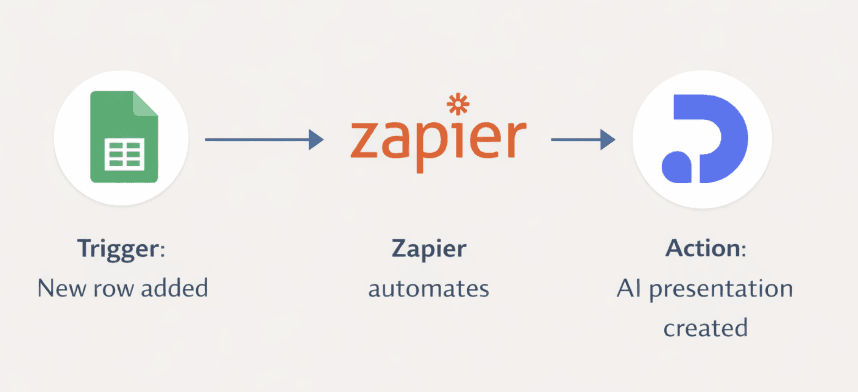
Zapier is an automation platform that connects different apps together without any coding. Think of it as a bridge between your favorite tools. When something happens in one app (like a new form response), Zapier automatically triggers an action in another app (like creating a presentation in Decktopus).
Here’s how it works:
Trigger: An event that starts the automation. Example: Someone fills out a Google Form.
Action: What happens automatically next. Example: Decktopus creates an AI-generated presentation based on that form data.
Zap: The name for the automated workflow that connects the trigger and action.
You can connect Decktopus to over 8,000 apps through Zapier, from Google Sheets and Jotform to Zoom and Slack.

Why Connect Decktopus to Zapier?
Automating presentation workflows saves time and removes repetitive work from your plate. Here’s what you get:

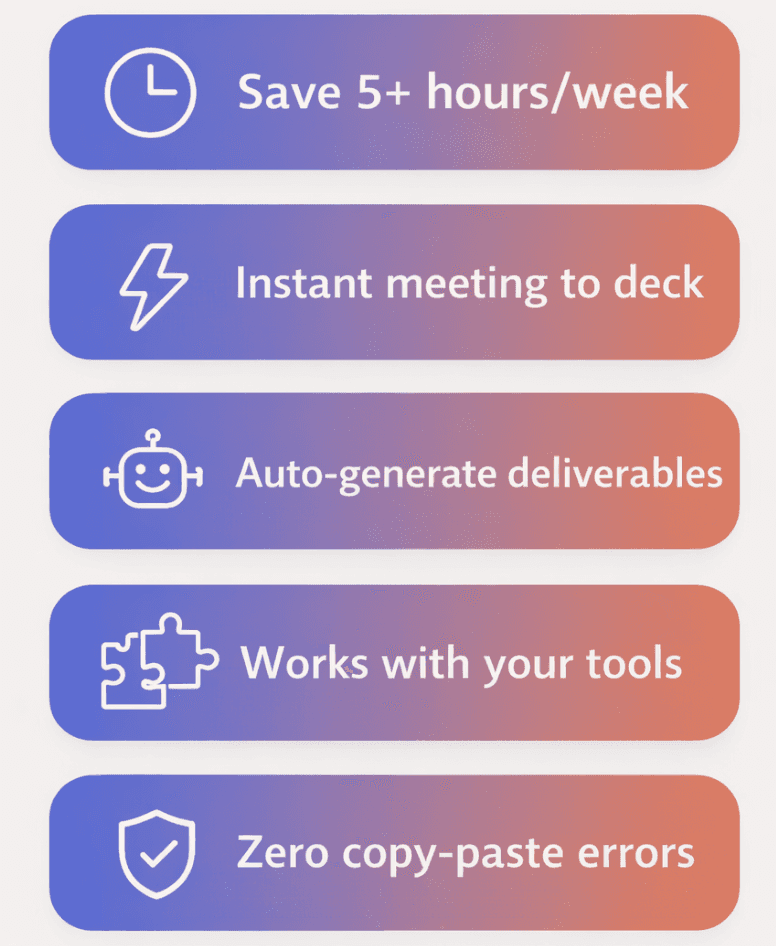
Save hours every week. Stop copying data from spreadsheets or meeting notes into presentation slides. Zapier does it automatically.
Turn meetings into decks instantly. Meeting transcripts from Zoom, Fireflies, or tl;dv can automatically become presentation slides without manual work.
Automate client deliverables. When a client fills out a form or completes a project milestone, automatically generate a branded presentation for them.
Keep your workflow intact. You don’t need to change how you work. Zapier connects Decktopus to the tools you already use daily.
Reduce human error. Automated workflows eliminate copy-paste mistakes and ensure consistent formatting across all your presentations.
Top Decktopus Zapier Workflows
1. Create AI Presentations from Google Sheets
Turn spreadsheet data into professional presentations automatically.
Use case: Sales teams tracking leads, project managers monitoring progress, or anyone maintaining data in Google Sheets.
How it works: Add a new row to your Google Sheet, and Decktopus automatically creates a presentation with that data. Perfect for weekly reports, client updates, or sales pitch decks.
2. Turn Zoom Meeting Transcripts into Presentations
Never manually summarize meetings again.
Use case: Product demos, client consultations, team retrospectives, or any meeting that needs documentation.
How it works: When your Zoom meeting ends and generates a transcript, Zapier automatically creates a Decktopus presentation summarizing the key points. Share it with stakeholders or use it for follow-up meetings.
3. Convert Jotform Submissions into Presentations
Turn form responses into client-ready presentations.
Use case: Client intake forms, project briefs, event registrations, or feedback surveys.
How it works: Someone submits a Jotform, and Decktopus automatically generates a presentation with their responses. Great for creating personalized proposals or event recap decks.
How to Set Up Decktopus Zapier Integration
Setting up your first automation takes about 5 minutes:
Log into your Zapier account. Don’t have one? Sign up for free at zapier.com.
Click “Create Zap” in the top left corner.
Choose your trigger app. This is where your workflow starts. Search for apps like Google Sheets, Jotform, Zoom, or any of the 8,000+ options.
Select your trigger event. For example, “New Row” in Google Sheets or “New Meeting Transcript” in Zoom.
Connect your trigger app account and test the trigger to make sure it’s working.
Search for Decktopus AI as your action app.
Choose “Create AI Deck” as your action event.
Connect your Decktopus account. Zapier will ask for authorization. Click “Authorize” to proceed.
Map your data fields. Tell Decktopus what information to use from your trigger app. For example, use the “Topic” column from your Google Sheet as the presentation prompt.
Test your Zap to see it in action, then turn it on.
Your automation is now live. Every time the trigger happens, Decktopus will automatically create a new presentation.
More Ways to Automate Presentation Creation

Beyond the top three workflows, here are more ways teams use Decktopus Zapier integration:
For sales teams: Connect Close CRM to auto-generate pitch decks when new leads come in.
For marketers: Turn new blog posts or content pieces into presentation slides for social media or webinars.
For project managers: Connect Asana or Trello to create project status presentations when tasks are completed.
For educators: Turn Google Forms quiz results into summary presentations for students.
For event organizers: Convert Typeform event registrations into attendee briefing decks.
For customer success: Connect Fireflies meeting notes to create follow-up presentation summaries for clients.
Which Apps Work with Decktopus?
Decktopus connects with thousands of apps through Zapier. Here are the most popular integrations:
Forms & Surveys: Google Forms, Jotform, Typeform, Tally, Gravity Forms
Turn form responses into presentations automatically for client intake, feedback surveys, or event registrations.
Spreadsheets: Google Sheets, Microsoft Excel, Airtable
Convert spreadsheet data into visual presentations for reports, dashboards, or data analysis.
Meeting Tools: Zoom, Fireflies.ai, tl;dv, Fathom, Granola
Turn meeting notes and transcripts into presentations for follow-ups, summaries, or stakeholder updates.
CRM & Sales: Close, HubSpot, Walcu CRM
Generate pitch decks and sales presentations automatically when leads enter your pipeline.
Productivity: Google Docs, Notion, Trello, Asana
Transform project documents and task updates into presentation slides for team reviews.
Communication: Gmail, Slack, Microsoft Teams
Share auto-generated presentations directly through your communication channels.
Documents: Google Drive, Dropbox, OneDrive
Pull content from cloud storage to create presentations or save generated decks automatically.
The full list of integrations is available on the Decktopus Zapier page.
Tips for Better Automated Presentations
Get the most out of your presentation automation:
Write clear prompts. The better your input data, the better your AI-generated presentations. Be specific about what you want Decktopus to create.
Use consistent formatting in your source data. If you’re pulling from spreadsheets or forms, keep your column names and structure consistent.
Test before going live. Always run a test of your Zap to make sure the presentations look the way you want.
Set up filters. Use Zapier’s filter feature to only create presentations when certain conditions are met (like when a deal reaches a specific stage).
Combine with other actions. After Decktopus creates a presentation, you can add another action to email it, save it to Google Drive, or post it in Slack.
Advanced Automation Ideas
Once you’re comfortable with basic workflows, try these more technical setups:
Multi-step workflows: Connect multiple apps in sequence. Example: New CRM lead > Create presentation > Email it to the prospect > Log activity back in CRM.
Conditional logic: Use Zapier’s paths feature to create different presentation types based on the input. Example: Sales leads get pitch decks, support tickets get troubleshooting guides.
Scheduled automations: Combine Zapier’s Schedule trigger with Google Sheets to auto-generate weekly or monthly report presentations.
Data formatting: Use Zapier’s Formatter tool to clean up or restructure data before it goes into Decktopus, ensuring your presentations always look professional.
Start Automating Your Presentations Today
Stop spending hours on manual presentation work. With Decktopus Zapier integration, you can automate presentation creation and focus on what actually matters: your content and your audience.
Set up your first automation in minutes. No coding required, no technical knowledge needed. Just connect your apps and let Zapier handle the rest.
Get started with Decktopus Zapier integration
Already have ideas for automations? Jump into Zapier and start building. Need inspiration? Browse the complete list of Decktopus Zap templates to see what’s possible.
Related posts

Webinar Follow-Up Emails: The Sequence That Runs After the Deck Ends
Learn how to build a webinar follow-up email sequence with behavioral segmentation, timely emails, better deliverability, and personalized outreach.
Presentations

Best TED Talks to Improve Your Presentation Skills
Watch ten of the best TED talks for presentation skills and use a practical exercise from each to improve structure, voice, visuals, and confidence.
Presentations

Decktopus AI Best Practices: The Complete Guide, Tips and Tricks (2026)
A complete guide to using Decktopus AI effectively, from writing better prompts and reviewing outlines to rehearsing with Loop and building carousels.
Presentations