Business & Strategy
How Can I Make Presentations That Follow Brand Guidelines Automatically?
Tired of off-brand slides? Learn how to make presentations follow brand guidelines automatically using AI, brand kits, and smart templates. See how ai tools enforces compliance without design reviews.


Decktopus Content Team
If your slides constantly break branding rules, it’s not a people problem. It’s a system problem.
On-brand presentations express an organization's identity through consistent visuals, language, and message standards. Their main benefit is recognition without repeated design work. When teams use approved colors, typography, logos, imagery, tone, and data styles, audiences can focus on the content instead of noticing preventable inconsistencies.
A Demand Metric benchmark found that 95% of surveyed organizations had brand guidelines, but only one-quarter had formal guidelines that were consistently enforced. The brand-consistency report also found that more than 60% produced materials that did not conform to their guidelines at least some of the time. The gap is usually operational, not intentional.
Brand consistency does not mean making every presentation identical. A strong system protects recognition while leaving room to adapt the story, evidence, and examples to each audience.
What is an on-brand presentation?
An on-brand presentation uses the organization's approved visual and verbal system. It should feel as though it came from the same company as the website, product, campaigns, proposals, and customer communication.
The system usually includes:
Approved logo placement and clear space
A defined color palette
Consistent typography and hierarchy
A recognizable image or illustration style
Standard chart, table, and icon treatments
A tone of voice that fits the organization
Approved product names and claims
A repeatable approach to titles, footers, and actions
A presentation can use the correct logo and still feel off-brand if the tone, imagery, claims, or information hierarchy conflicts with the organization's identity. The more useful question is whether AI can follow complete brand guidelines, not whether it can place a logo in the corner.
Why on-brand presentations are important
1. They make the source recognizable
A consistent system helps an audience recognize who is speaking before it studies every detail. Repeated use of color, type, imagery, terminology, and tone builds familiarity over time.
This matters in sales, recruitment, investor communication, training, customer success, and internal leadership. The presentation becomes part of the broader brand experience rather than an isolated file.
2. They support trust
Inconsistent formatting can make accurate information feel improvised. Outdated logos, mismatched colors, and conflicting product names create small signals that the material may not have been reviewed.
Trust does not come from visual polish alone. It comes from alignment between the message, evidence, and identity of the organization. Brand consistency supports that alignment by removing avoidable contradictions.
3. They reduce production time
Without a shared system, every presenter must make basic decisions again: which blue, which type size, which logo, which image style, and which chart colors.
Approved defaults replace repeated decisions. Presenters can spend more time on audience insight, evidence, and rehearsal. Designers can focus on high-value exceptions instead of correcting the same basic issues.
4. They make review easier
Reviewers should focus on the argument, facts, recommendation, and risk. When every slide requires visual correction, the approval process becomes slower and less useful.
Consistent defaults separate routine compliance from substantive review. A brand owner can check exceptions, while subject-matter experts focus on accuracy.
5. They help distributed teams speak with one voice
Teams create presentations across roles, offices, regions, languages, and customer segments. Small differences can quickly become a fragmented brand experience.
A repeatable system creates a shared starting point. Local teams can adapt examples and language while preserving the organization's recognizable identity. Agencies need the same discipline to avoid mixing client brands.
6. They reduce brand risk
Brand risk is not limited to the wrong color. Presentations can introduce outdated positioning, retired product names, unsupported claims, or imagery that conflicts with company standards.
A complete review system checks both the visual identity and the message. The final presentation should look, sound, and behave like the organization.
Why Brand Compliance Breaks in Slide Decks
You’ve built a beautiful brand guide. You’ve got the right fonts, the perfect logo, and an approved color palette. So why does every department still send out slides that feel like they’re from different companies?
Here’s why:
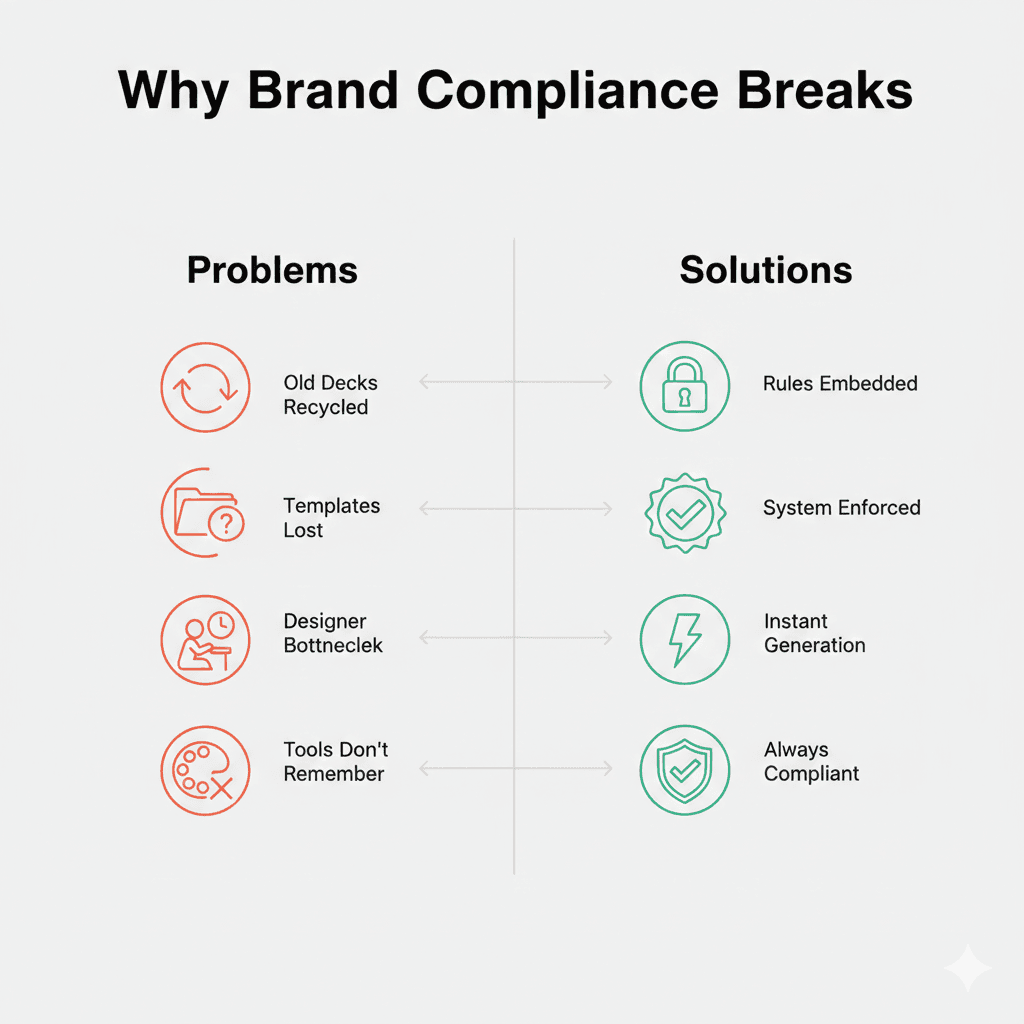
Teams use old decks as starting points. Someone finds last quarter’s presentation, changes a few slides, and accidentally preserves outdated branding or messaging.
Templates aren’t enforced (or are too hard to find). The “official” template lives in a shared drive somewhere. Most people can’t find it, so they start from scratch or use whatever’s handy.
Designers become bottlenecks, so people go DIY. When the design team reviews every deck, turnaround takes days. Frustrated employees bypass the process entirely.
Tools don’t “remember” your brand unless configured. PowerPoint and Google Slides won’t stop you from using Comic Sans or hot pink. They’re flexible by design, which means zero enforcement.
The more decks your team makes, the faster brand integrity unravels unless it’s automated. Manual oversight doesn’t scale. Reviews slow down teams. And trust? It disappears when clients see mismatched logos and jumbled tone.
What “Automatic Brand Compliance” Really Means
This isn’t about locking everything down so tightly that creativity dies. It’s about building a system where every presentation, by default, follows the rules, even when made by non-designers.
Here’s what automation should mean in practice:
Your brand assets are embedded. Fonts, colors, logos are pre-loaded and locked in. No one can accidentally use the wrong shade of blue.
Templates are smart. Structure and layout enforce brand logic. Users can change content, but the design stays consistent.
AI knows your voice. Slide text matches your tone automatically. No more generic corporate speak when your brand is conversational.
No human policing required. The system does the enforcement. Designers don’t review every deck. Managers don’t check fonts.
This doesn’t just apply to design. It includes tone, structure, and access control too.
The Three Core Systems That Make Brand Compliance Possible
There are three foundational pillars that, when combined, create a self-enforcing brand system for presentations:
1. Branded Templates (Locked & Structured)
How it works:
Prebuilt slide formats for common use cases
Titles, bullet styles, image placement all pre-defined
Editable content, but non-editable styling
Why it matters: Templates remove guesswork. Even if a sales rep changes content, the layout stays clean and on-brand.
Best for: Teams with simple, stable brand guidelines and predictable presentation needs.
2. Brand Kits & Style Settings
How it works:
Define your visual DNA once (colors, fonts, logos)
Applied across every new deck automatically
Some tools allow multiple brand kits for agencies or sub-brands
Why it matters: Instead of training every employee, the system applies the brand for them.
Best for: Teams that need flexibility without sacrificing consistency. Agencies, sales teams, marketing departments creating lots of varied presentations.
3. AI-Powered Generation with Brand Rules
How it works:
Slides are created based on prompts or inputs
The AI respects brand kits and layout logic
Tone, structure, and visuals align by default
Why it matters: Speed meets consistency. Even non-designers can generate decks in seconds.
Best for: Teams creating high volumes of presentations quickly while maintaining strict brand standards.
Together, these systems mean your brand travels with the user, not just lives in a PDF guide.
How Decktopus Automates Brand Control
Decktopus Nano is designed from the ground up to make brand compliance automatic, not optional.
Unlike generic AI tools that treat branding as an afterthought, Decktopus bakes your visual identity into every step of slide creation. The result? On-brand decks, every time. No design background required.
Key Automation Features in Decktopus:
Brand Kit System
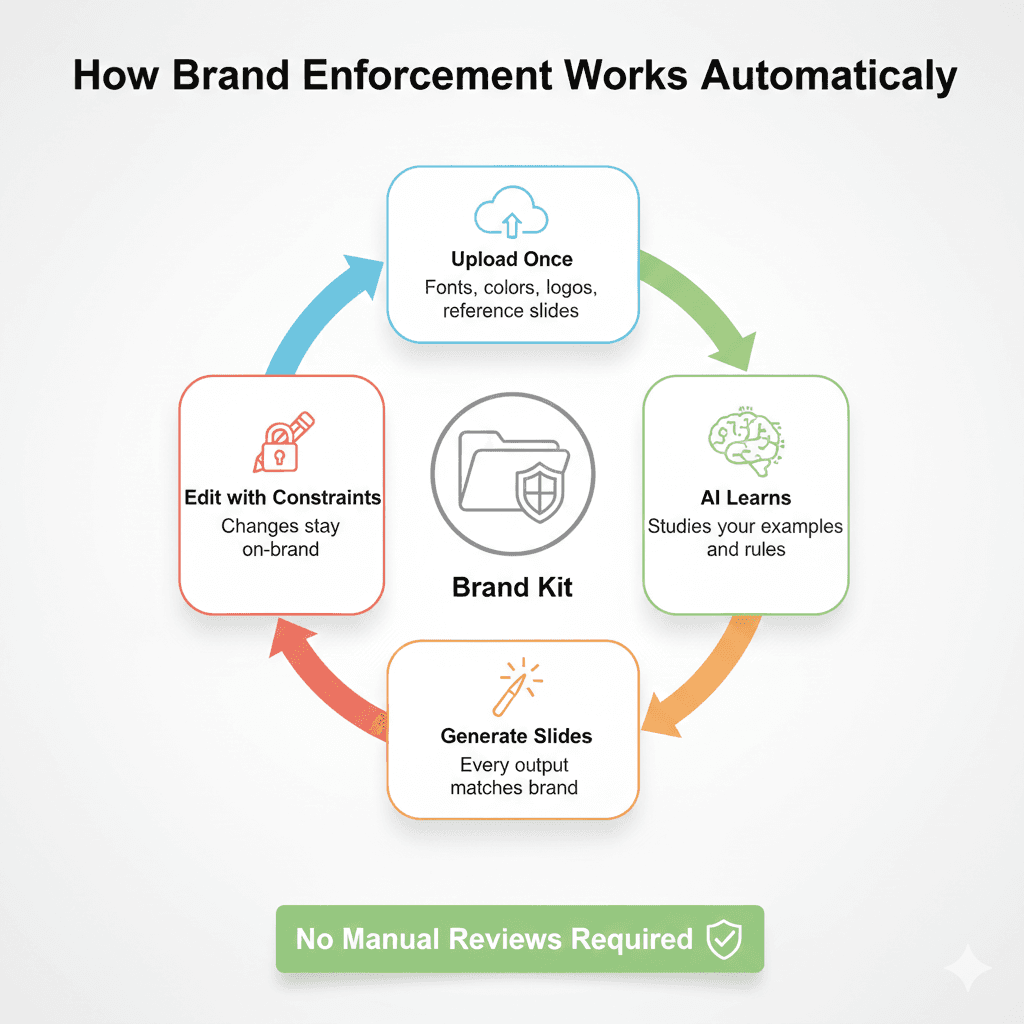
Upload brand cards (PNG visual representation for AI prompts)
Add reference slides by type (title, content, chart, quote, team, closing)
Store brand assets (logos, backgrounds, icons)
AI automatically uses these references when generating slides
When you select your brand style during generation, every slide follows your brand rules by default. There’s no separate compliance check because the AI only generates on-brand slides from the start.
AI Auto-Classification When you upload large presentations (100+ slides), AI automatically groups slides into categories. You review and confirm, creating a complete brand reference library in minutes instead of hours.
Prompt-Based Editing with Brand Constraints Edit slides using natural language prompts like “Make title bigger” or “Change to blue” while the AI maintains brand compliance. Every edit respects your brand kit automatically.
Version History & Recovery
Unlimited version history for every slide
Restore any past version for free (no regeneration cost)
Version history follows the slide, not its position
All versions maintain brand compliance
Slide Library for Reuse Three tabs organize your slides:
Starred/Favorites: Slides you explicitly saved
Past Presentations: Your complete presentation history
Organization: Admin-uploaded slides for team-wide use
Save branded slides to your library and reuse them across presentations. Insert saved slides as fresh versions while maintaining brand consistency.
Multi-Brand Support Switch between different brand kits for agencies or companies with sub-brands. Each brand kit is completely separate, preventing cross-contamination of logos, colors, or fonts.
Archive System
No direct delete. Slides move to Archive first
Archived slides remain recoverable
Version history preserved while in Archive
Must manually delete from Archive for permanent removal
Who Is Decktopus Best For?
Marketing teams who need speed and brand safety
Sales organizations that want reps to self-serve slide decks
Agencies juggling multiple clients or sub-brands
Brand managers tired of fixing rogue presentations
Decktopus makes it impossible for teams to go off-brand, even when they try. For more on building brand-compliant team systems, see How to Build a Team Presentation System with AI.
Who Owns Brand Enforcement (vs Slide Creation)?
To automate brand compliance, you don’t just need the right tool. You need the right team setup.
Think of it as two roles:
Brand Guardians
Usually Marketing or Creative Ops
Responsible for:
Setting up the brand kit (fonts, logos, colors)
Creating and approving reference slides
Defining tone and messaging standards
Managing the brand asset library
Content Creators
Often Sales, Customer Success, Product, or HR
Responsible for:
Populating slides with up-to-date info
Personalizing decks for specific audiences
Staying within the boundaries of branded layouts
When brand guardians build the system, content creators stay on-brand without even thinking about it.
How to Actually Build Automated Brand Compliance (Step by Step)
Ready to set up your system? Here’s the roadmap.
Step 1: Document Your Brand Rules (The Right Way)
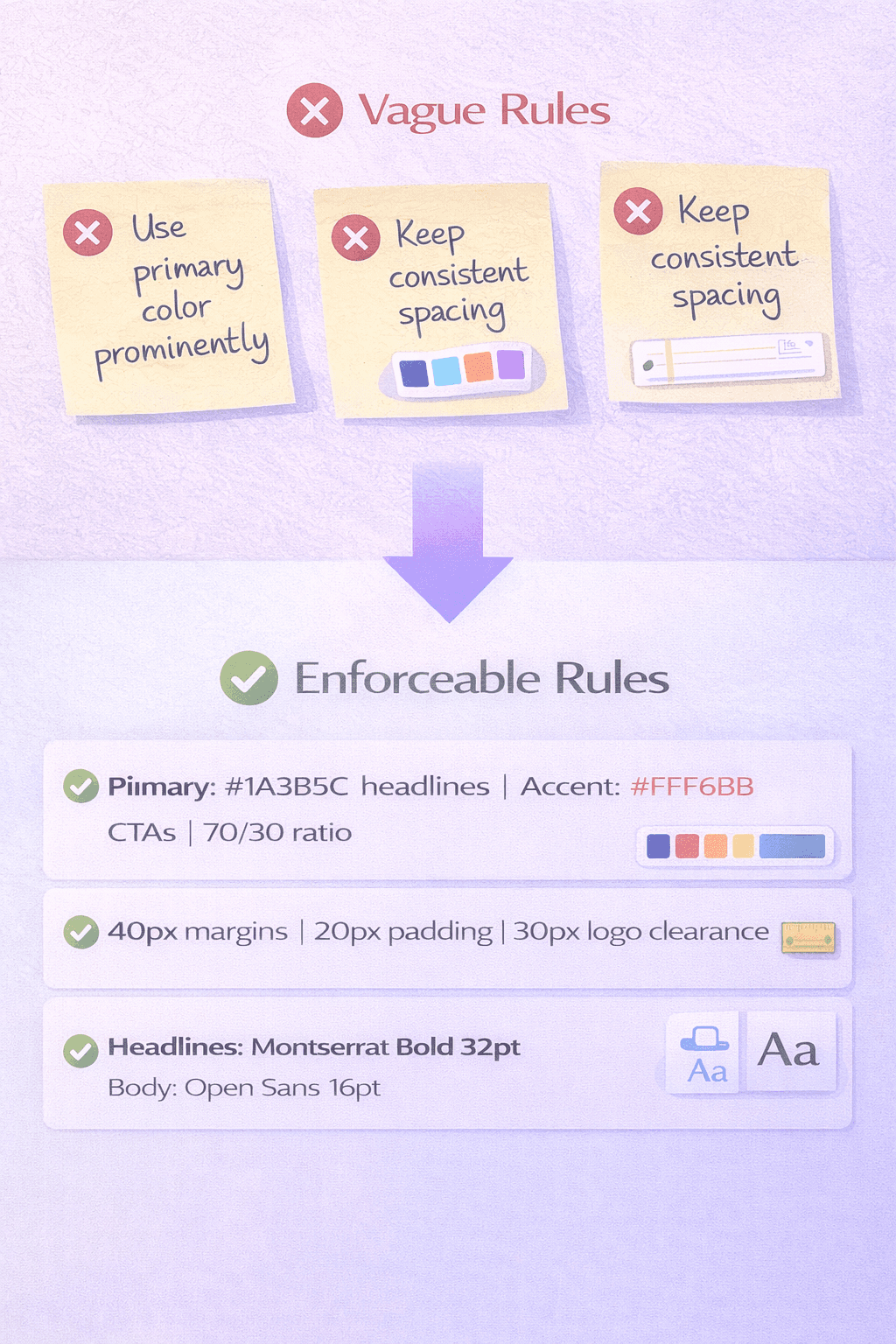
Don’t just copy your existing brand guidelines. Translate them into enforceable rules.
Instead of: “Use our primary color prominently” Write: “Primary color (Navy #1A3B5C) for headlines and key elements. Accent color (Coral #FF6B6B) for CTAs and highlights only. Use 70/30 ratio.”
Instead of: “Maintain consistent spacing” Write: “Minimum 40px margins on all slides. 20px padding around text blocks. Logos need 30px clearance on all sides.”
Instead of: “Use approved fonts” Write: “Headlines: Montserrat Bold, 32pt. Subheads: Montserrat Semibold, 24pt. Body: Open Sans Regular, 16pt.”
The clearer your rules, the better the automation.
Step 2: Upload Your Complete Brand Kit
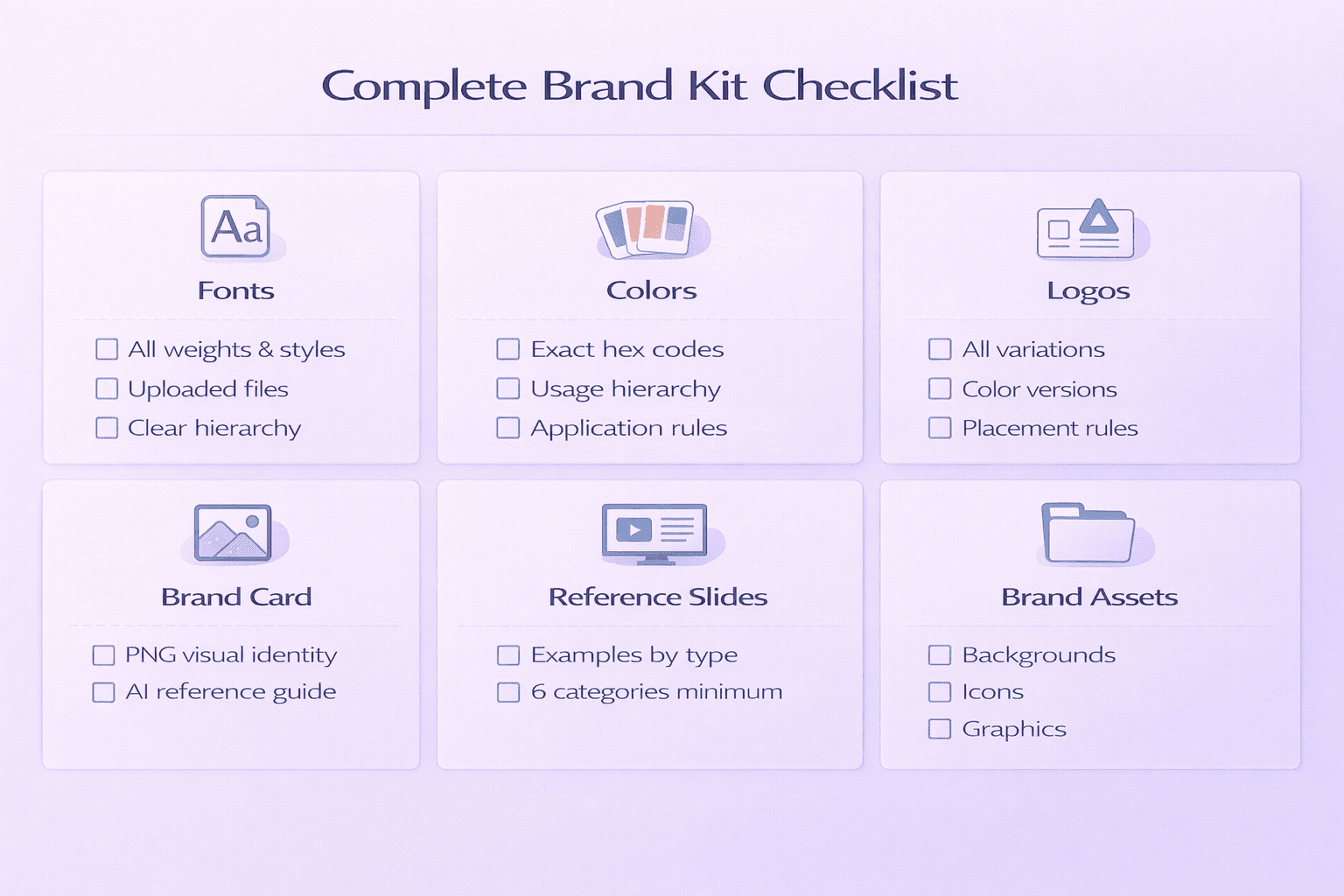
Don’t just upload a logo and call it done. A complete brand kit includes:
Fonts:
All weights and styles you use
Uploaded files (not just names) if using custom fonts
Clear hierarchy (headline, subhead, body, captions)
Colors:
Exact hex codes for all brand colors
Hierarchy (primary, secondary, accent, neutral)
Usage rules (backgrounds, text, highlights)
Logos:
All variations (full logo, icon, wordmark)
Color versions (full color, white, black)
Size and placement rules
Brand Card:
PNG visual representation showing your complete brand identity
Used by AI as a reference for all generations
Reference Slides:
Title slide examples
Content slide examples
Chart/data slide examples
Quote slide examples
Team/bio slide examples
Closing slide examples
Most teams upload 30% of this and wonder why their slides don’t look right.
In Decktopus Nano, you can upload an existing branded presentation (even 100+ slides), and the AI will automatically categorize slides by type. You review and confirm, creating a complete reference library in minutes.
Step 3: Set Defaults (So Rules Apply Automatically)
Configure your platform so new presentations start with your brand applied:
Default brand style: When generating presentations, select your brand kit instead of pre-defined styles
Reference slides: AI uses your uploaded examples to match layout and visual style
Brand assets: Logos, backgrounds, and icons automatically available in the asset panel
Color palette: Only your brand colors appear in editing options
This is the difference between “brand settings you can use” and “brand rules that enforce themselves.”
Step 4: Create Reference Slides by Type
Build a library of approved slide layouts for common scenarios:
Title/cover slides
Content slides (bullets, paragraphs)
Data/chart slides
Quote/testimonial slides
Team introduction slides
Closing/CTA slides
The AI uses these references when generating new slides, ensuring every output matches your approved style. Reference slides guide AI generation but cannot be inserted directly as slides.
Step 5: Test With Real Users (Not Designers)
Have non-designers create a few presentations. Then check:
Do all decks look consistently branded?
Can users create custom layouts without breaking guidelines?
Does the AI respect brand colors and fonts in all generations?
Does the output match your brand guidelines without manual review?
If designers love it but everyone else struggles, your system is too complex. If everyone can use it but the output looks off-brand, your reference slides need refinement.
Step 6: Create Documentation (The Useful Kind)
Don’t write a 40-page manual. Create a one-page quick-start guide:
Where to find brand settings
How to start a new presentation with your brand
How to use prompt-based editing
How to access the slide library
Who to ask if something’s broken
Then record a 3-minute video showing someone creating a deck. That’s all most people need.
Checklist: How to Build an Auto-Compliant Slide System
Here’s your complete roadmap to automate brand compliance from day one:
Phase 1: Gather Your Assets
- Collect logos (transparent + dark/light versions)
- Document fonts (licensed, with all weights)
- Define hex codes and color usage rules
- Create brand card (PNG showing complete visual identity)
- Compile brand voice examples and tone preferences
Phase 2: Set Up Your Tool
- Choose a platform like Decktopus Nano
- Upload your complete brand kit
- Add reference slides for each slide type (title, content, chart, quote, team, closing)
- Upload brand assets (logos, backgrounds, icons)
Phase 3: Define Brand Voice
- Provide prompt examples and tone preferences
- Add “do and don’t” phrasing samples
- Test AI-generated content for voice consistency
Phase 4: Test and Validate
- Let non-designers create a test deck
- Review for visual and verbal consistency
- Test prompt-based editing with brand constraints
- Verify version history and restore functionality
- Adjust reference slides based on feedback
Phase 5: Launch and Maintain
- Train teams on brand kit selection during generation
- Show users how to access slide library
- Set up organization-wide slides for teams
- Update brand kits as your identity evolves
- Audit decks quarterly for consistency
Common Automation Mistakes (And How to Avoid Them)
Even with a great tool like Decktopus, automation can break down if teams misuse or misunderstand the system.
Mistake 1: Incomplete brand kits
The problem: Uploading only a logo without reference slides, fonts, or brand card.
The fix: Upload complete brand kits including reference slides for every slide type you use. The AI needs examples to match your style.
Mistake 2: Skipping reference slides
The problem: Expecting the AI to guess your layout preferences without examples.
The fix: Provide reference slides for title, content, chart, quote, team, and closing slides. These guide all future generations.
Mistake 3: Not using AI auto-classification
The problem: Manually sorting 100+ slides into categories.
The fix: Upload your existing branded presentation and let AI automatically group slides. Review and confirm to save hours.
Mistake 4: Forgetting to select brand style
The problem: Generating with pre-defined styles (Minimal Light, Bold Colorful) instead of your brand.
The fix: Always select your brand kit during the style selection step. Pre-defined styles are for users without brand kits.
Mistake 5: One brand kit for multiple sub-brands
The problem: Forcing all teams or clients into a single brand identity.
The fix: Create separate brand kits for each sub-brand or client. Switch between them before generating.
Mistake 6: Not leveraging slide library
The problem: Recreating the same slides repeatedly instead of reusing.
The fix: Star your best slides and reuse them from the slide library. Insert as fresh slides with new version history.
Mistake 7: Assuming one setup works forever
The problem: Brand guidelines change but your reference slides don’t.
The fix: Update your brand kit when guidelines evolve. Version your brand kits if you need to maintain old and new simultaneously.
What to Do When Brand Guidelines Change
Guidelines evolve. Logos get refreshed, colors are updated, fonts change. Here’s how to handle updates without breaking existing presentations:
Update the brand kit in one place. Change your reference slides, logos, colors, and fonts. All future presentations use the new guidelines automatically.
Version your brand kits. Create “Brand 2024” and “Brand 2025” as separate kits. Existing decks use the old version, new decks use the new version. No forced updates.
Communicate changes clearly. Tell your team what changed and when the new rules take effect. Update your quick-start guide.
Don’t retroactively fix old decks. Unless legally required, leave old presentations alone. Focus on making new presentations correct.
The goal is continuity, not perfection. Small inconsistencies between old and new decks are normal when guidelines evolve.
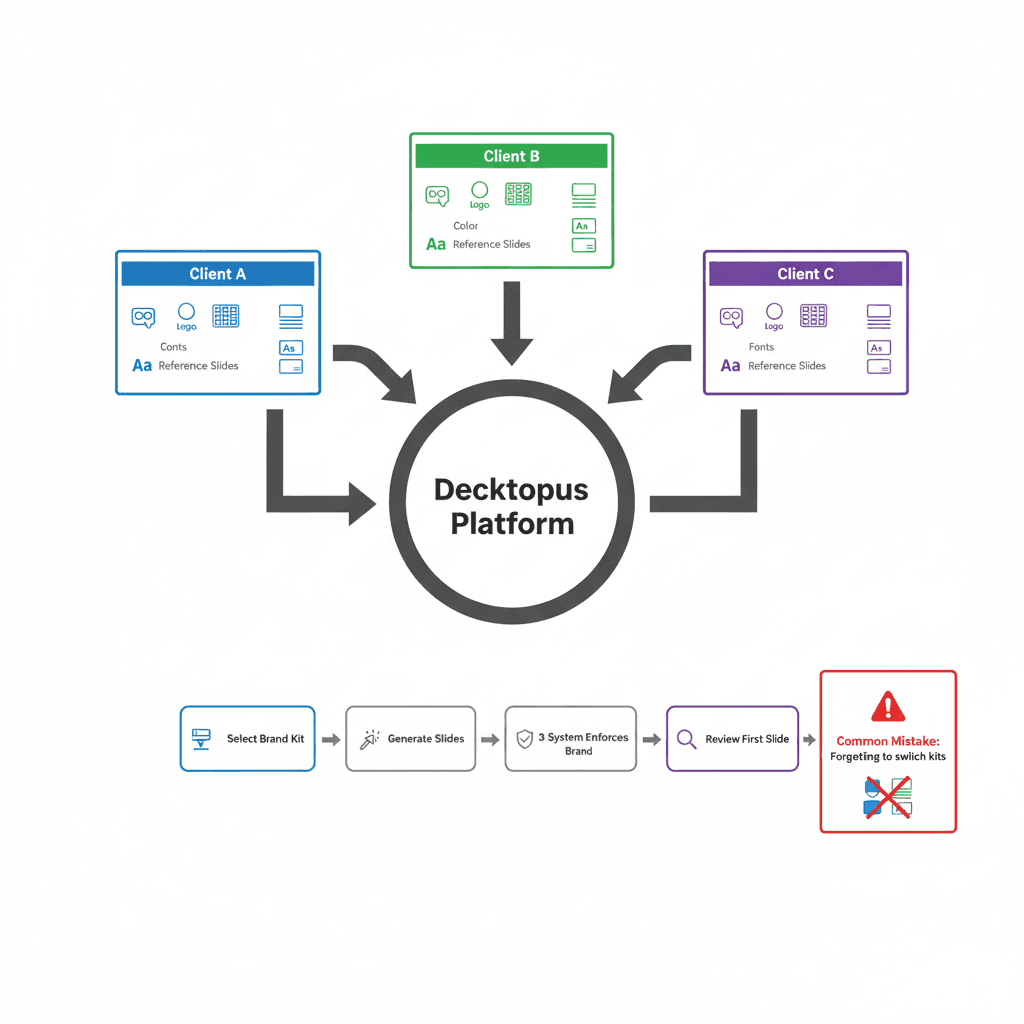
How Agencies Handle Multiple Client Brands
If you work with multiple clients, automation gets more complex. You need brand separation, not just brand consistency.
Create separate brand kits for each client. Each client gets their own complete kit with reference slides, logos, colors, and fonts.
Use clear naming conventions. “ClientName_2025” is better than “Client 1.” In the future you will thank the present you.
Switch brand kits before starting work. During generation, select the correct client’s brand kit in the style selection step. This prevents mixing client assets.
Review the first slide of every deck. Quick visual check: Does the logo, color, and font match the client? If yes, the rest of the deck follows the same rules.
Use organization slides for team-wide assets. Admins can upload client-approved slides to the organization tab. Teams access them without admin bottlenecks.
Real-World Use Cases: Automation in Action
Automation isn’t theory. Here’s how real teams use brand-compliant presentation systems to scale without slipping.
Sales Teams
Challenge: Sales reps often create or modify decks under pressure, leading to mismatched branding, tone, or outdated messaging.
Solution: Decktopus Nano gives each rep access to branded slide generation. Select the company brand kit, generate slides from prompts, and every deck stays visually aligned and tonally consistent.
Results:
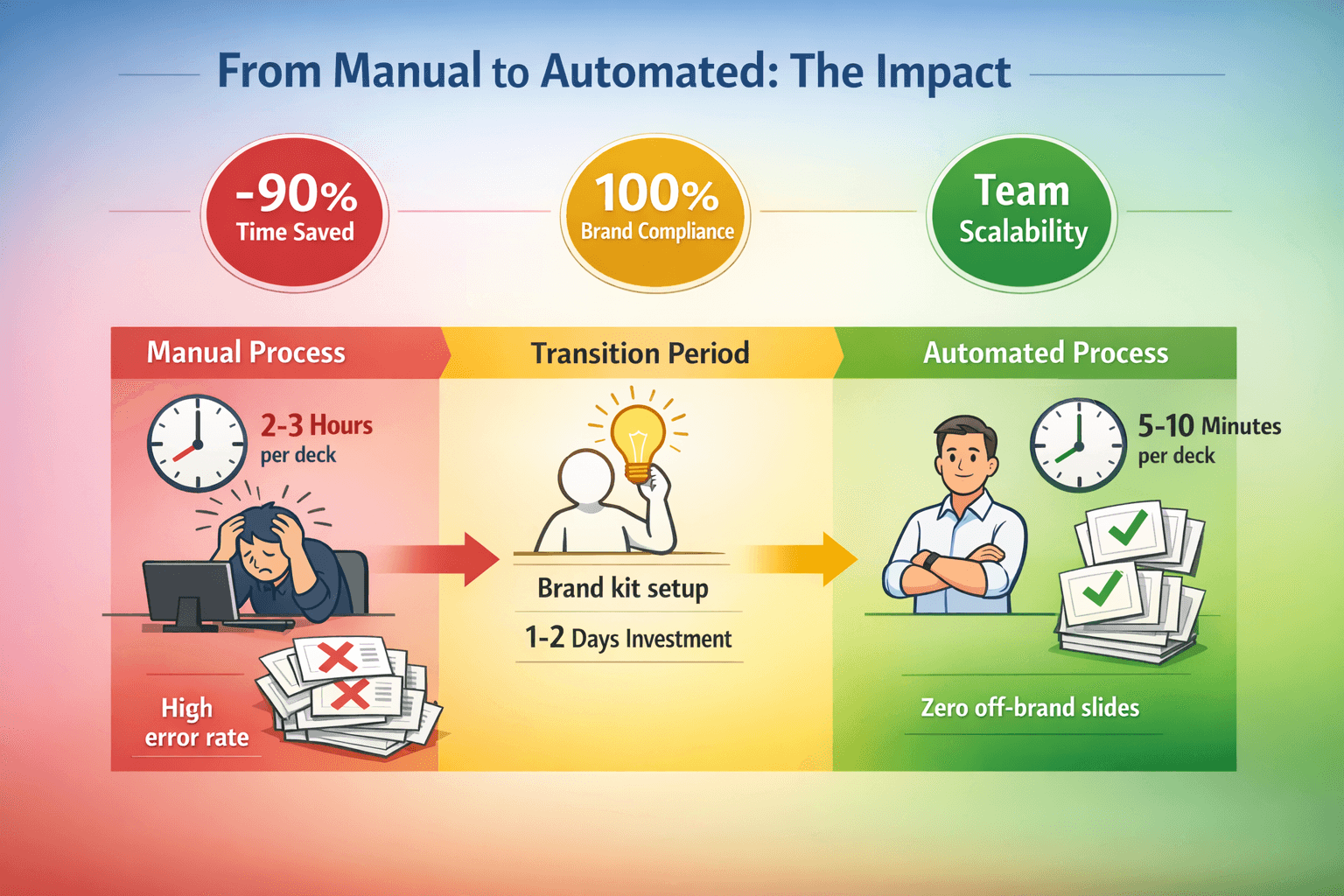
Deck creation takes minutes instead of hours
Zero off-brand slides reaching prospects
Sales team focuses on selling, not design
Version history lets reps iterate quickly
One sales team cut deck approval time by 90% after switching to automated brand enforcement. For high-stakes decks like pitch presentations, teams still review messaging and flow. But the visual brand consistency is already handled.
Marketing & Enablement
Challenge: The design team becomes a bottleneck, fielding constant template or deck requests from other departments.
Solution: Marketing sets up brand kits with reference slides once. Other teams generate their own decks by selecting the brand kit during generation. No waiting on creative.
Results:
Design team freed from routine requests
Faster turnaround for all departments
Consistent brand across all materials
Slide library enables reuse of best slides
One marketing team empowered 50+ employees to self-serve branded decks, letting their design team focus on campaigns instead of fixing fonts.
Agencies with Multiple Clients
Challenge: Managing multiple brand identities leads to errors. Logos mixed up, wrong colors, confused messaging.
Solution: Create separate brand kits for each client in Decktopus Nano. Switch between clients by selecting the correct brand kit during generation. Each kit is completely isolated.
Results:
Zero cross-contamination between client brands
Faster project turnaround
Increased client trust and satisfaction
Easy onboarding of new clients (just add their brand kit)
One agency now sees only the correct client brand for every project, never accidentally reusing another client’s layout. Read about how agencies use Decktopus to create pre and post-meeting presentations in 5 minutes while maintaining perfect brand standards.
From Chaos to Brand-Controlled Scale
You don’t have to choose between creativity and consistency.
With tools like Decktopus Nano and a system that includes brand kits, reference slides, and automated enforcement, you can scale brand compliance across your entire organization.
Designers get fewer “can you check this deck?” requests. They focus on strategic work, not fixing fonts.
Reps get decks they’re proud to present. No more embarrassment over off-brand slides.
Leaders know the brand stays intact. No matter who’s building slides, the output is consistent.
When brand enforcement is built into the workflow, everyone wins.
For the broader context of how AI presentation tools handle branding, including what separates basic brand features from true brand enforcement, review tool comparisons that prioritize compliance over just customization.
Tools and Resources for Automated Brand Compliance
If you’re evaluating platforms for automated brand enforcement:
Decktopus: AI-powered presentation platform with brand kit systems and reference slide libraries. Learn how to create AI-powered presentations with full brand control.
Template libraries: For recurring presentation types (sales decks, client reports, team updates), use the slide library to save and reuse your best branded slides.
See why AI changes fonts and colors and how to stop AI from messing up branding for troubleshooting common issues.
The Bottom Line: Systems Over Willpower
Presentations follow brand guidelines automatically when the system enforces the rules, not when people promise to follow them.
Templates work if your needs are predictable. Brand kits with reference slides work if you need flexibility with consistency. Developer-level systems work if you have the resources and volume to justify them.
But the specific tool matters less than the approach: define clear rules, embed them in your process, and make the default option the correct option.
If your current system requires constant design review, manual brand checks, or hoping people remember the guidelines, it’s not a system. It’s a prayer. Build something better.
When automation is the default and compliance happens automatically, your team creates content while the system handles brand enforcement.
FAQ: Brand Compliance in Presentations
What’s the fastest way to enforce brand compliance in slides?
Use a tool like Decktopus Nano with brand kits and reference slides. Upload your complete brand identity once, then select your brand kit when generating presentations. The AI automatically applies your fonts, colors, layouts, and style. No manual reviews needed.
Can AI really follow brand guidelines automatically?
Yes, if your brand assets (fonts, colors, logos) and reference slides are embedded in the system. Tools like Decktopus Nano use your uploaded reference slides to guide all generations, ensuring every output matches your approved style by default.
Do I need a designer to use these tools?
No. The whole point is that non-designers can generate polished, branded decks without risking off-brand visuals. Brand guardians set up the system once (brand kit, reference slides). Content creators generate presentations by selecting the brand and using prompts.
What if we have multiple brands or sub-teams?
Use a tool that supports multiple brand kits. Decktopus Nano lets you create separate brand kits for each client or sub-brand, then switch between them during generation. Each kit stays completely isolated, preventing cross-contamination.
How do reference slides work?
Reference slides are examples you upload for each slide type (title, content, chart, quote, team, closing). The AI studies these examples and generates new slides that match their style, layout, and visual treatment. Reference slides guide generation but cannot be inserted directly.
What happens when brand guidelines change?
Update your brand kit with new reference slides, logos, colors, and fonts. Future presentations automatically use the updated guidelines. You can also version your brand kits, keeping both old and new versions active for different projects.
How does version history help with brand compliance?
Every slide has an unlimited version history. If an edit breaks your brand (wrong color, bad layout), restore any previous version for free. No regeneration cost, just instant recovery. This safety net encourages experimentation without brand risk.
Can we reuse branded slides across presentations?
Yes. Use the slide library to start your best slides. Starred slides can be inserted into new presentations as fresh slides with new version history. You can also access past presentations and organization-wide slides through the library.
How often should brand kits be reviewed?
Review quarterly or after any brand update. Regular audits ensure your reference slides match current guidelines. Update your brand kit immediately when logos, colors, or fonts change to keep all future presentations aligned.
What if AI generates something slightly off-brand?
Use prompt-based editing to adjust. Type “Make title bigger” or “Change to blue” and the AI regenerates while respecting brand constraints. All edits maintain brand compliance. If multiple attempts don’t work, check that your reference slides clearly show the desired style.
Related posts

How to Improve Communication Skills at Work (2026 Practical Guide)
The 5 workplace communication skills that matter most, the CLEAR framework, and the AI practice method that turns weak communicators into strong ones.
Business & Strategy

Job Interview Sample Questions: How to Practice Your Answers (2026)
The 20 most common interview questions, the STAR framework for answers, and the AI practice method that turns rehearsed responses into confident ones.
Business & Strategy

How to Negotiate a Raise: The Script, Practice Method & Tips That Actually Work
A step-by-step script for negotiating a raise, common mistakes to avoid, and the AI practice method that turns a nervous ask into a confident one.
Business & Strategy