Pitch Deck
Thank You Slide: Why Most Are Wasted (And What to Use Instead)
Stop ending with "Thank You." Discover 5 better closing slide alternatives that drive action, plus real examples from pitch decks and sales presentations.


Decktopus Content Team
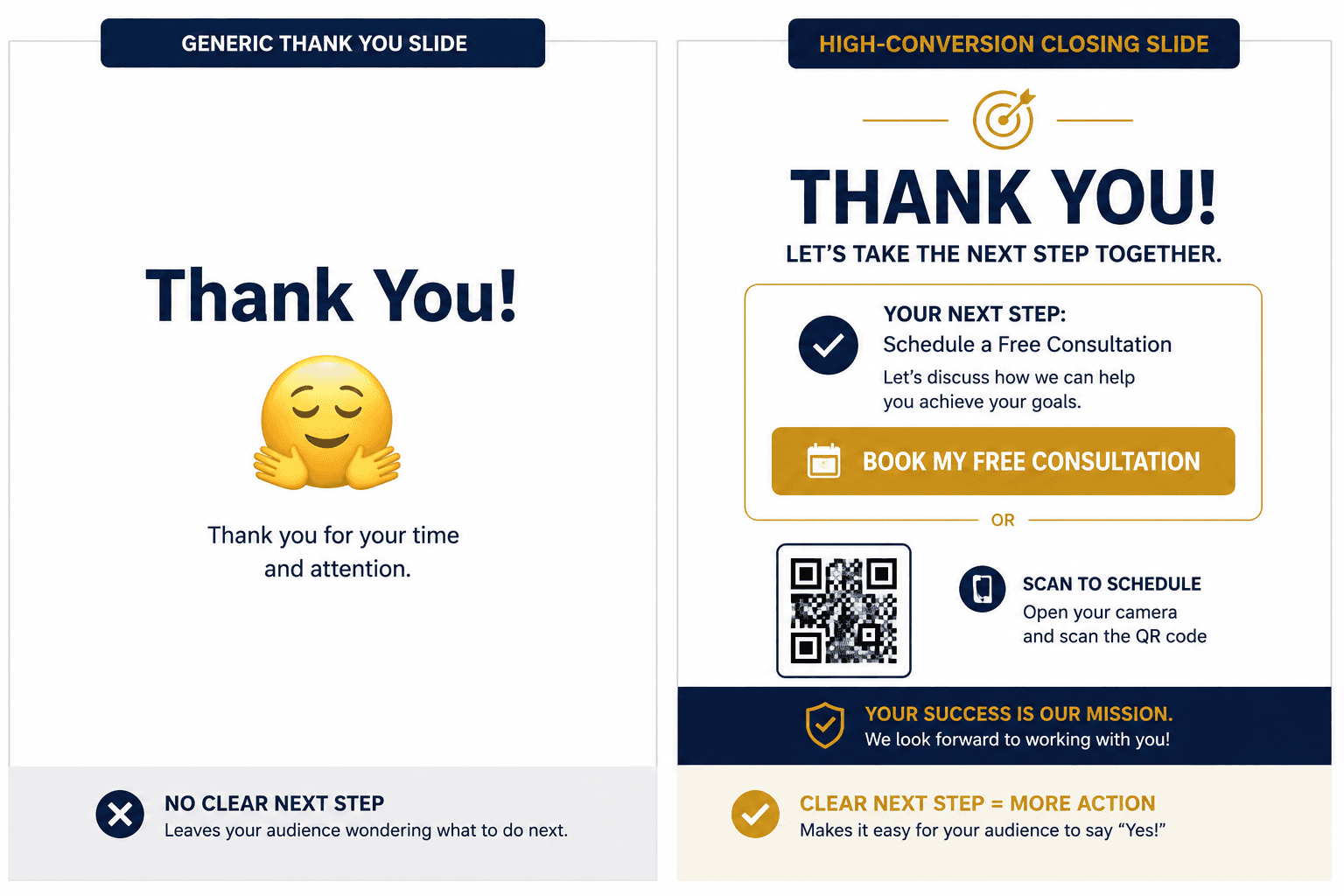
Most presenters end their deck with “Thank You!” in 100-point font.
It’s the most wasted slide in any presentation.
After 20 to 40 slides of work, the presenter has finally earned the audience’s full attention. Eyes are up. Phones are down. The room is leaning in. And the presenter uses that moment to… wave goodbye.
A “thank you” slide isn’t wrong. It’s just inefficient. The final slide is the single most attention-rich moment in your entire presentation. Every great presenter uses it for something other than a polite sign-off.
This guide shows you what to use instead. With named mistakes, real examples, and a structure you can apply to your next deck this week.
You’ll get:
Why “Thank You” slides quietly destroy presentations
5 better alternatives that drive action
Real examples from pitch decks, sales presentations, and conference talks
Named mistakes that ruin the closing moment
How to design the final slide so it actually closes the deal
What Is a Thank You Slide?
A thank you slide is the final slide in a presentation, traditionally displaying a polite sign-off message.
It usually says “Thank You!” or “Thank You for Listening.” Sometimes it includes the presenter’s name, email, or social handles.
It’s the default closing slide for most presentations. Most templates ship with one built in. Most presenters use it without thinking.
That’s the problem.
A thank you slide is a habit, not a strategy. And in presentations, habits are where opportunities go to die.
For a deeper look at why presentation endings matter, see our guide on how to end a presentation with impact. It walks through what separates a strong close from a forgettable one.
Why Most Thank You Slides Fail
The failure isn’t that the slide is rude. It’s that the slide does nothing.
Here’s what’s happening in the room when your final slide appears:
The audience is at peak attention. They know the presentation is ending. They’re alert and looking for what comes next.
Decision-makers are forming their first impression of what to do with what they just heard.
The Q&A is about to start, and the slide on screen will sit there for 10 to 20 minutes.
This is the only moment in your entire presentation where you have undivided focus on a single visual.
You’re using that moment to say “Thank You.”
Imagine spending an hour walking a prospect through your offer, getting them genuinely excited, and then closing the meeting by saying “thanks for your time” instead of asking for the next step.
That’s what a thank you slide does at scale.
If you want to understand the broader pattern of weak presentation habits, our breakdown of what makes for a good presentation covers the principles most decks miss.
What the Final Slide Should Actually Do
The last slide is the conversion slide.
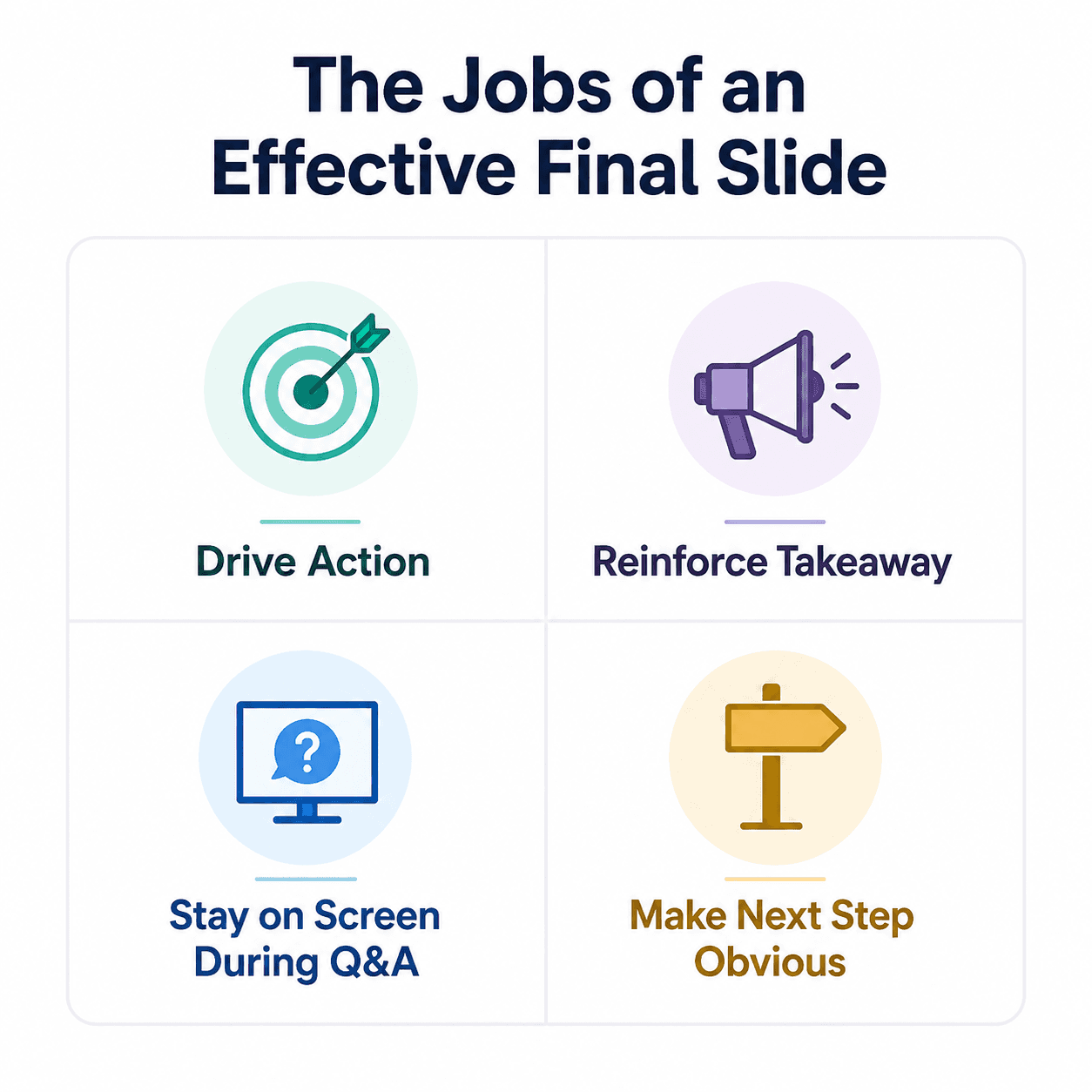
It should accomplish at least one of these jobs:
Drive a specific action. Schedule a call. Sign a document. Visit a URL. Make a decision.
Reinforce the single most important takeaway. What’s the one thing the audience should remember?
Stay on screen during Q&A. This is critical. The final slide is a 15-minute billboard during questions. Use that space.
Make the next step obvious. Don’t leave the audience guessing what to do. Most presenters skip designing a strong closing slide because it feels like extra work at the end of a long project, which is exactly why Decktopus generates a high-conversion closing slide automatically as part of every AI-built deck.
Most thank you slides do none of these. The good news is that you can fix this in 30 seconds. Just decide what you want the audience to do, and put that on the final slide.
5 Strong Alternatives to “Thank You”
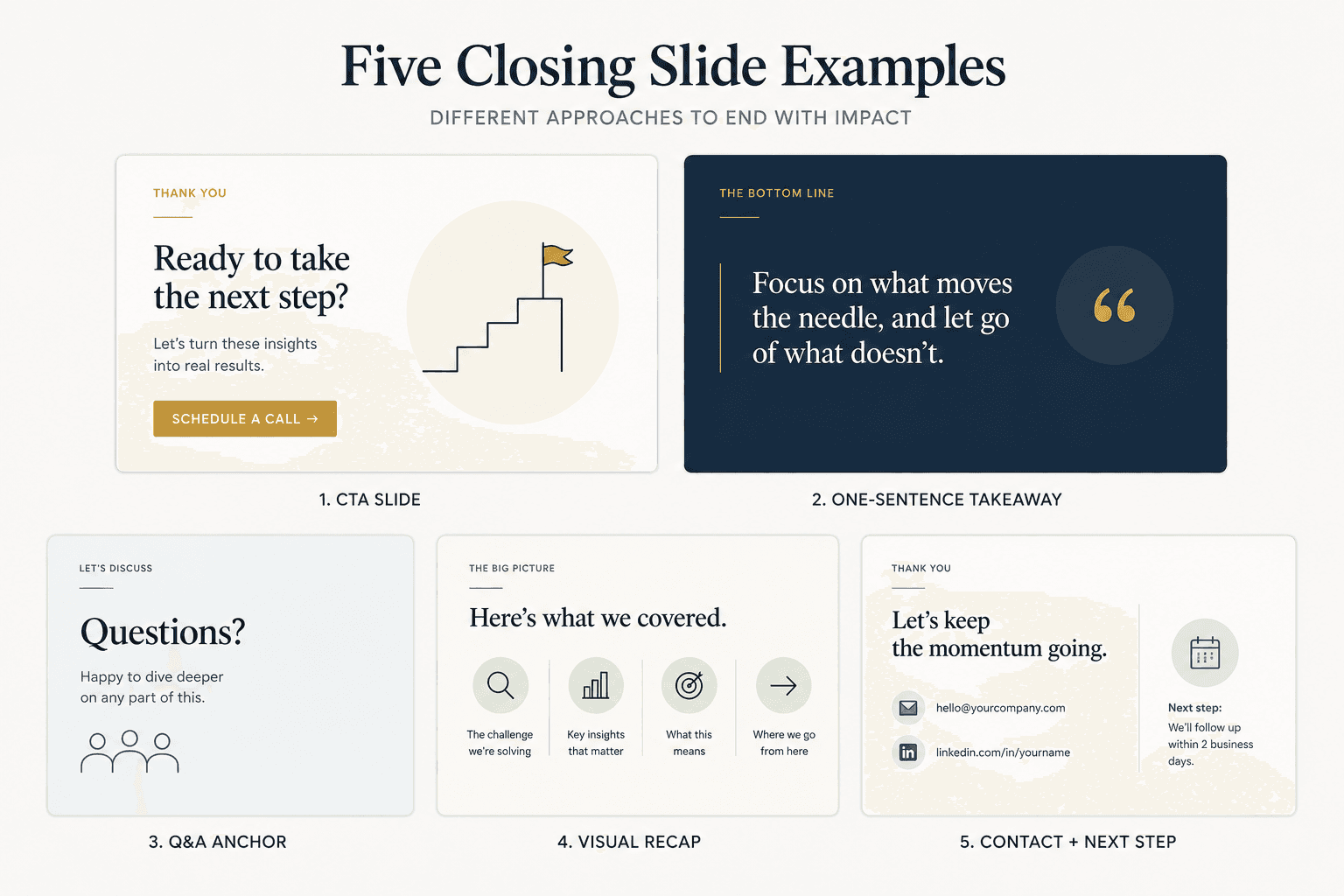
Here are five better options for your closing slide. Each one is built around a specific goal.
1. The Call to Action Slide
Best for: Sales presentations, pitch decks, partnership proposals.
The slide displays a single, specific next step. Not “let’s chat.” Something concrete.
Examples:
“Schedule your demo: calendar.com/yourname”
“Sign the proposal: docusign.com/link”
“Start your free trial: app.decktopus.com/sign-up”
The action should be one click away. Make it impossible to misunderstand what comes next.
Pro tip: Add a QR code so audience members can take action instantly from their phone. A strong CTA slide needs a clean visual, a bold action, and your brand applied without effort, which is why Decktopus lets you generate the final slide, apply your logo and colors from your website URL, and add a QR code with one prompt.
2. The One-Sentence Takeaway Slide
Best for: Conference talks, keynote addresses, educational presentations.
The slide displays one sentence summarizing your entire argument. Nothing else.
Examples:
“Feature parity is fast. Positioning advantages last.”
“Most companies don’t fail at execution. They fail at deciding what not to do.”
“AI doesn’t replace strategy. It accelerates whatever strategy you already have.”
This works because the audience will quote the sentence in conversations later. You’re building the soundbite into the slide.
3. The Q&A Anchor Slide
Best for: Internal team presentations, decision-making meetings, investor pitches.
The slide displays the key question, decision, or recommendation that should anchor the discussion.
Examples:
“Approve the $2.4M pilot program for Q1 2026”
“Pick one of three pricing models by next Friday”
“Decision: Expand to EMEA in 2026 or hold steady?”
During Q&A, the audience keeps seeing the actual question they need to address. It refocuses every tangent.
4. The Visual Recap Slide
Best for: Long presentations (30+ slides), training sessions, complex strategy decks.
The slide displays a clean visual summary of the entire argument: the problem, the approach, the proof, the ask.
This works because the audience has been absorbing pieces for 40 minutes. The final slide stitches them together into one image they can take a photo of.
For visualizing recap data, tools that generate clean bar charts or pie charts help the recap land in seconds.
5. The Contact + Next Step Slide
Best for: Networking-heavy contexts, conference talks, keynotes where multiple audience members may follow up individually.
The slide displays your contact information alongside a specific next step or resource.
Examples:
“Want the full report? Email me at [email] or visit [URL]”
“Connect on LinkedIn: [handle]. Book a 15-min call: [URL]”
This works when there isn’t one universal action, but you still want the audience to take some next step.
Real Examples of Final Slides That Work
Pitch Deck Example: The Ask
The strongest pitch decks end with a slide that says exactly what the founder is raising, what it will be used for, and who to contact.
Example structure:
“Raising $5M Series A18-month runwayHiring engineering, expanding to EMEAContact: founder@company.com“
Why it works: No ambiguity. Investors leaving the room know exactly what’s being asked and who to email.
For more examples from real companies, see our breakdown of pitch deck examples.
Sales Presentation Example: The Two-Option Close
Strong sales decks end with two options, not three. Three creates analysis paralysis. Two creates a decision.
Example structure:
“Two ways forward:Option 1: 30-day pilot, $15KOption 2: 12-month deployment, $144KWhich one fits your timeline?”
Why it works: Forces the prospect to compare options, not whether to engage. The decision has been narrowed to a smaller question.
For more on framing sales asks, see our sales pitch guide and our breakdown on how to sell an idea effectively.
Conference Talk Example: The Reframe
The best conference talks end by repeating the new mental model they introduced.
Example structure:
“What if your strongest competitor isn’t another company?It’s the customer’s status quo.Compete with inertia, not with features.”
Why it works: The audience walks away with a phrase they can repeat. Each repetition is free distribution for the speaker’s ideas.
5 Named Mistakes That Wreck Closing Slides
1. The Generic Thank You
The default. The unconscious choice. The one that wastes the most attention. If you can replace your final slide with literally any action and the presentation improves, your current slide isn’t earning its space.
2. The Wall of Contact Info
Email, phone, LinkedIn, Twitter, Instagram, website, calendar link, mailing address. The audience won’t write down any of it. Pick the one channel you actually want them to use and make it impossible to miss.
3. The Apology Close
“Sorry I went over time” or “Sorry for the dense slides.” The audience didn’t notice until you mentioned it. Apologies on the final slide undercut everything you just argued.
4. The Buried CTA
The action is there, but it’s small text in the corner. If a viewer 30 feet from the screen can’t read your call to action in two seconds, it’s too small. Make it the largest thing on the slide.
5. The Multi-Action Mess
Three different links, two different QR codes, four different next steps. The audience picks none of them. One slide. One action. Make the choice for them.
How to Design Your Closing Slide
Strong closing slides share four design principles:
1. One thing dominates the visual. A headline, a question, a URL, a number. Whatever your action is, it should be the first thing the eye lands on.
2. White space is generous. Don’t crowd the slide. The audience has been absorbing dense information for an hour. The final slide should feel like a deep breath.
3. Color matches the energy of the action. A high-stakes ask deserves a bold color treatment. A reflective takeaway deserves something quieter. For more on visual psychology, see our guide on color psychology in presentations.
4. The brand stays consistent. Your closing slide should look like it belongs to the same deck. Brand inconsistency at the end signals you weren’t paying attention to the details that matter. If designing a closing slide manually feels like too much work after a 30-slide deck, Decktopus handles it for you with prompt-based editing and Brand Compliance built in, so your final slide looks like it belongs to the rest of the presentation without any design review.
For more on visual design principles, see our broader guide on presentation design.
Turning Your Closing Slide Into a Conversion Moment with Decktopus
Your final slide is too important to design manually.
Decktopus generates closing slides that drive action, not just polite goodbyes.
Here’s how to do it in five minutes:
1. Describe your topic. Type your presentation context. For example: “Sales pitch for a B2B SaaS demo, ending with a CTA to schedule onboarding.” Or upload your existing deck as a supporting file.
2. Choose your style. Paste your homepage URL to apply your brand automatically. Decktopus pulls your logo, colors, and fonts so your closing slide looks like the rest of your sales materials. No design review needed.
3. Review the outline. Decktopus generates a slide structure that includes a strategic closing slide built around your specific goal (sales close, decision request, conference takeaway, etc.). Adjust before the full deck is built.
4. Refine in the editor. Use the prompt bar to fine-tune the final slide. Try instructions like “make the CTA larger,” “add a QR code linking to my calendar,” or “switch this to a two-option close.” Brand Compliance auto-checks every slide.
5. Export or share. Download as PDF or PPT, share via link, or present directly from the editor.
Want to skip the manual work entirely? Start with Decktopus AI for free and let it generate a closing slide that actually converts. No design skills required.
For more on AI-powered presentation workflows, see our guide on the best AI presentation tools.
Frequently Asked Questions
Should I never use a “Thank You” slide?
You can, but only if it does more than just say thank you. “Thank you” plus a specific CTA, a takeaway sentence, or your contact info can work. The mistake is using it as a pure sign-off with nothing else on the slide.
What about Q&A slides?
Q&A slides have the same problem as thank you slides. The word “Questions?” doesn’t help the audience. A better Q&A slide displays the key decision, recommendation, or call to action so it anchors the discussion that follows.
How big should the CTA be on a final slide?
Big enough to be read from the back of the room in two seconds. If you’re presenting on a laptop in a meeting, the rule still applies. The CTA should be the dominant visual.
Should I include my photo on the final slide?
Only if you’re the brand. For most B2B contexts, your logo, name, and contact channel are enough. Photos work better in keynote or conference contexts where personal connection matters.
Can AI help design a strong closing slide?
Yes. AI tools generate closing slides based on your presentation goal, then let you refine with prompts. Decktopus specifically applies your brand automatically, so the final slide stays on-brand without manual design work. Try it free at app.decktopus.com.
Should I customize the closing slide for each audience?
Yes. The closing slide is the most context-dependent slide in your deck. The same presentation might need a “schedule a demo” close for prospects, a “approve the budget” close for internal stakeholders, and a “follow up on LinkedIn” close for conference audiences.
How do I know my closing slide is working?
Track the action. If you put a unique URL or calendar link on the final slide, you’ll know how many people took the step. If the slide doesn’t drive measurable action, redesign it.
Final Thoughts
The last slide of your presentation is the only one that gets undivided attention.
You earn that attention over the entire rest of the deck. Then most presenters give it back.
Stop ending with “Thank You.” Start ending with a question, an ask, a takeaway, or a clear next step.
The audience came to the presentation hoping to be told what to do. The closing slide is where you finally tell them.
Ready to build a closing slide that drives action? Try Decktopus AI now. Describe your presentation, apply your brand, and generate a finished deck (closing slide included) in minutes.
The audience is waiting for you to ask. Ask.
Related posts

The Ultimate Guide to the Best AI Pitch Deck Generators: Free and Paid Options for Creating Stunning Pitch Decks
Discover the best AI pitch deck generators to streamline creating decks for investors. Ideal for entrepreneurs and startups, these AI tools help craft the perfect pitch deck effortlessly.
Pitch Deck
Top 10 Best AI-Powered Pitch Deck Generators For Founders
Discover the best AI pitch deck generators for founders. Compare top tools that generate investor-ready decks in minutes, apply your brand automatically, and let you focus on the pitch instead of the design.
Pitch Deck

Early Stage Entrepreneur Hack: Talking to Users
You have your idea and you have your pitch deck. You knock on some doors, pitch the idea, and even though your pitch deck looks stunning, the investor is not sure about the idea. They want to see the transactions first. What a bummer!
Pitch Deck