Presentations
How to Beautify Your Presentation Slides with AI: The Complete 2026 Guide
Learn what it means to beautify your slides with AI, how it differs from Google Slides' native design features, real use cases across every industry, and how to redesign a full deck in minutes without touching a single word of your content.


İlayda Tunaboylu
What Does It Mean to Beautify Your Slides?
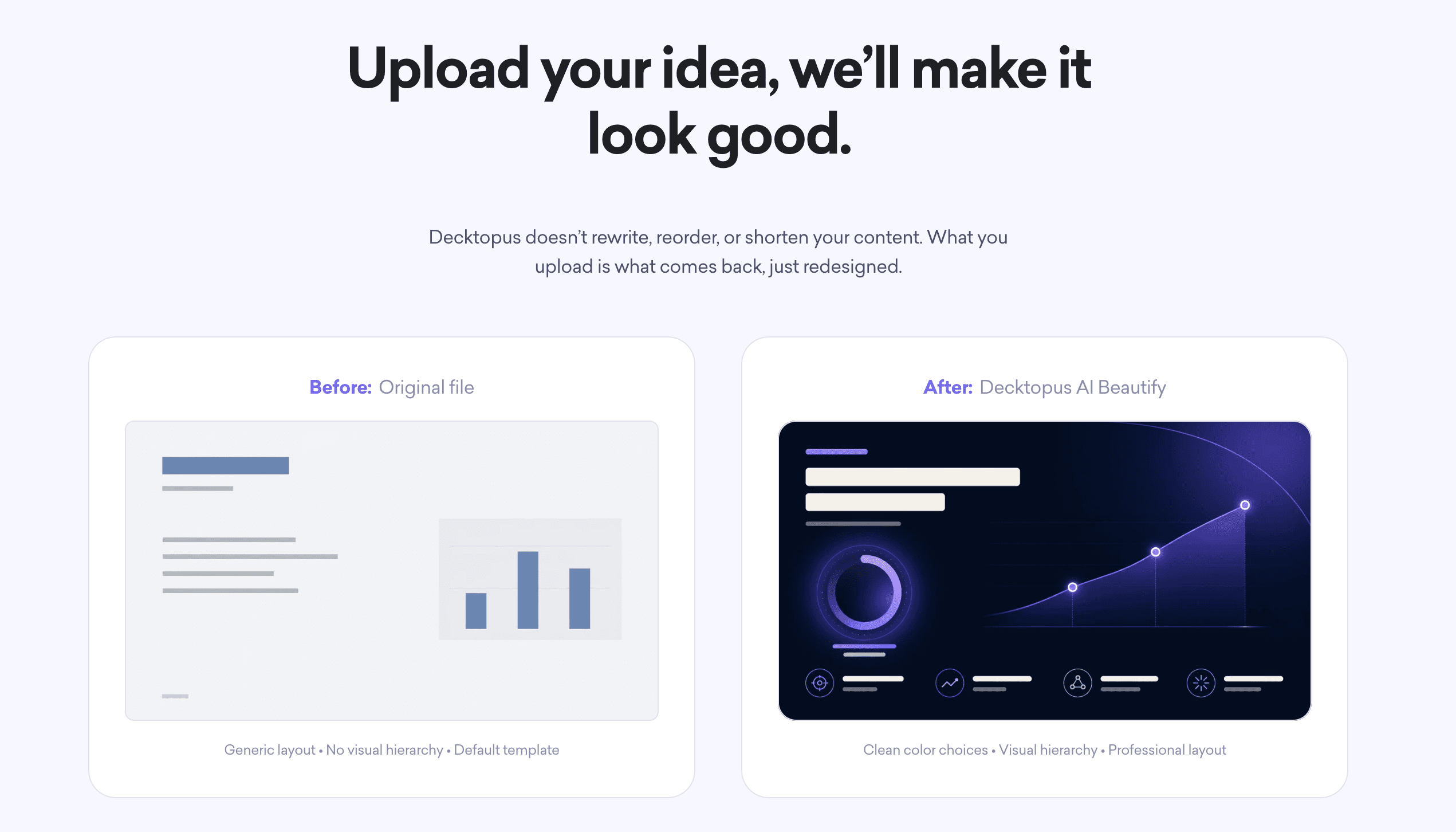
To beautify a slide is to improve its visual design (layout, typography, color hierarchy, spacing, imagery) without changing the underlying content. In modern presentation software, beautification usually falls into two categories: manual redesign (you rework the slide yourself), or AI beautification (an AI tool redesigns the entire deck in one pass while keeping your text, structure, and slide order intact). The main benefit of AI beautification is that it separates the "what" from the "how it looks." You keep your writing. You get a professional design.
According to research on visual perception, audiences form aesthetic judgments about a slide within 500 milliseconds of seeing it. Studies from behavioral design research show that professionally designed presentations are perceived as more credible and persuasive than plain text slides by a factor of 3 to 4. In a business context where the average knowledge worker sees 100+ presentation slides per week, design quality directly affects whether your ideas land or get skimmed past. That's why "beautify my slides" is now one of the most-searched presentation queries.
For related content, see our guides on presentation design, what makes for a good presentation, and an effective presentation and why it matters.
Why Slide Beautification Matters More Than Ever
First impressions decide whether people listen. In under 500 milliseconds, viewers make an aesthetic judgment about your slide. That judgment shapes whether they take the content seriously.
Design quality signals professionalism. A dated, cluttered slide undermines even the strongest content. A clean, well-designed slide reinforces credibility before you've spoken a word.
Attention spans are shorter. With more presentations competing for attention (Zoom meetings, client pitches, internal reviews), poorly designed decks lose the room in the first 30 seconds.
Most people can't design well. According to workplace surveys, less than 15% of professionals feel confident about presentation design. The other 85% either spend hours fumbling with templates or ship decks that hurt their message.
Content is usually fine, design usually isn't. The most common complaint from B2B teams is not "our content is weak." It's "our content is fine, we just hate how the slides look." AI beautification directly solves that problem.
Google Slides Beautify vs. AI-Powered Full-Deck Redesign
Many users search for "beautify slide" hoping to find a native button in Google Slides or PowerPoint. Here's the honest breakdown of what exists.
Feature | Google Slides Native | PowerPoint Designer | AI Beautify Tools (like Decktopus AI) |
|---|---|---|---|
Full-deck redesign in one pass | No | Partial (slide-by-slide) | Yes |
Content stays exactly as written | Yes | Yes | Yes |
AI-generated layouts | Limited (via Gemini add-on) | Yes (Designer suggestions) | Yes |
Choose from professional styles | Limited themes | Design ideas per slide | Multiple styles + custom |
Works from an existing file upload | No (must be in the platform) | Only within PowerPoint | Yes (upload PPT or PDF) |
Works on decks up to 100 slides | Manual per slide | Slide-by-slide | Yes (batch) |
Requires a prompt or outline | No design flow | No | Optional |
Multi-format export | Limited | PPT and PDF | PDF, PPT, PNG |
The takeaway: Google Slides and PowerPoint offer per-slide design suggestions, which work for tweaking individual slides. For redesigning a full 30 to 100-slide deck in one pass without touching content, dedicated AI beautification tools like Decktopus AI go significantly further.
For related tool comparisons, see our guides on Decktopus AI vs. Google Slides, Google Slides alternatives, and PowerPoint alternatives.
The 6-Type Beautify Use Case Framework
Different situations call for slide beautification. Here are the six most common use cases where AI beautification saves the day.
Use Case | Situation | Why Beautify Fits |
|---|---|---|
Modernizing outdated templates | Corporate deck recycled since 2018 | Refresh the look without rewriting content that still works |
Rescuing a rushed deck | Meeting tomorrow, no time to design | Upload, choose style, done in minutes |
Making team decks consistent | Everyone uses a different layout | Apply one professional style across the whole team |
Upgrading a pitch deck | Going to investors next week | Polish the design before the money conversation |
Refreshing a sales deck | New market or campaign, same core message | Update the look without touching the words that convert |
Fixing text-heavy internal slides | Board deck, quarterly review, training material | Turn walls of text into slides you'd actually present |
Deep Dive Into Each Use Case
1. Modernizing outdated corporate templates. Many companies have master decks that were designed years ago and no longer feel current. Employees keep using them because rebuilding from scratch takes too long. AI beautification updates the visual layer in one pass. The content and structure stay intact. Everything looks current again.
2. Rescuing rushed decks the night before. You have a client meeting in 12 hours. The deck was written last week but it looks like it. There's no time to hire a designer or manually redesign 30 slides. AI beautification is the emergency exit.
3. Making team decks consistent. When five people contribute to the same deck, five different design instincts show up in the layout. AI beautification applies one consistent style across every slide, so the finished deck looks like it came from one designer.
4. Upgrading pitch decks before investors. Founders often build their first pitch deck themselves. It works for early conversations but starts feeling amateurish when institutional investors are involved. AI beautification lets founders keep the story they've refined while upgrading the visual polish.
5. Refreshing sales decks for new markets or campaigns. A sales deck that works for the mid-market probably needs a fresh look before an enterprise pitch. AI beautification lets sales teams keep the pitch structure and messaging while adapting the visual style.
6. Turning text-heavy internal slides into presentable material. Internal board decks, quarterly business reviews, and training materials are often walls of text pasted from documents. AI beautification restructures the visual layout so the same content is scannable and engaging.
Decktopus AI Beautify, PowerPoint vs. Google Slides vs. Keynote
Different file formats have different beautification workflows.
File Format | Native Beautify Options | AI Beautify Support (via Decktopus AI) |
|---|---|---|
PowerPoint (.pptx) | Designer suggests layouts per slide | Full upload and redesign in one pass |
Google Slides | Limited theme options, Gemini add-on | Export as .pptx, upload to redesign |
Keynote (.key) | Themes and Magic Move animations | Export as PDF or PPT, upload to redesign |
PDF slides | None (view-only in most cases) | Upload PDF, generate editable redesigned deck |
The workflow that works across all formats: export or save your deck as PDF or PPT, upload to an AI beautification tool, choose a style, and download the redesigned version in whatever format you need.
The 5-Step AI Slide Beautification Process
Every strong AI beautification workflow follows the same 5 steps. Understanding this process helps you set expectations before you start.
Step | What Happens |
|---|---|
1. Upload your deck | Attach your existing PPT or PDF file |
2. Choose a style | Pick a professional style, reuse a past style, or let AI decide |
3. AI processes the deck | The tool applies new colors, layouts, typography, and visual hierarchy |
4. Review the result | Every slide keeps its original text, structure, and slide order |
5. Edit or export | Refine specific slides if needed, then download or share |
Step 1: Upload Your Existing Deck
Drop in your finished PowerPoint (.pptx) or PDF file. You don't need to reformat or clean it up first. The whole point of beautification is that it handles messy inputs.
Step 2: Choose a Style
Three options in most modern AI beautify tools:
Pick a professional style from pre-designed options
Reuse a style you've used before (great for team consistency)
Let AI pick based on your content
Some tools let you add an optional prompt describing the direction ("more corporate," "brighter colors," "minimal layout").
Step 3: AI Processes the Full Deck
The tool works through every slide in one pass, updating:
Color palette
Typography (font family, size, hierarchy)
Layout and visual balance
Spacing and alignment
Image placement (if images exist)
Overall visual coherence across slides
Step 4: Review the Result
Every slide keeps its:
Original text word-for-word
Slide count (nothing added or removed)
Slide order (nothing reordered)
Data, numbers, and specific details
What changes: how the slide looks. Nothing else.
Step 5: Edit or Export
Beautification isn't locked. You can:
Refine specific slides manually
Ask AI to adjust individual slides
Export as PDF, PPT, or PNG
Share via live link
Present directly
What AI Beautification Actually Changes (and What It Doesn't)
To set clear expectations, here's exactly what beautification touches and what it leaves alone.
What Changes
Color palette
Font family and sizing
Layout and visual hierarchy
Spacing, alignment, and margins
Icon and imagery style
Background treatments
Overall visual system across slides
What Doesn't Change
Text content (word for word)
Slide count
Slide order
Data, numbers, statistics
Facts and information
Meaning or messaging
Specific claims or citations
This is the key distinction. Some AI presentation tools rewrite content as part of "beautification." Full-deck AI beautification (in the modern sense) explicitly does not touch content. You keep what you wrote. You get better design.
Common Slide Beautification Mistakes to Avoid
Trying to beautify without cleaning the content first. If your content is unclear, no design will fix it. Beautification works on completed content. If the writing itself needs work, do that separately.
Choosing the wrong style for the audience. A minimalist style works for tech and creative audiences. A more formal style works for enterprise or financial audiences. Match style to context.
Redesigning slide-by-slide manually. If your deck is longer than 5 slides, manual redesign takes hours. Full-deck AI beautification takes minutes.
Skipping the review step. Even the best AI beautification benefits from a final human review. Check for slides where the design didn't quite land, or where your data visualization needs tweaking.
Expecting AI to fix bad data visualization. AI beautify tools handle layout, typography, and color. They don't automatically improve poorly structured charts. Consider redesigning charts separately using guides like our pie chart and bar graph resources.
Not saving the original. Always keep the pre-beautification version. If the redesign misses in some way, you want the ability to compare or start over.
Over-editing after beautification. The whole point of AI beautify is speed. If you're going to spend 3 hours tweaking every slide after, you might as well have designed it manually.
For more on avoiding presentation pitfalls, see our guide on 7 mistakes we all made during a presentation.
Manual Design vs. AI Beautification Compared
Factor | Manual Design | AI Beautification |
|---|---|---|
Time for a 30-slide deck | 4 to 8 hours | 5 to 15 minutes |
Requires design skills | Yes | No |
Consistency across slides | Depends on designer skill | Automatic |
Content preservation | Manual (risk of drift) | Word-for-word guaranteed |
Iteration speed | Slow (redesign per revision) | Fast (regenerate style) |
Cost | Designer time or in-house effort | Software subscription |
Best for | Highly custom, brand-critical decks | Everyday internal and client decks |
Works on legacy decks | Yes (full rebuild required) | Yes (upload and redesign) |
Both approaches have a place. Manual design still wins for the highest-stakes, most brand-critical presentations. AI beautification wins for the 95% of everyday decks where speed and consistency matter more than pixel-perfect custom work.
How to Beautify Your Slides with Decktopus AI
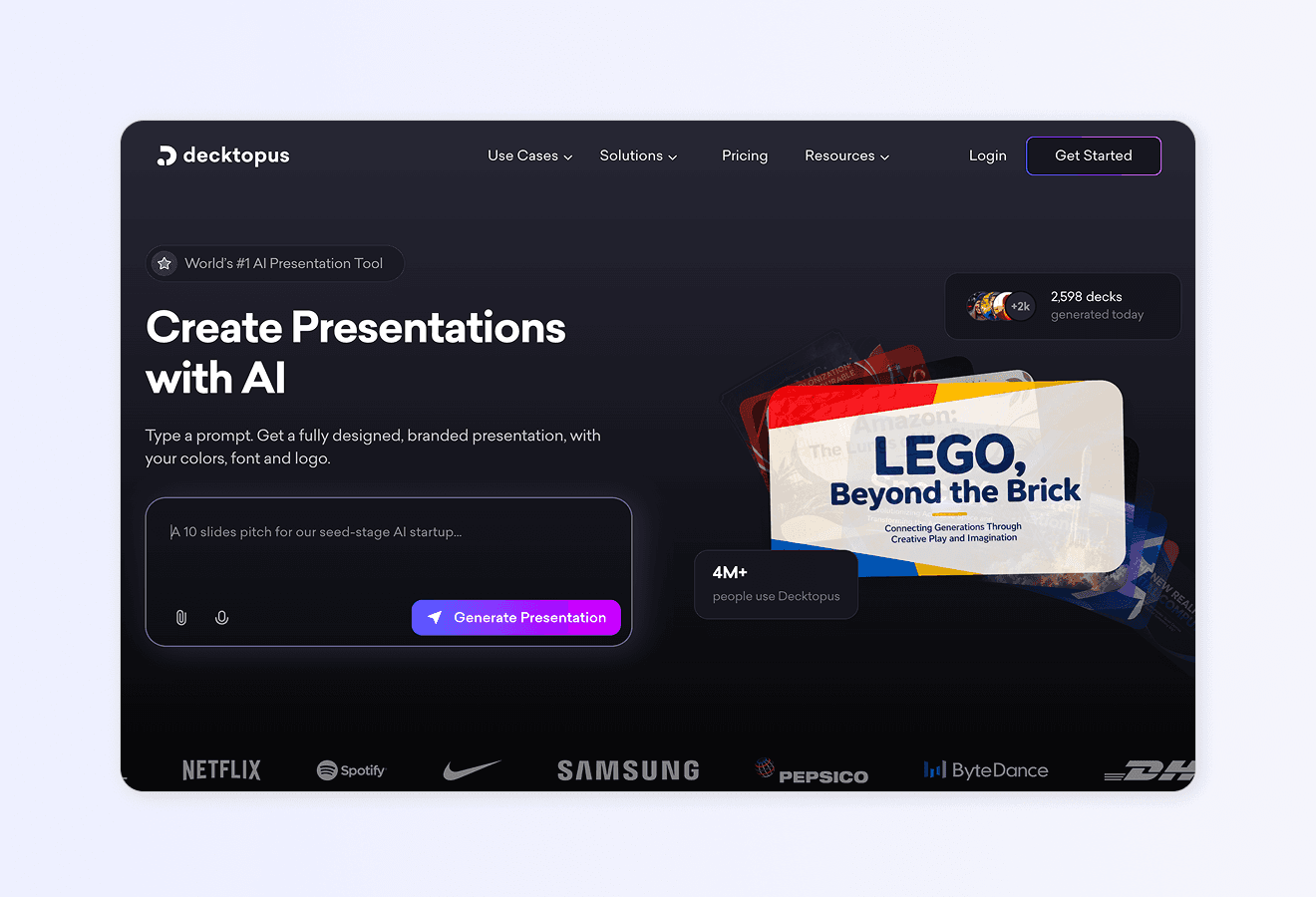
Decktopus AI Beautify is a full-deck redesign feature that keeps your content word-for-word while completely refreshing the visual design. Upload your existing deck, choose a style, and download a professionally redesigned version in minutes. No prompts to write. No outline to approve. No content review needed.
Why Decktopus AI Beautify Works for Every Deck Type
Full-deck redesign in one pass. Every slide gets updated simultaneously. Layouts, colors, typography, and visual hierarchy update across the entire deck at once. No rebuilding slide by slide.
Your content stays exactly as written. Not a single word gets changed. Your text, data, and structure stay intact. Only the look changes. This is the "without starting over" part.
Professional styles ready to go. Choose from clean, professional styles designed by real designers. Or reuse a style you've used before. Or let Decktopus AI pick one based on your content.
Optional prompt for design direction. Want something more specific? Add a short prompt like "corporate and formal" or "bright and energetic." Decktopus AI factors it in.
Fully editable after redesign. Nothing is locked. Refine individual slides by hand, or use Edit with AI to adjust specific slides after the initial beautification.
Works for any presentation type. Sales decks, pitch decks, company updates, lecture slides, board decks, training materials. Beautify handles all of them.
Multi-format export. Download as PDF, PPT, or PNG. Or present directly from the platform.
Two Beautify options in the flow:
Redesign keeps your text and structure intact. New design only. Prompt optional. This is the workflow that matches everything above.
Use as a Resource extracts key points from your uploaded deck and builds a fresh presentation around them. Prompt required. Best when you want a new deck inspired by an older one, not a redesign of the original.
Decktopus AI Beautify vs. Other Redesign Tools
Feature | Decktopus AI Beautify | Other AI Redesign Tools |
|---|---|---|
Content stays untouched | Yes (word for word) | Partial (some rewrite content) |
Works from a finished deck | Yes (upload and go) | Partial (many require prompt or outline first) |
Full-deck redesign in one pass | Yes | Manual or slide-by-slide |
Optional prompt for design direction | Yes | Limited or none |
Edit after redesign | Yes | Yes |
Export as PDF, PPT, PNG | Yes | Varies by tool |
No design skills needed | Yes | Partial (templates required) |
Works on decks up to 100 slides | Yes | Varies |
Who Decktopus AI Beautify Is Built For
Marketers refreshing campaign decks and internal presentations
Founders upgrading pitch decks before investor meetings
Sales teams rescuing rushed decks and refreshing for new markets
Consultants producing on-brand deliverables for multiple clients
Educators modernizing lecture slides and course materials
HR teams cleaning up onboarding and training decks
Agencies delivering polished client decks fast
SaaS teams keeping product demos, QBRs, and internal updates on-brand
For deeper use case guidance, see Decktopus AI for Sales, Decktopus AI for Marketers, Decktopus AI for Founders, and Decktopus AI for Agencies.
Step-by-Step: Beautify Your Slides with Decktopus AI
1. Upload your deck. Drop in your existing PowerPoint (.pptx) or PDF file via the paperclip icon. No reformatting needed first.
2. Choose Redesign or Use as a Resource. For pure beautification (keep content, change design), choose Redesign. For a new deck inspired by the old, choose Use as a Resource.
3. Choose your style. Pick a professional style, reuse a past style, or let AI pick. Add an optional prompt if you want specific direction.
4. Review the beautified deck. Every slide keeps its original text, structure, and slide count. Only the design has changed.
5. Refine with Edit with AI or Edit Text. Adjust specific slides with prompts like "make this slide more visual" or edit text directly for fine polish.
6. Export or share. Download as PDF, PPT, or PNG. Share via live link with auto-update (any edits after sharing appear at the same URL). Or present directly from Presentation Mode.
For broader guidance, see the best AI presentation tools and our guide on how to do a presentation.
Ready to beautify your slides? Try Decktopus AI Beautify. Upload your deck, pick a style, done.
Frequently Asked Questions
What does it mean to beautify a presentation slide?
To beautify a slide is to improve its visual design (layout, typography, color, spacing, visual hierarchy) without changing the underlying content. Modern AI beautification tools redesign entire decks in one pass while keeping every word of the original text intact.
Can Google Slides beautify my slides automatically?
Google Slides offers limited built-in design tools, and its Gemini AI add-on can suggest design changes for individual slides. But it doesn't offer a full-deck redesign in one pass. For that, dedicated AI beautification tools like Decktopus AI Beautify are the strongest option.
Does AI beautification change my text?
No. Proper AI beautification tools change only the design (colors, layout, typography, visual hierarchy). Your text stays word-for-word, your slide count stays the same, and your slide order stays intact.
Can I beautify a PowerPoint file?
Yes. Upload the .pptx file to an AI beautification tool like Decktopus AI, choose a style, and download the redesigned version. Works for decks up to 100 slides in one pass.
Can I beautify Google Slides?
Google Slides doesn't offer a full-deck AI beautification feature natively. The workaround: export your Google Slides deck as .pptx or PDF, upload to Decktopus AI Beautify, choose a style, and download the redesigned deck. Import back into Google Slides if needed.
How long does AI beautification take?
Most AI beautification tools complete a full 30 to 50-slide deck in 2 to 5 minutes. Larger decks (up to 100 slides) may take 5 to 10 minutes. Compare this to manual redesign, which takes 4 to 8 hours for the same deck.
Do I need design skills to beautify my slides with AI?
No. That's the whole point. AI beautification handles color, layout, typography, and visual hierarchy automatically. You upload the deck and pick a style. The tool does the design work.
Will my slide count or slide order change after beautification?
No. Proper AI beautification keeps your slide count and slide order exactly as they were. Only the visual design changes.
Can I edit slides after beautification?
Yes. Every slide is fully editable after the redesign. Adjust specific slides by hand, or use AI editing tools to refine individual slides. Nothing is locked.
What styles can I choose from?
Modern AI beautification tools offer multiple professional styles ranging from clean and minimal to bold and vibrant. Some tools also let you reuse a style you've applied before, or add an optional prompt for design direction.
How is beautification different from starting a new deck from scratch?
Beautification keeps everything you already wrote and only changes how it looks. Starting from scratch means rewriting the content. Beautification is for decks where the writing is fine and only the design needs work.
What file types can I upload for beautification?
Most AI beautification tools accept .pptx (PowerPoint) and PDF files. Some also accept .key (Keynote) or Google Slides exports. Check the specific tool's supported formats.
Does beautification work on decks with lots of images and charts?
Yes. AI beautification tools handle image placement, chart styling, and visual hierarchy alongside text redesign. For complex data visualizations, you may want to review the charts specifically after beautification.
Can I beautify only some slides instead of the whole deck?
Most AI beautification tools apply the redesign to the full deck for visual consistency. If you need to preserve specific slides exactly as they are, you can typically restore them from the original after beautification.
What tool should I use to beautify my slides fast?
Decktopus AI Beautify is the fastest option for full-deck redesign with content preservation. Upload your deck, choose a style, and download the beautified version in minutes. For more, see our roundup of the best AI presentation tools.
Conclusion
Slide beautification has evolved from a manual, hours-long process into an AI-powered workflow measured in minutes. The core promise is simple: your content stays exactly as you wrote it, only the design changes. For teams whose decks look dated, rushed, or inconsistent (and whose content is fine), AI beautification is the fastest fix on the market.
The 6-Type Beautify Use Case Framework in this guide (modernizing outdated templates, rescuing rushed decks, making team decks consistent, upgrading pitch decks, refreshing sales decks, fixing text-heavy internal slides) covers almost every real-world scenario where beautification saves the day. The 5-step process (upload, choose style, AI processes, review, edit or export) works consistently across every tool in the category.
For the fastest, most content-preserving beautification workflow available in 2026, Decktopus AI Beautify is built specifically for this: upload your deck, choose a professional style, download the beautified version. Every word of your original content stays intact. Only the design changes.
For more resources, see our guides on presentation design, what makes for a good presentation, and the best AI presentation tools.
Related posts

Webinar Follow-Up Emails: The Sequence That Runs After the Deck Ends
Learn how to build a webinar follow-up email sequence with behavioral segmentation, timely emails, better deliverability, and personalized outreach.
Presentations

Best TED Talks to Improve Your Presentation Skills
Watch ten of the best TED talks for presentation skills and use a practical exercise from each to improve structure, voice, visuals, and confidence.
Presentations

Decktopus AI Best Practices: The Complete Guide, Tips and Tricks (2026)
A complete guide to using Decktopus AI effectively, from writing better prompts and reviewing outlines to rehearsing with Loop and building carousels.
Presentations