Presentations
Decktopus AI Best Practices: The Complete Guide, Tips and Tricks (2026)
A complete guide to using Decktopus AI effectively, from writing better prompts and reviewing outlines to rehearsing with Loop and building carousels.


İlayda Tunaboylu
Decktopus AI is an AI-powered platform that turns a prompt into a complete, ready-to-present presentation or carousel, with structure, content, and design generated together. It also includes Loop, an AI delivery coach for rehearsing before you present. The main benefit is simple: you spend less time formatting and more time on the argument you're actually trying to make.
Most people still lose that time before AI ever enters the picture. Microsoft's Work Trend Index found that the average employee spends 57% of their time communicating (meetings, email, chat) and only 43% of their time actually creating, including the presentations that communication is supposed to produce. AI generation closes part of that gap, but only if you use it with intent, since a fast presentation that says nothing clearly isn't actually faster, it just moves the problem to your audience. This guide walks through that intent at every stage: reviewing outlines before you generate, editing with AI, rehearsing with Loop, building carousels, and using Decktopus AI from inside ChatGPT.
Who This Guide Is For
The workflow below applies whether you're building a single pitch or presentations on a recurring basis:
Sales teams building proposals and follow-up presentations between calls. See Decktopus for sales, Decktopus for account executives, and Decktopus for business development reps.
Founders putting together investor and partner presentations. See Decktopus for founders.
Marketers building strategy presentations, campaign recaps, and reports. See Decktopus for marketers.
Agencies producing client-facing presentations at volume. See Decktopus for agencies.
Customer success teams running QBRs and onboarding walkthroughs. See Decktopus for customer success.
Anyone running a webinar who needs a structured, presentable slide set fast. See Decktopus for webinars.
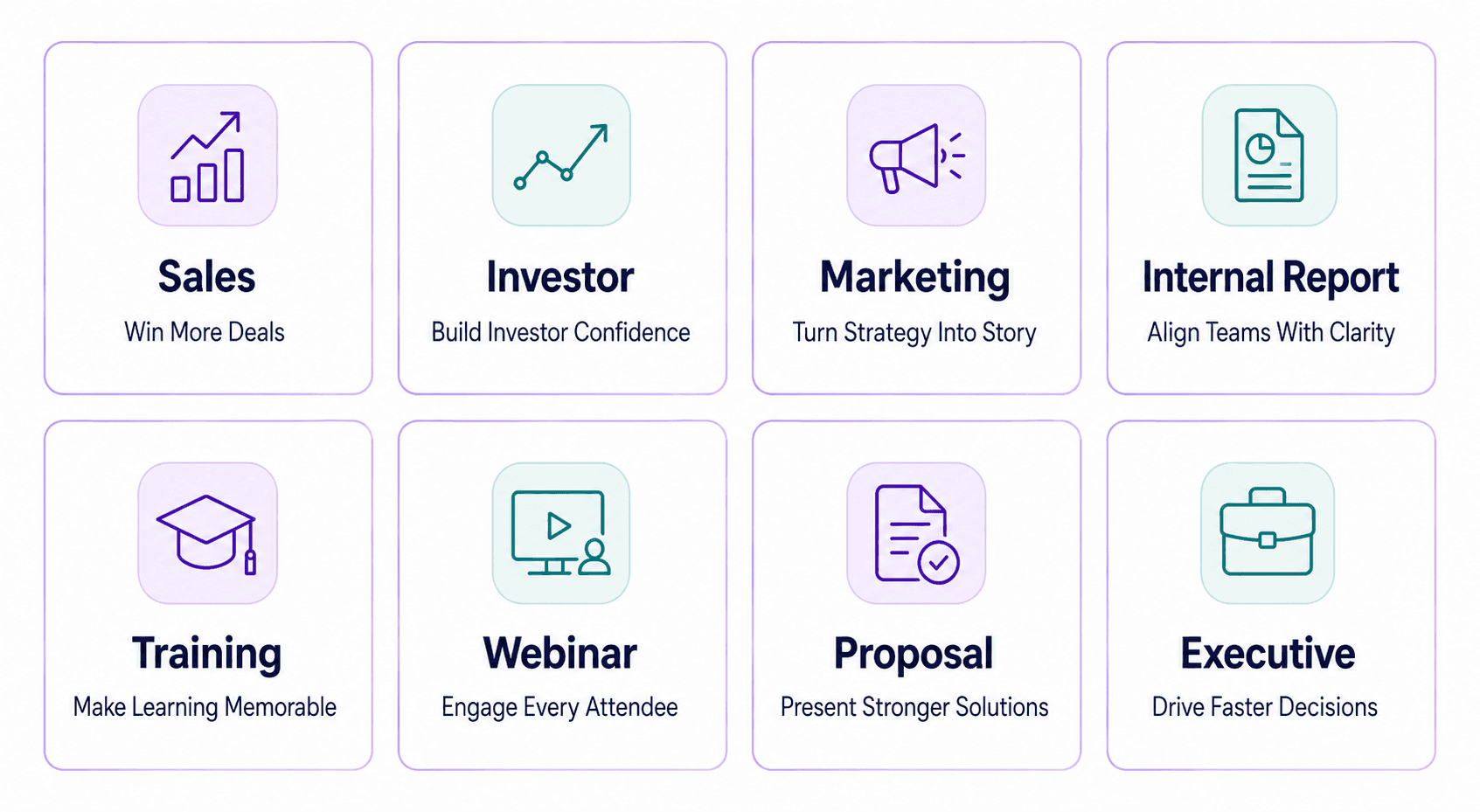
If none of those match exactly, the same workflow (goal, source, outline, refine, rehearse) still applies. Start building with Decktopus AI.
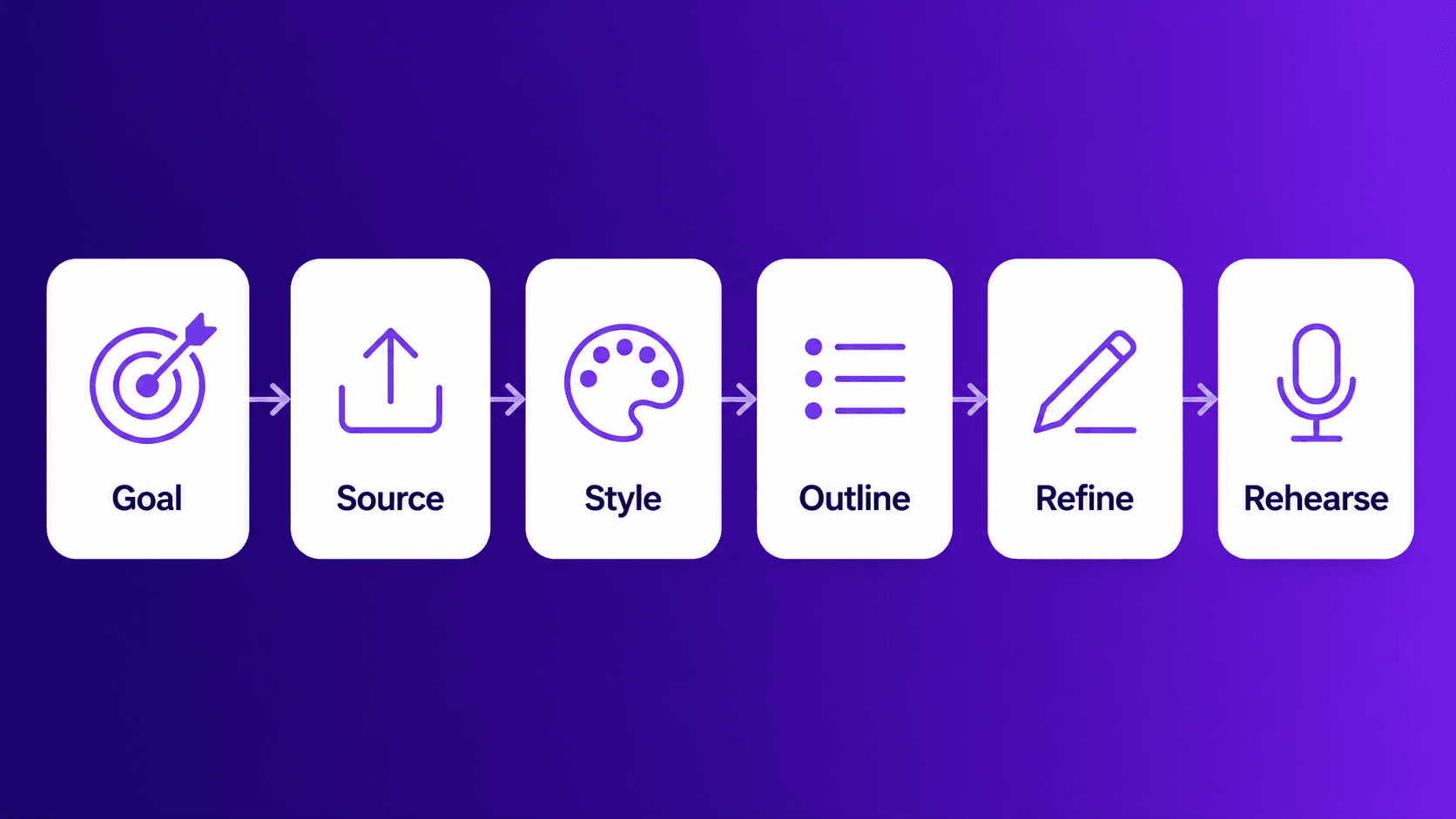
The Decktopus AI Workflow at a Glance
The whole process breaks down into six steps:
Step | What to Do | Why It Matters |
|---|---|---|
Goal | Define the audience, purpose, and desired action | Gives the presentation a clear direction |
Source | Add a detailed prompt or upload reliable material | Grounds the content in useful context |
Style | Choose a saved brand, previous style, or new direction | Creates visual consistency from the beginning |
Outline | Review the structure before generating slides | Catches story problems early |
Refine | Improve individual slides and verify important claims | Turns the first draft into a reliable presentation |
Rehearse | Practice the delivery with Loop | Helps the message land when you present |
The principle behind all six steps: don't optimize for producing more slides. Optimize for communicating one idea clearly.
1. Write a Prompt That Actually Works
Decktopus AI generates better outlines and slides when you give it more than a subject line. Before you open the tool, decide three things: who is reading or watching, what you want them to walk away believing, and what you want them to do next.
Weak prompt: "Marketing strategy presentation"
Strong prompt: "2027 marketing strategy for a B2B SaaS company, presented to leadership to secure next year's budget. Audience is the CFO and CEO, who care about ROI more than creative execution."
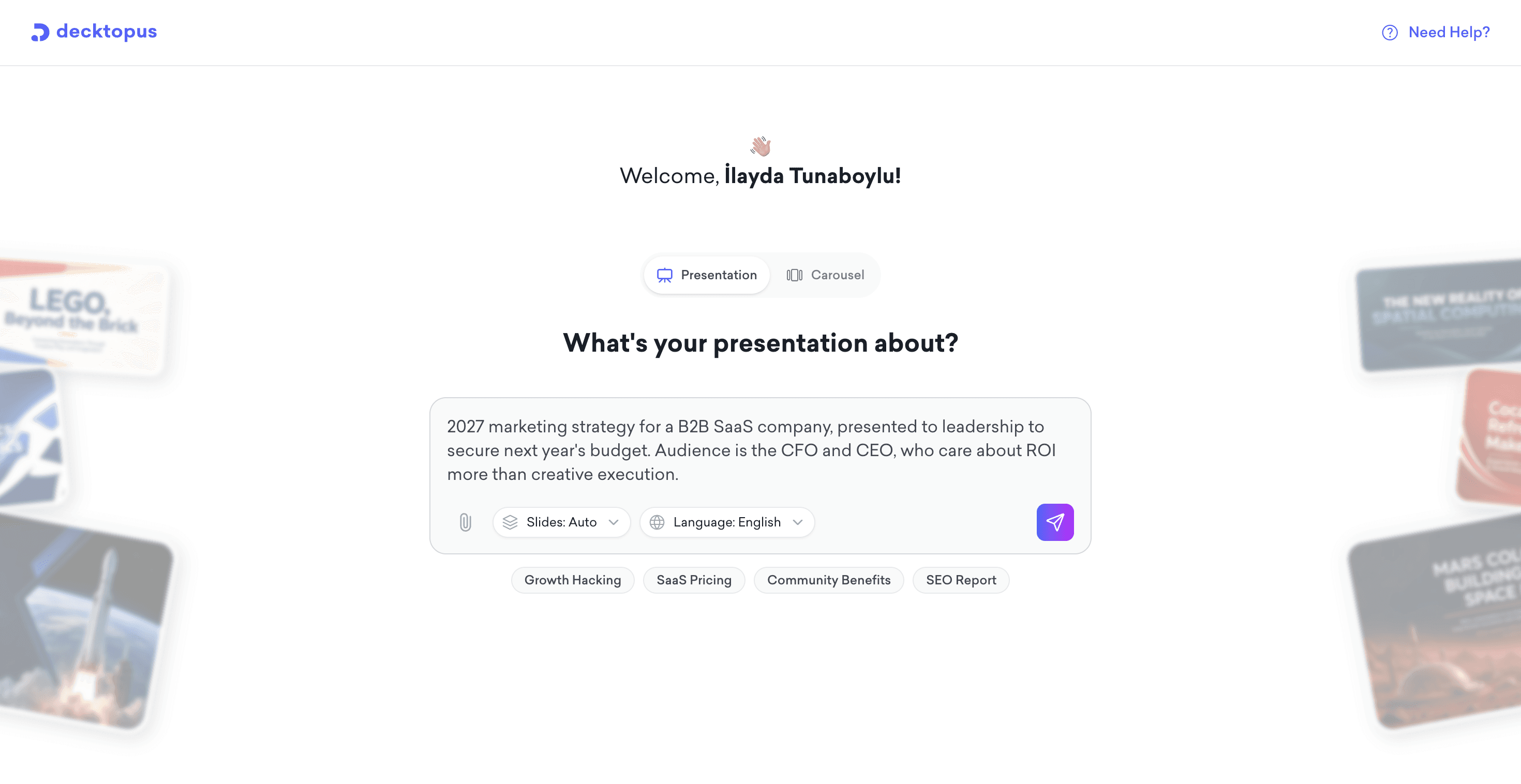
The second version gives the AI an audience, a purpose, and an outcome. That changes the terminology it uses, how much it explains versus assumes, and which points it leads with.
A reusable formula for getting there: "Create a [presentation type] for [audience]. The goal is to [desired outcome]. Focus on [key topics]. Use a [tone] tone. Include [required evidence]. Avoid [unwanted content]. End with [next action]."
A few more things to keep in mind once you have that framing:
Separate facts from instructions. Tell the AI what's true ("our churn dropped 12% after the onboarding redesign") separately from what you want it to do with that fact ("open the presentation with this stat").
Tell it what to leave out, not just what to include. A prompt that only says what you want tends to produce a generic middle ground. Naming what to avoid, no filler transition slides, no repeating the same stat twice, narrows the output faster than a longer list of things to include.
Be careful with exact length requests. If you tell the AI a slide or section needs a specific word count or number of points, it will generally fill that space, even if the content doesn't naturally need it. Leaving length open tends to produce tighter results, since the AI stops once the point is made instead of padding to hit a number. If you do need a hard length constraint (a 5-minute pitch, a fixed slide count), state it, but expect to trim afterward with Edit with AI rather than expecting the first pass to be exactly right.
For patterns pulled from real prompt data, see what we learned from thousands of prompts.
2. Give Decktopus AI Strong Source Material
If you already have research, reports, or an old presentation, use it. Attach files through the paperclip icon instead of starting from a blank prompt and hoping the AI guesses your numbers correctly.
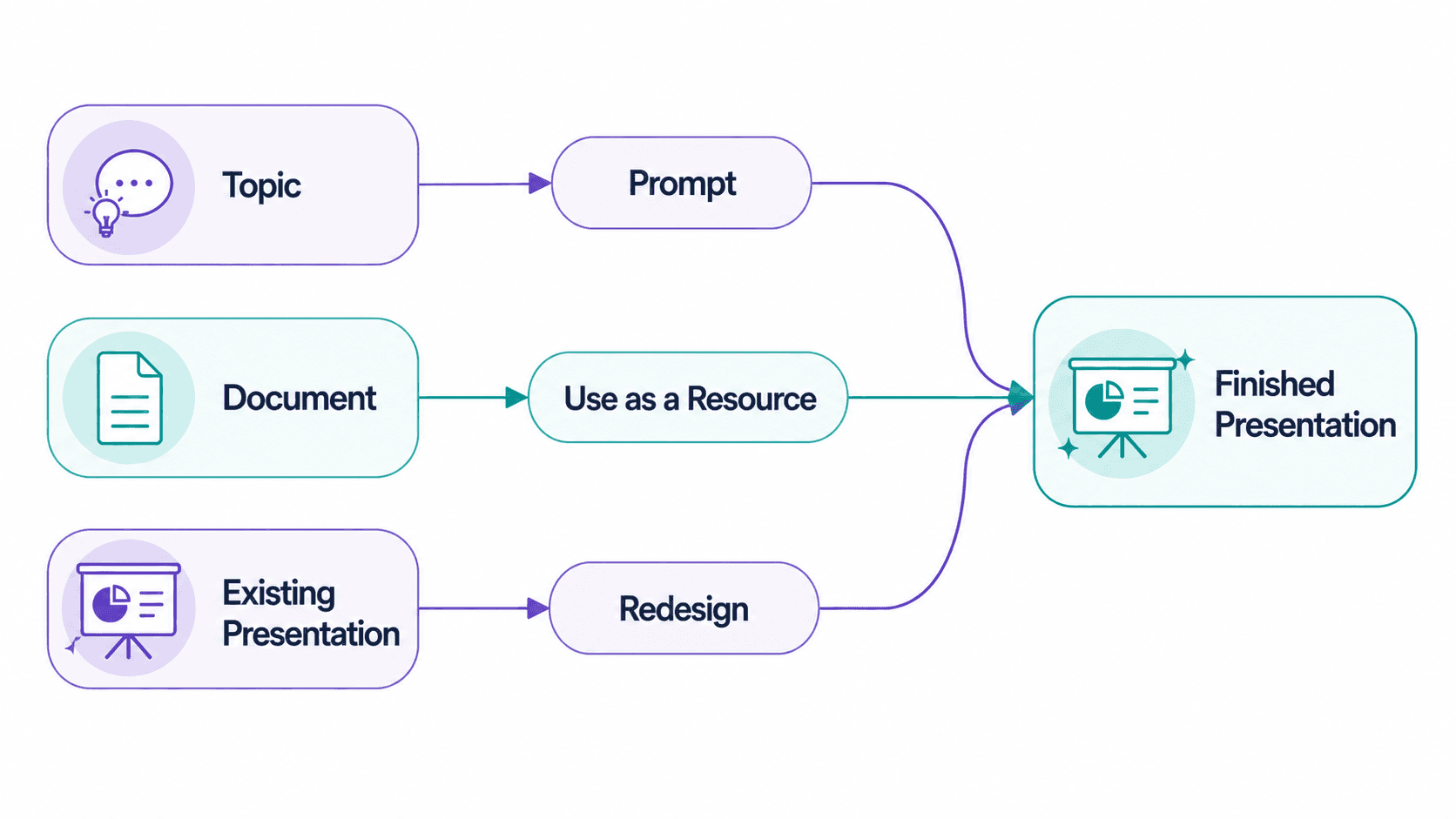
If you're starting from an existing file, Beautify gives you two paths:
Use as a Resource: pulls the key points from your file and builds a new presentation around them. You still need to write a prompt describing what the new presentation should focus on.
Redesign: keeps your existing text and structure and applies a new visual design. A prompt is optional here since the content isn't changing.
Starting Point | Best Option | Result |
|---|---|---|
A topic or idea | Detailed prompt | A new presentation generated from your instructions |
Notes, reports, or reference documents | Use as a Resource | A new presentation based on the key information in your files |
An existing, approved presentation | Redesign | The existing content stays intact, only the visual design refreshes |
Before uploading, strip out anything outdated or no longer accurate. Treat the file as source material for the AI to work from, not a visual reference it will copy exactly. See the full Beautify walkthrough for more on Use as a Resource versus Redesign.
If you already know exactly what you want, slide by slide, don't rely on a short prompt to get there. Type your structure and content into a plain document, upload it as a file, and choose Redesign. That keeps your exact text and order intact and lets Decktopus AI focus on the design, instead of you nudging AI-generated content toward a structure you already had in your head.
3. Pick Your Visual Style Before the Outline
Right after you submit your topic or source material, Decktopus AI takes you to a "Choose a style" screen before it generates anything. This step comes before the outline, not after, so it's worth knowing what's on it instead of clicking through on autopilot.
The screen has two sections:
Your Brands: every brand you've previously imported from a website URL, shown as thumbnails. Pick one to apply its colors, fonts, and logo automatically, or click Import New to pull in a brand you haven't used yet.
Your Styles: visual styles from presentations or carousels you've generated before, also shown as thumbnails with the original topic underneath. Reuse one instead of starting the visual decision from zero, or click Create a New Style to have the AI generate something fresh.
If none of your saved brands or styles fit, skip both and let the AI generate a style from scratch based on your prompt. Whichever path you take, this choice sets the design for the entire presentation before a single slide exists, so it's worth a few seconds of actual looking rather than picking the first thumbnail.
If you're going the AI-generated route, describe the design direction in your original prompt, not just the topic. A mood, color preference, or visual tone mentioned alongside your topic gets you closer to the right style on the first pass. Vague instructions like "make it beautiful" don't give the AI much to work with. Naming the mood, formality, density, and color direction does: "Use a clean, executive visual style with a white background, strong navy headings, warm gold accents, simple charts, and generous whitespace."
4. Review the Outline Before You Generate the Full Presentation
This is the step most people skip, and it's the one with the biggest payoff. Decktopus AI generates a section-by-section outline before it builds any slides, in both the presentation workflow and the carousel workflow. That outline is fully editable: you can rename sections, reorder them, merge two that overlap, or delete ones that don't belong.
Fixing structure at the outline stage is more efficient than fixing it after generation, since you're adjusting text, not full slides with layout and imagery already applied. If your presentation's story is going to have a gap in logic, you want to catch it while it's still three bullet points, not fifteen finished slides. For more on structuring the story itself, see how to structure a presentation that flows. This step also matters for credits. The outline is text only, no slides have been generated yet, so reordering, renaming, or deleting sections here doesn't cost you anything. Once the full presentation is generated, fixing the same issue means editing actual slides, and Edit with AI or Edit Text runs 5 credits per change. Getting the structure right before you generate is the cheapest edit you'll ever make on it.
Review the outline against four things:
A clear opening: Does the audience understand the situation quickly?
A logical sequence: Does each section prepare the audience for the next?
Enough evidence: Are important claims backed by examples, data, or proof?
A clear ending: Does the presentation lead to a decision or next action?
5. Structure Your Story: One Slide, One Job
A slide should explain something, prove something, compare something, introduce something, or conclude something. If a slide is trying to do two of those at once, split it.
A few rules that hold up across almost every presentation type:
Make titles communicate the takeaway, not the topic. "Conversion increased after onboarding changes" tells the audience something. "Conversion Results" doesn't.
If two slides make essentially the same point, combine or cut one.
Use progressive storytelling: context, problem, insight, solution, evidence, next step.
Put your strongest point early. Don't make the audience wait until slide 15 to understand why any of this matters.
6. Match Your Structure to Your Presentation Type
"Best practice" isn't one-size-fits-all. What a sales presentation needs to prove is different from what an investor presentation needs to prove.
Presentation Type | Optimize For |
|---|---|
Sales | Pain → value → proof → next step |
Investor | Opportunity → traction → economics → ask |
Marketing | Insight → strategy → execution → expected impact |
Internal report | What happened → why → what changes |
Training | Concept → explanation → example → application |
Webinar | Hook → education → proof → action |
Proposal | Understanding → approach → deliverables → value → next step |
Executive | Decision first → evidence → recommendation |
Tell Decktopus AI which type of presentation you're building in your prompt, and it can lean into the right structure from the outline stage instead of defaulting to a generic template.
Example prompts, one per case:
Sales: "Sales presentation for [product] targeting mid-market IT directors. Lead with the operational pain they deal with weekly, then show measurable value, proof from a similar customer, and a clear next step: a pilot call this month." More on this format: how to write a sales pitch.
Investor: "Seed-stage investor presentation for [startup] in [industry]. Audience is early-stage VCs. Cover market opportunity, traction to date, unit economics, and end with a specific ask: $1.5M to reach [milestone]." More on this format: investor presentation essentials.
Marketing: "Q4 marketing strategy presentation for the internal team. Open with the customer insight driving the plan, then strategy, execution by channel, and expected impact on pipeline."
Internal report: "Monthly ops report for department leads. Structure as what happened this month, why it happened, and what changes next month. Keep it factual, not persuasive."
Training: "Onboarding training presentation for new support reps on [process]. Explain the concept, walk through one example, then give a practice scenario they apply it to."
Webinar: "Webinar presentation on [topic] for prospective customers. Open with a hook question, move into education, back it with proof, end with a clear action: book a demo."
Proposal: "Client proposal presentation for [service]. Show we understand their situation first, then our approach, deliverables, the value they'll get, and the next step to move forward."
Executive: "Executive summary presentation for leadership on [decision]. Lead with the decision we're asking them to make, follow with supporting evidence, then our recommendation." More on this format: how to write an executive summary.
7. Edit With AI, Don't Regenerate From Scratch
If one section is weak, fix that section. Regenerating the whole presentation because one slide isn't working usually costs you more time and credits than a targeted edit would.
Edit with AI shows you a preview before applying any change, and you can undo after applying if it's not right. Use it for specific, contained instructions rather than vague ones. "Make this better" gives the AI nothing to work with, while these do:
"Make the headline shorter"
"Rewrite this slide in a more formal tone"
"Add a stat box showing our 40% YoY growth"
"Remove the timeline icons, they're not adding anything"
"Replace the background image with something more neutral"
If you have several changes to make on the same slide, list them in one prompt instead of applying them one at a time. "Shorten the headline, replace the background image, and add a stat box" as a single instruction is more credit-efficient than three separate edit passes.
Whatever the AI generates, especially statistics, financial figures, customer claims, dates, and quotations, verify it before it goes in front of an audience. AI-generated content is a strong first draft, not a fact-checked final one.
See what Edit with AI can fix.
8. Use Visuals With a Purpose
Choose images, icons, and charts that explain something rather than decorate the slide. A chart should appear because a relationship in the data matters, not because you happen to have numbers.
Before adding a visual, ask:
Does it explain a relationship?
Does it make a number easier to understand?
Does it provide evidence?
Does it direct attention to the main point?
Does it fit the brand and audience?
A few things worth remembering here:
Limit competing elements. A slide with a chart, a paragraph, three icons, and a photo is fighting itself.
Use whitespace on purpose, not as leftover space.
Use contrast to point at the one number or line that matters most.
Strip unnecessary chart labels, legends, and gridlines that aren't adding information.
Don't shrink text to force content onto a slide. Cut the content instead.
You can generate custom images from a text description, upload your own through the paperclip icon, or pull from Unsplash and Freepik inside the editor. Whichever source you use, review AI-selected imagery for brand fit, not just visual quality.
9. Rehearse the Delivery With Loop
A well-built presentation still needs to be delivered well. Loop is Decktopus AI's delivery coach: it lets you rehearse with your slides or speaking notes visible, tracks pacing, filler words, and time elapsed as you go, and gives you a readiness score with a breakdown across energy, pacing, pauses, opening, and closing.
Write for speaking, not reading. Put your explanation in the presenter notes instead of on the slide itself, and rehearse the transitions between slides, not just each slide in isolation. Spend extra rehearsal time on your opening and closing, since those are the parts your audience will remember longest. If one section keeps tripping you up, rehearse that section again rather than restarting the whole presentation every time. For more on the delivery side specifically, see public speaking tips for presentations that land.
10. Turn It Into a Carousel
The same best practices apply when you're building for social media, not just for the boardroom. Carousel follows the same core workflow as presentation generation, outline first, then full generation, but the output is a card-by-card format built for LinkedIn and Instagram instead of a slide presentation.
A few things work differently here:
One idea per card, not per topic. Where a presentation slide can carry a supporting chart and a headline, a carousel card usually needs to work as a single, scannable thought. Treat each card the way you'd treat a slide title: what's the one thing this card needs to say?
The outline review matters even more. Since carousels are shorter and denser than presentations, a weak card order is more noticeable to the reader. Check the sequence before generating the full set.
Reuse your style. If you've already generated a presentation or an earlier carousel, you can apply that same style instead of starting visual selection from scratch.
Edit with AI and Edit Text both work here, the same way they do on presentation slides, card by card.
Carousels don't have a Present button. The output is built for download and posting, so your final check is less about delivery and more about whether each card reads clearly on its own, since social feeds don't guarantee anyone sees the whole set in order. For more platform-specific rules, see LinkedIn carousel best practices.
11. Use Decktopus AI Inside ChatGPT
Decktopus AI is also available as an app inside ChatGPT, so you can generate a presentation without leaving the conversation you're already having.
How it works:
Find Decktopus AI in ChatGPT's Apps directory and add it to your account.
In any chat, type @Decktopus AI to bring it into the conversation.
Describe the presentation topic in plain language, the same way you would in a strong prompt anywhere else: audience, purpose, outcome.
The assistant can ask for or confirm details before generating: which workspace or organization, which brand style, the topic, slide count, and language.
It generates the presentation and returns an ID, a status, and a live link. If the status shows as processing, ask again after 20 to 30 seconds to check on it.
If you belong to more than one organization, you can ask the assistant to list your connected organizations and specify which one a presentation should be created under. You can also ask it to use an existing saved brand style instead of a new AI-generated one, or describe a mood or color preference directly in the prompt and let the AI apply it during generation.
You can also use research or strategy already worked out earlier in the same conversation as the foundation. For example: "@Decktopus AI, turn the campaign analysis above into an eight-slide presentation for our leadership team. Lead with the main performance result, explain the three causes, and end with a budget recommendation for next quarter. Use our saved company brand."
This is worth knowing if most of your planning already happens in ChatGPT, since it removes the step of switching tools to turn that thinking into slides. If you've wondered whether ChatGPT alone can do this, see can ChatGPT create a PowerPoint presentation.
12. The 60-Second Check Before You Export
Let the format follow what happens next, not habit. Use PDF when the presentation needs to stay visually fixed for external sharing. Use PPT when the recipient needs to keep editing it. Use PNG when you need individual slides as standalone image assets. Use a live link for anything that might change after you share it, proposals, reports, recurring updates, since edits appear at the same URL without a new file to send.
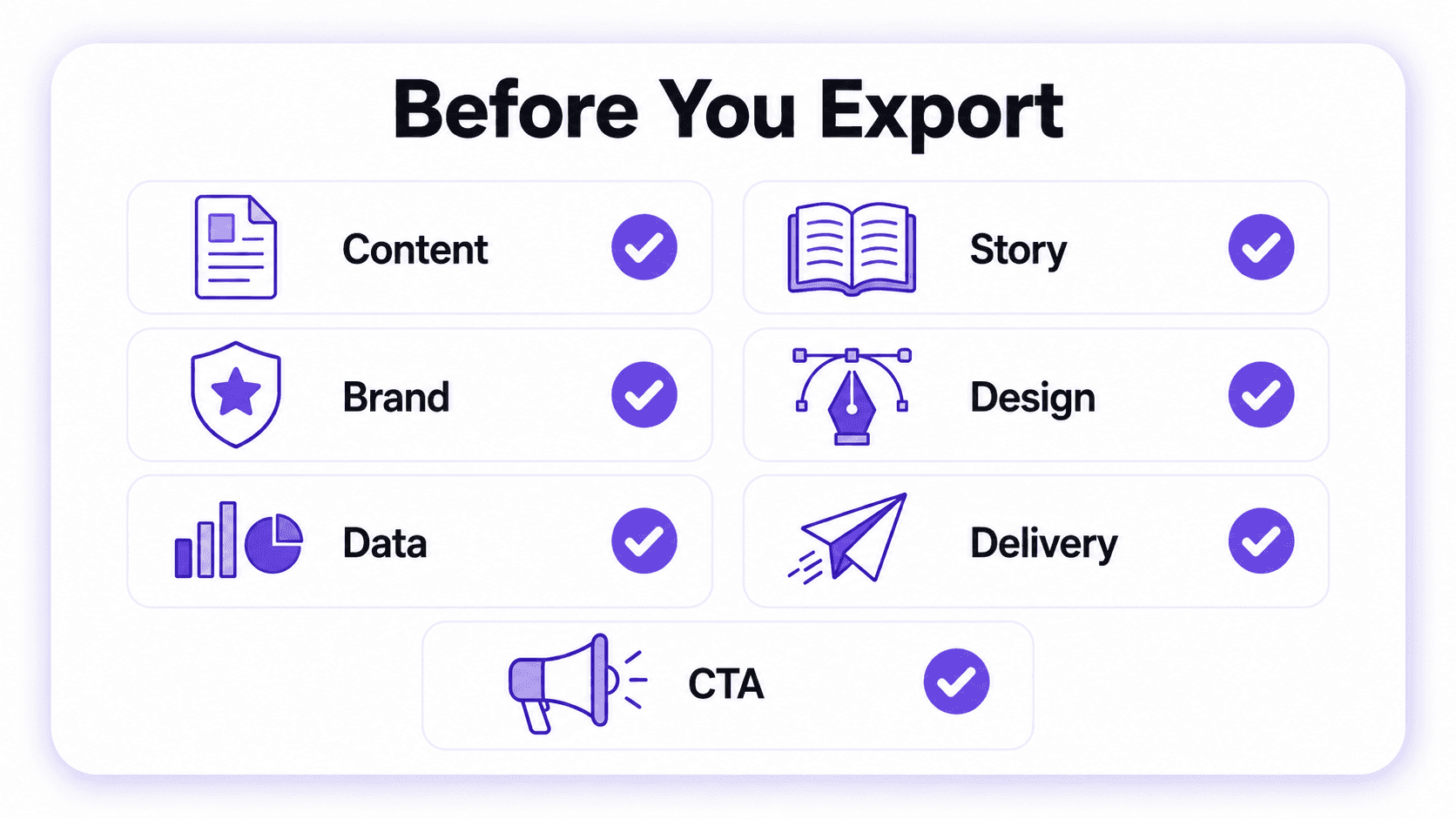
Before exporting to PDF, PPT, or presenting live, run through this quickly:
Content: Is the main message obvious from a skim?
Story: Does every slide earn its place?
Brand: Is everything visually consistent?
Design: Can each slide be understood quickly, without explanation?
Data: Are the important numbers correct?
Delivery: Could you explain this without reading off the slide?
CTA: Does the audience know what should happen next?
If you can answer yes to all seven, you're ready to export or share the live link.
Common Mistakes to Avoid
Starting with a broad topic instead of a goal. "Marketing strategy" gives the AI far less to work with than a specific audience and outcome.
Clicking through style selection without looking. The brand or style you pick here sets the design for the whole presentation before a single slide exists.
Skipping the outline review. It's the one edit that doesn't cost credits, fixing structure after full generation takes longer and costs more.
Over-specifying length in prompts. A hard word count or slide count often forces the AI to pad content that didn't need padding.
Treating AI output as final. Numbers, quotes, and claims need a human check before they go in front of anyone.
Regenerating instead of editing. A weak section is usually a targeted Edit with AI fix, not a reason to start over.
Decorating instead of explaining. Charts and icons should support the point, not fill space.
Presenting straight from the page. A presentation written to be read out loud performs differently than one written to be read silently.
Ending without a clear action. If the audience doesn't know what should happen next, the presentation hasn't done its job.
The Decktopus AI Clarity Framework
If you want one structure to follow end to end, use this:
Goal → Source → Outline → Refine → Rehearse
Goal: Define audience, purpose, and outcome before you generate anything.
Source: Feed the AI real material, whether that's a prompt with specifics or an uploaded file, then pick your visual style before the outline generates.
Outline: Review and adjust the structure before full generation, it's free to change here and costly to change after.
Refine: Use Edit with AI for targeted fixes, verify facts, tighten visuals.
Rehearse: Practice delivery with Loop before the real presentation.
The idea underneath all five steps: don't optimize for producing more slides. Optimize for communicating the idea more clearly.
In Practice: A Sample Workflow
Here's what the framework looks like end to end for a common case, a marketer preparing a quarterly report for leadership.
Goal: The prompt states the audience (VP of Marketing and CFO), the purpose (explain Q3 performance), and the outcome (approval to increase paid budget in Q4).
Source: A CSV export from the analytics platform and last quarter's report are uploaded as source material through the paperclip icon. On the style screen, last quarter's saved brand is reused instead of generating something new.
Outline: The generated outline puts "channel performance" before "budget ask." It's reordered so the ask comes right after the strongest result, not buried at the end.
Refine: One slide has too many charts competing for attention. Edit with AI removes two of them and keeps the one that supports the budget ask directly. All figures are checked against the CSV before moving on.
Rehearse: A Loop session flags that the opening runs long and the closing feels rushed, so those two sections get an extra pass before the actual meeting.
This is a representative workflow, not a specific customer's numbers. A real example with actual results would be a stronger anchor, and it's easy to swap in if you have one.
How to Build Your Presentation with Decktopus AI
1. Describe your topic. Type a specific description, for example "Q1 product update for the customer success team, focused on what changed and what they need to tell customers." Or upload source files through the paperclip icon. If you have an older presentation, Beautify can either use it as a resource to build something new or redesign it while keeping the existing text.
2. Choose your style. On the "Choose a style" screen, pick from Your Brands (previously imported website brands) or Your Styles (styles from past presentations and carousels), import a new brand from your company website URL, or let the AI generate a style from scratch.
3. Review the AI-generated outline. Edit section titles, reorder them, or adjust how many sections you need before committing to full generation.
4. Generate the full presentation. Once the outline is approved, Decktopus AI builds out the complete presentation with content, layout, and design.
5. Refine with Edit with AI or Edit Text. Use Edit with AI for natural language changes like the examples above. Use Edit Text when you just need to update copy directly, without writing a prompt. Every change is tracked in version history, so you can restore an earlier version if needed.
6. Add images. Generate custom AI images from a description, upload your own, or search Unsplash and Freepik without leaving the editor.
7. Rehearse with Loop. Practice your delivery and get feedback before the real thing.
8. Export or share. Export to PDF, PPT, or PNG in standard or compressed quality. Share a live link that automatically updates whenever you edit the presentation later, embed it on an external site, or present directly from Decktopus AI's full-screen presentation mode.
Why Decktopus AI Fits Each Use Case
Sales and account teams get outline review and Edit with AI to turn one proposal into a customized version per prospect fast, instead of rebuilding from scratch each time. See Decktopus for sales.
Founders get brand import and Loop rehearsal together, so the investor presentation looks consistent and the delivery is practiced before the real pitch. See Decktopus for founders.
Marketers get the Carousel workflow alongside the presentation workflow, so a campaign recap and its social version come from the same source material. See Decktopus for marketers.
Agencies get Folders and Version History to manage multiple client presentations without losing track of revisions. See Decktopus for agencies.
Customer success teams get the live link with auto-update, so a QBR presentation stays current for a client without resending a file. See Decktopus for customer success.
Webinar hosts get outline review and the 60-second export check to turn a rough talk outline into a structured, presentable slide set fast. See Decktopus for webinars.
Manual Workflow vs. Decktopus AI Workflow
Step | Manual Process | Decktopus AI |
|---|---|---|
Structure | Built slide by slide, often after content is written | Outline generated and reviewed before any slide exists |
Design | Applied slide by slide, easy to lose consistency | Applied automatically across the full presentation |
Editing | Manual reformatting for every change | Natural language edits with preview and undo |
Brand | Copy-pasted from old files | Imported from a URL or saved style |
Rehearsal | Separate from the design tool entirely | Built in, with pacing and delivery feedback |
Build your first presentation with Decktopus AI.
FAQ
What's the difference between Edit with AI and Edit Text?
Edit with AI makes changes based on a natural language instruction, with a preview before you apply it. Edit Text lets you directly type into each text field on a slide without writing a prompt at all. Use Edit Text for quick copy changes and Edit with AI for anything that involves rewriting, restructuring, or changing tone.
Can I edit the outline before the full presentation is generated?
Yes. Decktopus AI generates a section-by-section outline first. You can rename sections, reorder them, or change how many there are before the full presentation is built.
Does Decktopus AI work for social media content, not just presentations?
Yes, through the Carousel feature. It follows a similar workflow to presentation generation, outline first, then full generation, but outputs vertical cards designed for platforms like Instagram and LinkedIn instead of a slide presentation.
Can I use Decktopus AI without leaving ChatGPT?
Yes. Decktopus AI is available as an app inside ChatGPT's Apps directory. Once added, you can tag @Decktopus AI in a conversation, describe your topic, and it generates a presentation and returns a live link, without switching tools.
When do I pick a visual style, before or after the outline?
Before. Right after you submit your topic or source material, you land on a "Choose a style" screen with your saved brands and past styles. The outline is generated after that choice, not before it.
How do I keep a presentation on-brand?
Import your brand directly from your company's website URL during creation, or apply a previously used or saved style. This keeps colors, fonts, and logos consistent without manual work.
Can I use my own images in a Decktopus AI presentation?
Yes. You can generate images from a text description, upload your own from your device, or search Unsplash and Freepik directly inside the editor.
What happens if I don't like an AI edit?
Every Edit with AI change shows a preview before it's applied, and undo is available afterward. Version history also tracks unlimited versions per slide, so you can restore an earlier version at any time.
How specific should my prompts be?
Specific enough to include audience, purpose, and outcome. Vague topics produce vague outlines. Just be cautious with exact length requests, since a specific word or slide count tends to get filled even when it doesn't need to be.
Can I rehearse my presentation inside Decktopus AI?
Yes, using Loop. It tracks pacing, filler words, and time as you rehearse, and gives you a readiness score with feedback on specific moments.
What file formats can I export to?
PDF, PPT, or PNG, in standard or compressed quality.
Can I share a presentation without exporting it?
Yes. Share generates a live link, and any edits you make afterward automatically appear at that same link, so you never need to send an updated file.
Does uploading an old presentation give me an exact redesign?
Not automatically. Redesign keeps your existing text and structure while applying new visual design. Use as a Resource instead builds an entirely new presentation using your file's key points as source material, guided by a prompt.
Should I use the same structure for every presentation type?
No. Sales, investor, marketing, training, and executive presentations each optimize for a different sequence of information. Matching the structure to the presentation type makes a bigger difference than the visual design does.
What should I check before exporting?
Run through content clarity, story flow, brand consistency, design readability, data accuracy, whether you can present it without reading off the slide, and whether the audience knows what to do next.
Conclusion
Decktopus AI removes the slowest parts of building a presentation: formatting, layout, and starting from a blank page. What it doesn't remove is the thinking. The outline you review, the goal you define before you type a single prompt, and the rehearsal you put in before presenting are still yours to do. Follow the Goal → Source → Outline → Refine → Rehearse sequence, and every presentation you build will start further ahead than the last one.
Related posts

Webinar Follow-Up Emails: The Sequence That Runs After the Deck Ends
Learn how to build a webinar follow-up email sequence with behavioral segmentation, timely emails, better deliverability, and personalized outreach.
Presentations

Best TED Talks to Improve Your Presentation Skills
Watch ten of the best TED talks for presentation skills and use a practical exercise from each to improve structure, voice, visuals, and confidence.
Presentations
What Makes Slides Look Professional in 2026
Learn the 10 slide design principles top presenters follow, common presentation design mistakes to avoid, and how to apply every principle to your slides in minutes with AI
Presentations