Marketing
How to Stop AI From Messing Up Your Branding in Presentations
AI ruining your brand consistency? Learn how to fix off-brand AI slides with brand kits, reference slides, and smart prompts. Stop the chaos and enforce your visual identity automatically.


Decktopus Content Team
AI presentation tools promise speed. But they often deliver chaos.
You generate a deck in seconds, and at first glance it looks polished. Then you notice the font is wrong. Your logo is too small. The color balance feels off. Your brand’s signature style is nowhere to be found.
The problem isn’t that AI can’t do branding. It’s that most people don’t set it up correctly. AI tools will happily generate slides. But without clear instructions, they’ll create generic designs that ignore your brand guidelines completely.
Here’s how to fix it.
Why AI Messes Up Your Branding
AI doesn’t intentionally ignore your brand. It just doesn’t know what your brand is unless you tell it explicitly.
You didn’t upload a complete brand kit. Most people upload a logo and maybe pick two colors. Then they wonder why their slides look generic. AI needs your full visual identity: fonts, color hierarchy, logo variations, and reference examples.
You’re using the wrong tool. Some AI presentation tools treat branding as an afterthought. They’ll slap your logo on a slide and call it “branded.” But true brand consistency requires tools built for brand enforcement, not just brand application.
Your prompts are too vague. Telling AI to “make it look professional” means nothing without context. AI needs specific instructions tied to your actual brand guidelines.
You skipped reference slides. AI learns by example. If you don’t show what your brand looks like across different slide types, it’ll guess wrong.
The tool doesn’t enforce rules. Even if you upload brand assets, some tools treat them as suggestions rather than requirements. Users can override colors, swap fonts, or ignore guidelines entirely.
Understanding why AI changes your fonts and colors helps you prevent these issues before they happen. For the complete framework on automated brand compliance, see how to make presentations follow brand guidelines automatically.
What a Complete Brand Kit Actually Includes
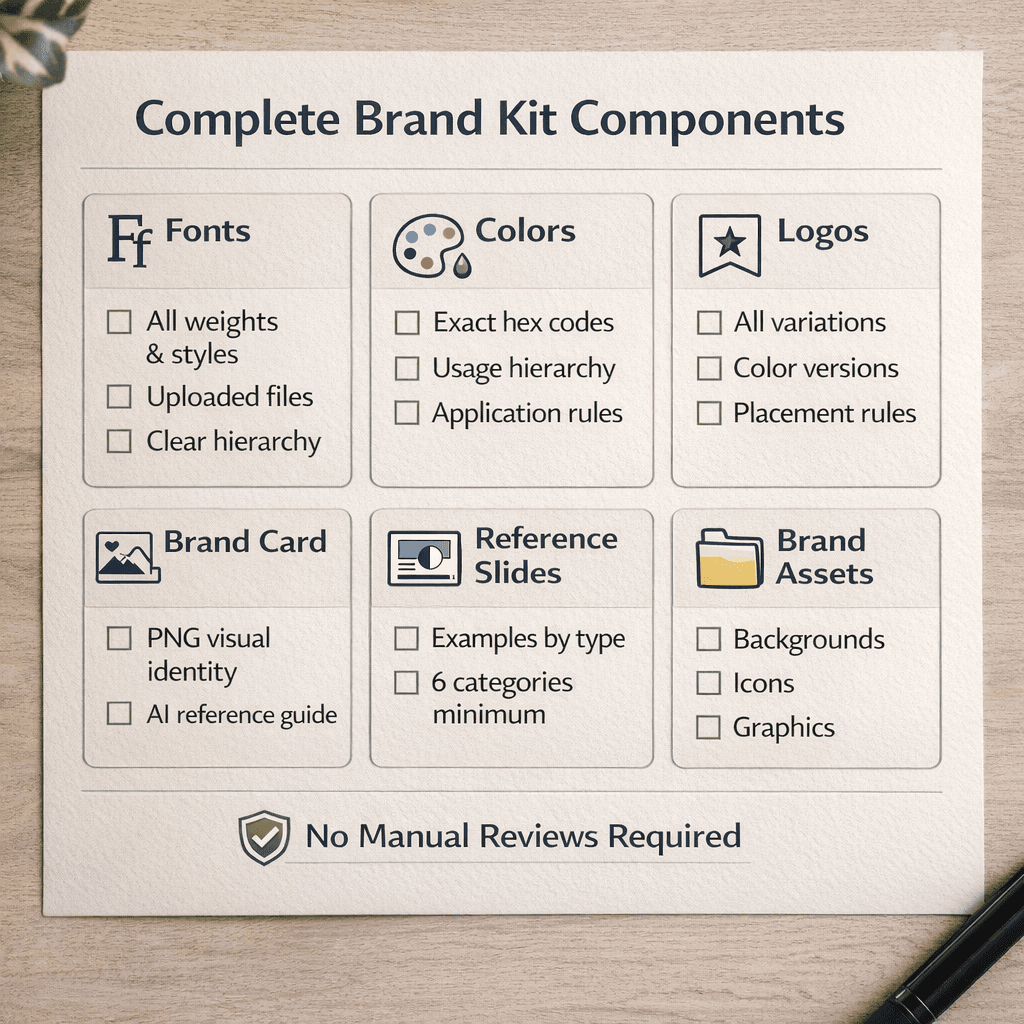
Most brand kit uploads are incomplete. Here’s what you actually need:
Fonts with all weights and styles Upload actual font files (TTF, OTF), not just font names. Include Regular, Bold, Semibold, Italic. Specify hierarchy: which font for headlines, subheads, body text, captions.
Colors with usage rules Exact hex codes for all brand colors. Define hierarchy: primary, secondary, accent, neutral. Specify which color for headlines, which for backgrounds, which for highlights. If your brand is 70% navy and 30% coral, say that.
Logo variations and placement rules Full logo, icon version, wordmark. Color versions: full color, white, black. Minimum size requirements. Clearance space rules (how much padding around logo).
Brand card PNG visual representation showing your complete brand identity. Shows colors, fonts, and logos together. Used by AI as a quick reference.
Reference slides for every slide type
Title/cover slide examples
Content slide examples (bullet points, paragraphs)
Chart/data visualization examples
Quote or testimonial slide examples
Team introduction slide examples
Closing/CTA slide examples
In tools like Decktopus, you can upload an existing branded presentation (even 100+ slides), and AI will automatically categorize slides by type. You review and confirm, building a complete reference library in minutes.
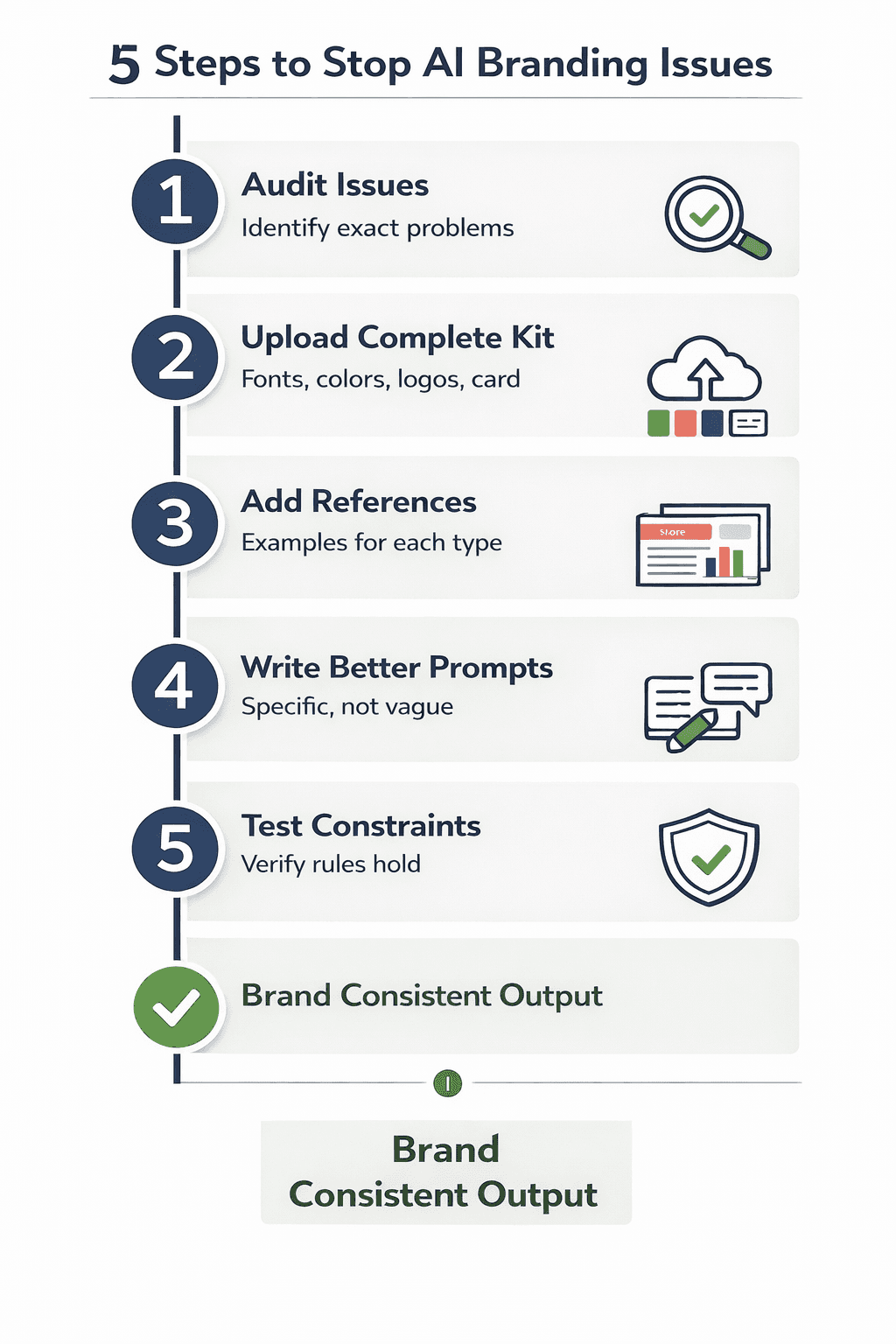
The 5-Step Fix for AI Branding Issues
Step 1: Audit What’s Going Wrong
Generate a test presentation. Check fonts, colors, logo placement, layout spacing, and text tone. Write down specific issues. Not “colors are wrong” but “accent color used for headlines instead of primary color.”
Step 2: Upload Your Complete Brand Kit
Follow the checklist above. Don’t skip fonts or reference slides. These are the elements most people miss, and they cause the most problems.
Step 3: Create Reference Slides
Show the AI what your brand looks like in practice. Upload examples for every slide type you use. Each reference slide becomes a template in the AI’s understanding.
When you ask for a “team introduction slide,” the AI references your uploaded team slide examples and matches that style. This is how you get consistent output without manually fixing every generation.
Learn more about how AI uses brand assets to generate on-brand slides.
Step 4: Write Specific Prompts
Vague prompts produce vague results.
Bad: “Make the title bigger” Better: “Make title 36pt Montserrat Bold, navy blue, left-aligned”
Bad: “Add more color” Better: “Use coral accent color for the CTA button and section dividers”
Bad: “Make it look professional” Better: “Match the layout from our standard content slide: 60% text, 40% visual, 40px margins”
The more specific your prompts, the more control you have. But if your brand kit is set up correctly, you shouldn’t need highly detailed prompts for every edit.
Step 5: Test Edits Within Brand Constraints
Generate a slide, then test modifications. Change the title, swap an image, add a bullet point, change a color. Do your brand rules hold?
If edits break your brand, your tool isn’t enforcing constraints properly. You need a platform that locks brand rules during editing, not just during initial generation.
In Decktopus, prompt-based editing maintains brand compliance automatically. Tell it “Make title bigger” and it increases size while keeping your specified font, color, and alignment.
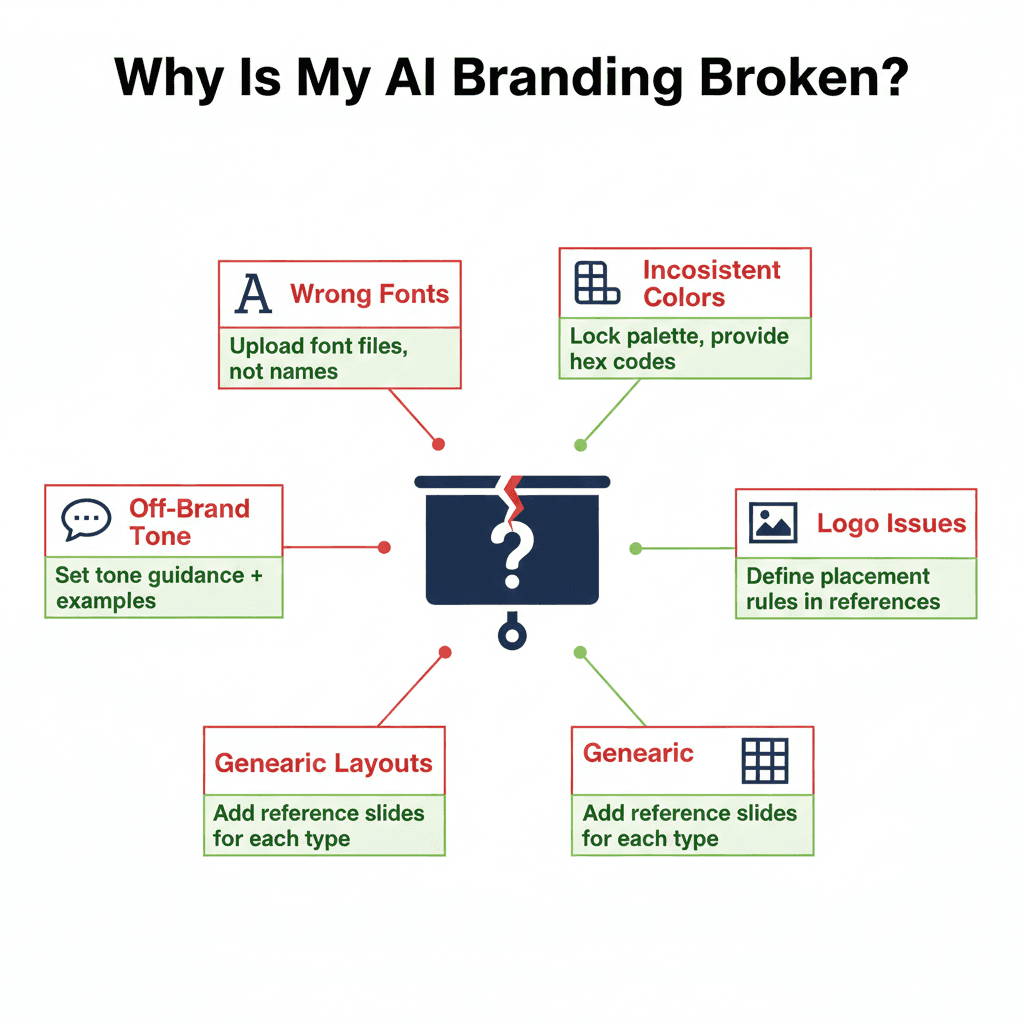
Common Problems and Quick Fixes
AI uses wrong fonts Upload actual font files to your brand kit. Don’t just type font names. If your platform doesn’t support custom fonts, switch platforms.
Colors are close but not exact
Provide exact hex codes. Lock the color palette so custom colors aren’t available. The color picker should only show your approved colors.
Logo appears inconsistently
Define logo rules in your reference slides. Show exactly where logos go on different slide types. Specify size, position, and clearance.
Layouts don’t match your style
Upload reference slides for every slide type. Without examples, AI improvises with generic templates.
Tone sounds generic
Provide tone guidance and content examples. Show the AI how your brand “talks” with sample headlines, body copy, and CTAs.
Brand breaks during editing
Use a platform with edit constraints. Modifications should maintain brand rules automatically. If you can manually change any element to any value, brand drift is inevitable.
Multi-brand projects get mixed up
Create separate brand kits for each client. Make brand kit selection the first step in your workflow. Platforms like Decktopus Nano keep each kit completely isolated.
Multi-Brand Workflows That Prevent Contamination
If you work with multiple clients or manage sub-brands, brand contamination is your biggest risk.
Create completely separate brand kits. Each client gets their own kit with fonts, colors, logos, and reference slides.
Use clear naming conventions. “ClientName_2025” is better than “Client1.”
Switch brand kits before generating. Make switching part of your workflow, not an afterthought.
Review the first slide immediately. Quick check: Logo match? Are the colors correct? Font right?
Archive old projects properly. Don’t leave Client A’s presentation open when switching to Client B’s work.
For detailed agency workflows, see how agencies create client presentations with different brand kits.
Tools That Actually Enforce Branding
Not all AI presentation tools handle branding the same way.
Brand kit storage: Fonts, colors, and logos stored and automatically applied. No re-uploading for every presentation.
Reference slide support: Upload example slides that guide AI generation.
Edit constraints: Modifications maintain brand rules. Users can’t freely change any element to any value.
Multi-brand capability: Multiple brands kept completely separate. No shared assets, no cross-contamination.
Version history: Unlimited undo for every slide. Free restoration of any past version.
Decktopus is built specifically for brand-consistent AI generation. Upload your brand kit once, add reference slides, and every subsequent presentation follows your rules by default. Learn more about AI-powered presentations with true brand enforcement.
Bottom Line: Fix the System, Not the Slides
Fixing AI branding isn’t about correcting slides after generation. It’s about controlling what AI can generate in the first place.
Upload complete brand kits. Provide reference slides for every slide type. Use platforms that enforce rules during editing. Set up multi-brand workflows that prevent contamination.
When the system is configured correctly, AI stops being a brand risk and becomes a brand amplifier.
Stop manually fixing off-brand slides. Start building systems that prevent them entirely.
FAQ: Stopping AI Branding Issues
Why does AI keep using the wrong fonts?
AI uses wrong fonts when custom fonts aren’t uploaded or when the platform doesn’t support font uploads. Upload actual font files (TTF, OTF) to your brand kit. If your platform only supports web-safe fonts, switch to tools like Decktopus Nano that support full font uploads.
What are reference slides and why do I need them?
Reference slides are examples showing what your brand looks like across different slide types. They teach AI your layout preferences, spacing rules, and visual style. Without reference slides, AI generates generic layouts. Upload examples for title, content, chart, quote, team, and closing slides.
Can I lock colors so AI only uses my brand palette?
Yes, but only in platforms built for brand enforcement. Tools like Decktopus Nano lock your color palette during generation and editing. Generic AI tools treat colors as suggestions, allowing users to pick any color.
How do I prevent mixing up multiple client brands?
Create separate brand kits for each client. Use clear naming like “ClientName_2025.” Make brand kit selection the first step in your workflow. Tools with proper multi-brand support keep each kit isolated, preventing cross-contamination.
Why does my brand break when I edit slides?
Brand breaks during editing when the tool doesn’t maintain constraints. Proper platforms enforce brand rules during modifications. In Decktopus Nano, prompt-based editing keeps fonts, colors, and layouts compliant automatically.
Do I need design skills to fix AI branding?
No. You need organized brand assets and clear guidelines. Upload your fonts, colors, logos, and reference slides once. The AI handles the rest. Brand guardians set up the system. Content creators generate presentations without design knowledge.
Related posts

How AI Voice Agents Help Sales Teams Prepare and Deliver Better Presentations
Learn how AI voice agents help sales teams turn call insights into focused slides, stronger delivery, and more confident customer presentations at every stage.
Marketing

Instagram Carousel Size & Dimensions Guide (2026)
Instagram carousel size in 2026: exact dimensions for square, portrait, and landscape, plus file limits and safe zones, verified across sources.
Marketing

LinkedIn Carousel Size, Dimensions & Format Guide 2026
LinkedIn carousel size in 2026: exact dimensions, file limits, aspect ratios, and formatting rules so your slides never get cropped.
Marketing