Presentations
How to Redesign a PowerPoint Presentation with AI: The 2026 Complete Guide
Learn what it means to redesign a PowerPoint, how AI redesign differs from starting over, real before/after examples, and how to redesign a full PPT in minutes while keeping every word intact.


İlayda Tunaboylu
What Does It Mean to Redesign a PowerPoint?
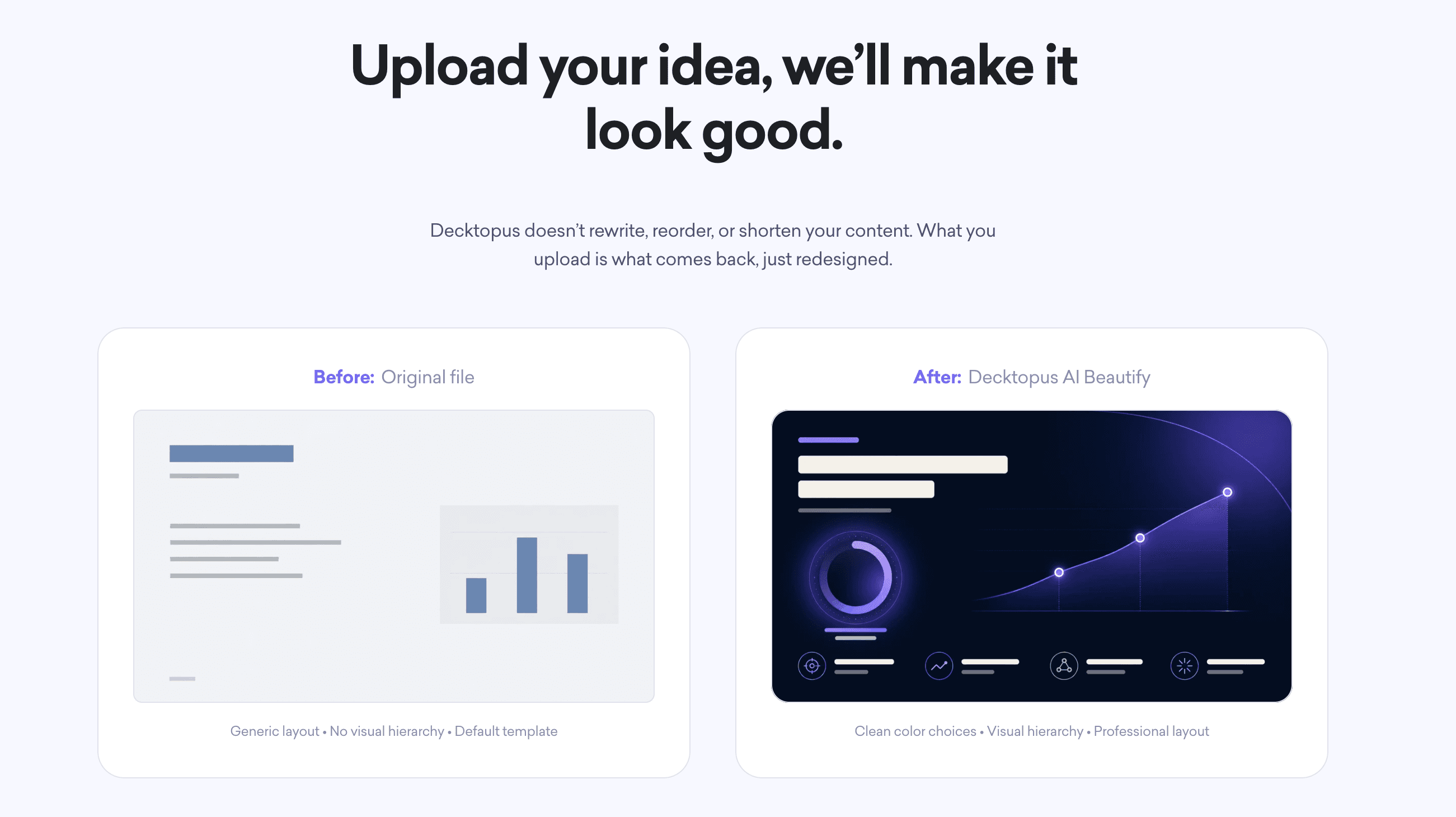
To redesign a PowerPoint is to update the visual design of an existing PPT file (layouts, colors, typography, spacing, imagery) without changing the underlying content. Modern AI redesign tools like Decktopus AI Beautify do this in one pass across the whole deck. Your text stays word-for-word intact. Your slide count and slide order don't change. Only the design updates. The main benefit of AI redesign is that it separates the "what" from the "how it looks." You keep your writing. You get a new look. In minutes, not days.
According to research on visual perception, audiences form aesthetic judgments about a slide within 500 milliseconds. Studies from workplace surveys show less than 15% of professionals feel confident about presentation design. The remaining 85% either spend hours fighting default templates or ship decks that undermine their content. AI redesign closes that gap: professional design becomes accessible to anyone with an existing PPT file.
For related content, see our guides on how to beautify your presentation slides with AI, presentation design, and the best AI presentation tools.
Why Redesign Instead of Starting Over?
Your content is fine. Most PowerPoint files that need work don't need rewriting. They need visual updating. Redesign preserves what already works.
Time savings are massive. Rebuilding a 30-slide deck from scratch takes 8 to 15 hours. AI redesign takes 5 to 15 minutes.
Content drift risk is real. When you rebuild from scratch, small changes creep in. Numbers shift, quotes get paraphrased, slide order changes. Redesign eliminates this risk.
Team consistency improves. A deck that started with five people's design instincts becomes cohesive after AI redesign.
Old decks become useful again. Legacy PPT files gathering dust suddenly become presentable after redesign.
AI Redesign vs. Manual Redesign vs. Starting From Scratch
Factor | AI Redesign | Manual Redesign | Starting From Scratch |
|---|---|---|---|
Time for 30-slide deck | 5 to 15 minutes | 4 to 8 hours | 8 to 15 hours |
Content preservation | Word-for-word guaranteed | Manual (risk of drift) | Requires rewriting |
Design skills required | No | Yes | Yes |
Consistency across slides | Automatic | Depends on designer | Depends on discipline |
Best for | Existing decks needing refresh | Highest-stakes custom work | New topics with no existing deck |
Cost | Software subscription | Designer time | Both time and content work |
Editable after | Yes | Yes | Yes |
The takeaway: AI redesign wins for the 90% of everyday PowerPoint files that need visual updating. Manual redesign still wins for the highest-stakes, brand-critical decks. Starting from scratch is best for entirely new topics where no existing deck exists.
The 6-Step PowerPoint Redesign Framework
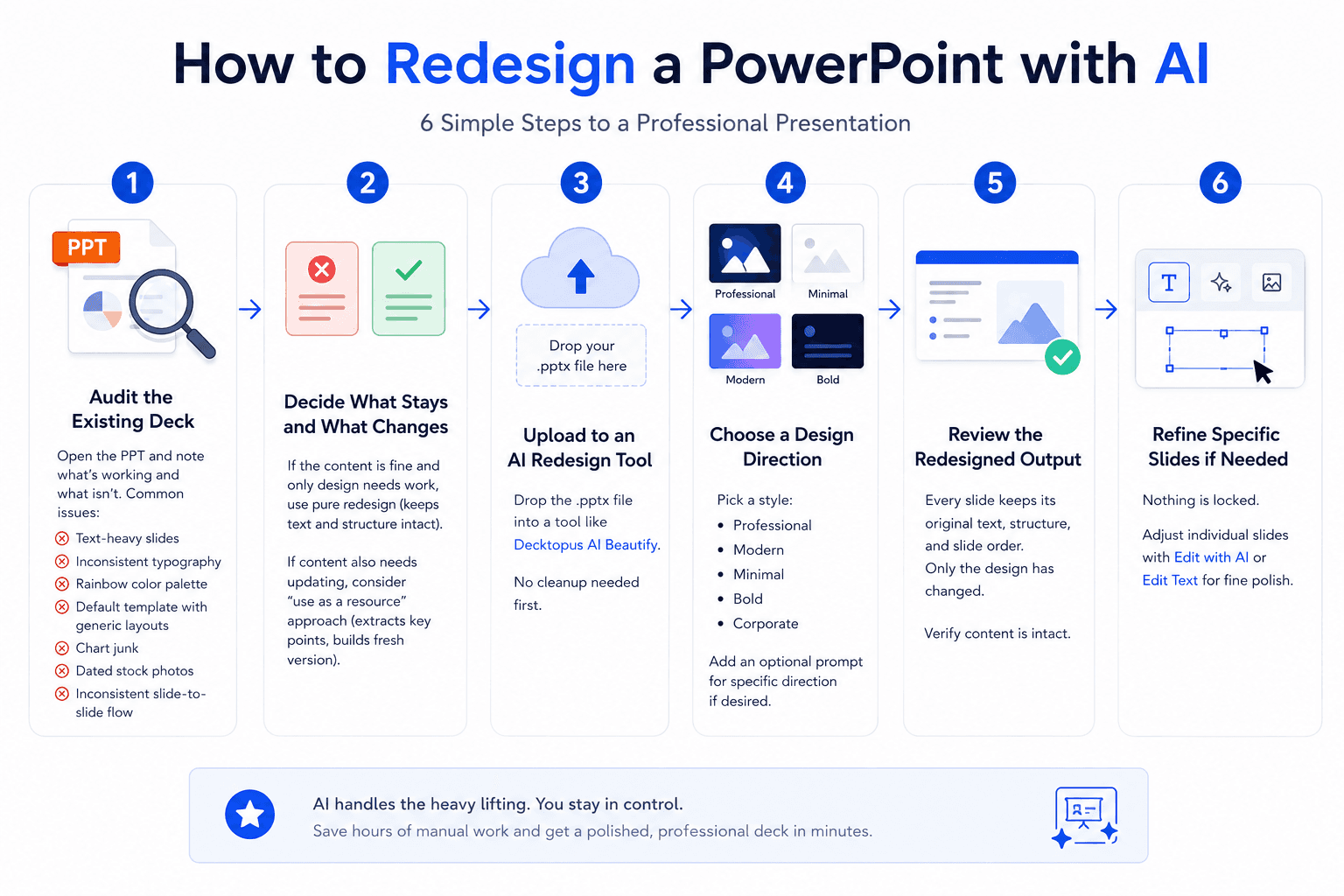
Every winning PowerPoint redesign follows the same 6 steps.
Step | What Happens |
|---|---|
1 | Audit the existing deck |
2 | Decide what stays and what changes |
3 | Upload to an AI redesign tool |
4 | Choose a design direction |
5 | Review the redesigned output |
6 | Refine specific slides if needed |
Step 1: Audit the Existing Deck
Open the PPT and note what's working and what isn't. Common issues:
Text-heavy slides
Inconsistent typography
Rainbow color palette
Default template with generic layouts
Chart junk
Dated stock photos
Inconsistent slide-to-slide flow
Step 2: Decide What Stays and What Changes
If the content is fine and only design needs work, use pure redesign (keeps text and structure intact). If content also needs updating, consider "use as a resource" approach (extracts key points, builds fresh version).
Step 3: Upload to an AI Redesign Tool
Drop the .pptx file into a tool like Decktopus AI Beautify. No cleanup needed first.
Step 4: Choose a Design Direction
Pick a style: professional, modern, minimal, bold, corporate. Add an optional prompt for specific direction if desired.
Step 5: Review the Redesigned Output
Every slide keeps its original text, structure, and slide order. Only the design has changed. Verify content is intact.
Step 6: Refine Specific Slides if Needed
Nothing is locked. Adjust individual slides with Edit with AI or Edit Text for fine polish.
What to Redesign on Every Slide
Typography. Update to a consistent, professional font family.
Color palette. Reduce to 2 to 3 colors applied consistently.
Visual hierarchy. Make the most important element on each slide the largest and most prominent.
Spacing and alignment. Introduce grid-based alignment and generous white space.
Backgrounds. Remove busy default backgrounds; use clean neutral or brand-consistent backgrounds.
Chart styling. Strip chart junk (gridlines, borders, cluttered legends). Highlight key data points.
Imagery. Replace generic stock photos with meaningful visuals or remove entirely.
Icon style. Consistent icon style across the deck (all flat, all outlined, all filled).
Slide-to-slide flow. Ensure every slide feels like it belongs to the same deck.
Common Reasons People Redesign PowerPoint Files
Outdated corporate template. The master deck was designed years ago and looks it.
Rushed original creation. The deck was built the night before the meeting, so design took a back seat.
Team inconsistency. Five people contributed and five different styles show up.
Rebrand. Company brand updated and old decks need to reflect the new identity.
Client-specific customization. Standard sales deck needs adaptation for a specific client.
Investor prep. Founder-built pitch deck needs polish before institutional investor meetings.
Merger or acquisition. Integrating two companies means unifying two design languages.
Rescue for a specific meeting. Old deck being reused, no time to rebuild.
Consistency across a series. Multi-part series of decks needs unified design.
Text-heavy internal deck. Board or QBR deck full of text pasted from documents needs visualization.
Common PowerPoint Redesign Mistakes
Redesigning slide by slide manually. Takes hours. AI redesign handles the whole deck in minutes.
Choosing the wrong style for the audience. Match style to context. Minimalist for creative/tech. Formal for enterprise/finance.
Skipping the review step. Even AI redesign benefits from a final human check.
Expecting AI to fix bad content. Redesign fixes visuals. If the writing needs work, that's a separate task.
Not saving the original. Always keep the pre-redesign version.
Over-editing after redesign. The whole point is speed. Excessive tweaking defeats the purpose.
Ignoring brand guidelines. Even AI redesign should reflect your brand colors and fonts.
How to Redesign Your PowerPoint with Decktopus AI
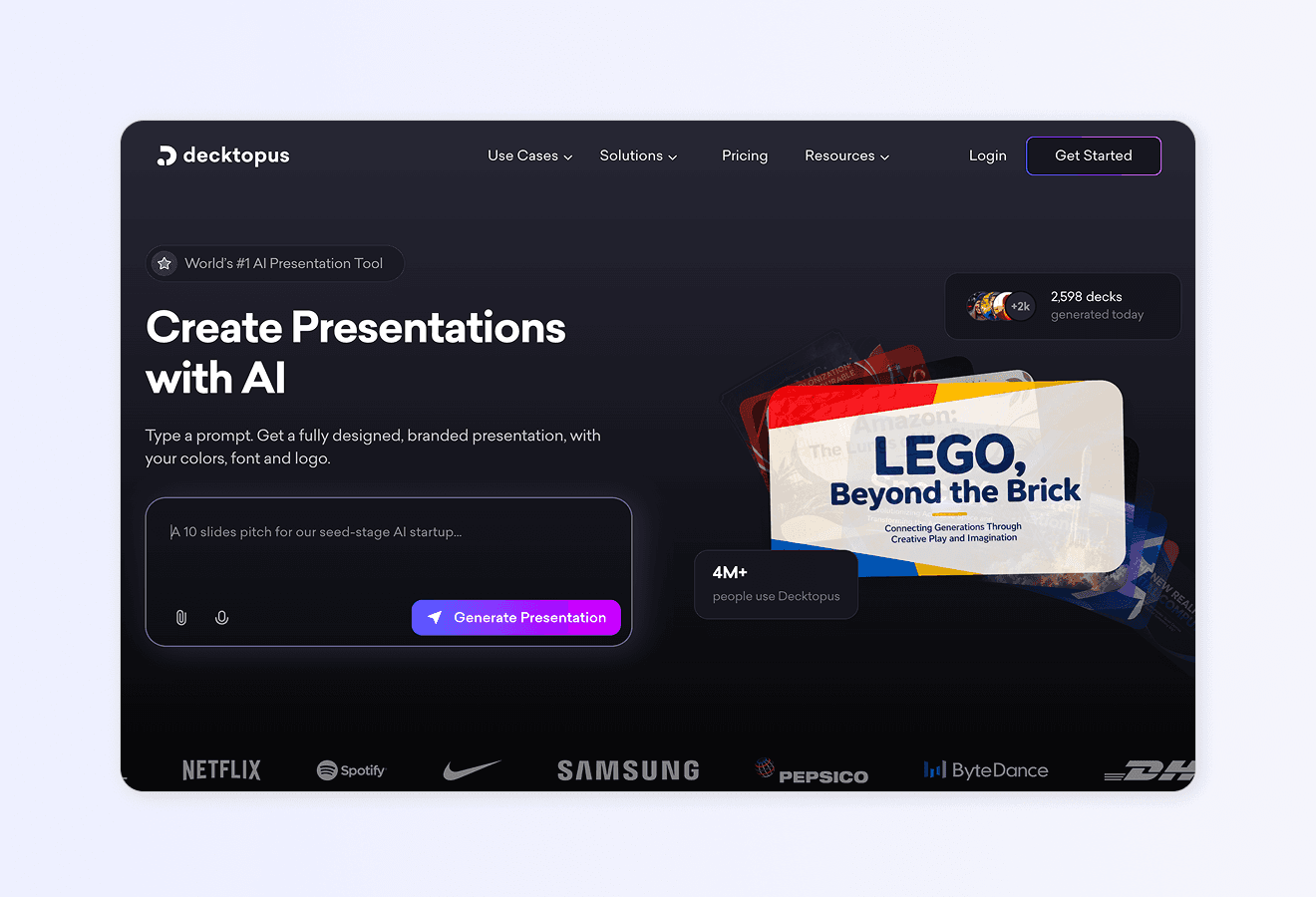
Decktopus AI Beautify is a full-deck redesign feature that keeps your content word-for-word while completely refreshing the visual design. Upload your existing PowerPoint, choose a style, and download the redesigned version in minutes.
Why Decktopus AI Beautify Is Built for PowerPoint Redesign
Full-deck redesign in one pass. Every slide gets updated together.
Content stays word-for-word. Text, structure, slide count intact.
Professional styles ready to go. Or add a prompt for direction.
Fully editable after. Nothing is locked.
Works on decks up to 100 slides.
Multi-format export. PDF, PPT, PNG.
Two Beautify options:
Redesign keeps text and structure intact. Design only changes.
Use as a Resource extracts key points and builds a fresh deck around them.
Step-by-Step: Redesign Your PowerPoint
Upload your .pptx file via the paperclip icon
Choose Redesign to preserve content
Pick a style, past style, or let AI choose. Optional prompt for direction.
Review the redesigned deck (content unchanged)
Refine with Edit with AI or Edit Text if needed
Export as PDF, PPT, or PNG. Share via live link. Present from Presentation Mode.
For deeper use case guidance, see Decktopus AI for Marketers, Decktopus AI for Sales, and Decktopus AI for Agencies.
For related content, see our guides on how to beautify your presentation slides with AI and slide design ideas and inspiration.
Ready to redesign your PowerPoint? Try Decktopus AI Beautify.
Frequently Asked Questions
What does it mean to redesign a PowerPoint?
To redesign a PowerPoint is to update the visual design of an existing PPT file (layouts, colors, typography, spacing) without changing the underlying content. AI redesign tools do this in one pass across the whole deck.
How do I redesign a PowerPoint with AI?
Upload your .pptx file to an AI redesign tool like Decktopus AI Beautify. Choose a style. The tool redesigns every slide in one pass while keeping your text word-for-word intact.
How long does it take to redesign a PowerPoint with AI?
Most AI redesign tools handle a 30 to 50-slide deck in 5 to 15 minutes. Larger decks (up to 100 slides) may take 10 to 20 minutes.
Does AI redesign change my PowerPoint text?
No. Proper AI redesign changes only visual design (colors, layout, typography, hierarchy). Your text stays word-for-word, your slide count stays the same, and your slide order stays intact.
Can I redesign a PowerPoint slide by slide?
Yes, but it's slow. Manual slide-by-slide redesign of a 30-slide deck takes 4 to 8 hours. AI full-deck redesign takes 5 to 15 minutes.
What's the difference between redesigning and starting over?
Redesign keeps your text and structure. Starting over means rewriting the content. Redesign is for decks where the writing is fine and only visuals need work.
Can I redesign a PowerPoint file that has lots of images and charts?
Yes. AI redesign tools handle image placement, chart styling, and layout alongside text. Complex data visualizations may need a manual review after.
How do I redesign a PowerPoint that's been through many hands?
Upload it to AI redesign. The tool applies one consistent style across every slide, eliminating the inconsistency that comes from multiple contributors.
Will my PowerPoint slide count change after AI redesign?
No. Proper AI redesign keeps your slide count and order exactly as they were. Only design changes.
Can I edit slides after AI redesign?
Yes. Every slide is fully editable. Adjust manually or use AI editing features.
How do I redesign a rebranded PowerPoint deck?
Upload the .pptx to Decktopus AI Beautify. If you have brand guidelines, import your brand from your website URL to auto-apply logo, colors, and fonts.
Can I redesign PowerPoint from a Mac or PC?
Yes. AI redesign tools are usually web-based. Works from any browser on Mac, PC, or mobile.
What's the difference between "Redesign" and "Use as a Resource" in Decktopus AI?
Redesign keeps your text and structure intact and applies new visual design. Use as a Resource extracts key points from your uploaded deck and builds a fresh presentation around them (requires a prompt describing the new focus).
How do I know if my PowerPoint needs a redesign?
If it uses default templates, has inconsistent fonts or colors, feels dated, or was built by multiple people with different styles, it likely needs redesign. Also, if it's more than 2 years old, it probably looks dated.
What tool should I use to redesign PowerPoint fast?
Decktopus AI Beautify is the fastest option. Upload your .pptx file, choose a style, download the redesigned version. For more, see our roundup of the best AI presentation tools.
Conclusion
Redesigning PowerPoint files used to mean either hours of manual work or paying a designer. AI redesign has changed the economics. What used to take 8 hours now takes 15 minutes. Your content stays word-for-word intact. Only the design updates.
The 6-step framework in this guide (audit, decide, upload, choose direction, review, refine) works consistently across every deck type. For the fastest, most content-preserving PowerPoint redesign workflow available, Decktopus AI Beautify is built specifically for this: upload the .pptx, pick a style, download the redesigned deck.
For more resources, see our guides on how to beautify your presentation slides with AI, slide design ideas and inspiration, and the best AI presentation tools.
Related posts

Webinar Follow-Up Emails: The Sequence That Runs After the Deck Ends
Learn how to build a webinar follow-up email sequence with behavioral segmentation, timely emails, better deliverability, and personalized outreach.
Presentations

Best TED Talks to Improve Your Presentation Skills
Watch ten of the best TED talks for presentation skills and use a practical exercise from each to improve structure, voice, visuals, and confidence.
Presentations

Decktopus AI Best Practices: The Complete Guide, Tips and Tricks (2026)
A complete guide to using Decktopus AI effectively, from writing better prompts and reviewing outlines to rehearsing with Loop and building carousels.
Presentations