Marketing
Free LinkedIn Carousel Templates for 2026
Where to find free LinkedIn carousel templates in 2026, what to check before using one, and when skipping templates entirely works better.


İlayda Tunaboylu
A free template is the fastest way to get from “I need to post a carousel” to something that looks reasonably professional, which is exactly why so many people search for one first. It’s also worth knowing upfront what you’re trading for that speed: templates come with someone else’s structure and layout decisions already baked in, which can save time on a design you’re not confident about, or actively work against you if your content doesn’t fit the shape it was built for.
This guide covers where the actual free options are, what to check before committing to one, and when building from scratch instead of retrofitting a template turns out to be the faster path anyway. If you already know you want to build from scratch, how to make a LinkedIn carousel covers that process directly, Best LinkedIn Carousel Generators 2026 compares the tools themselves, and 10 LinkedIn Carousel Ideas That Get Saves & Shares helps if you have the format sorted but not yet the content.
What Is a LinkedIn Carousel Template?
A LinkedIn carousel template is a pre-built slide layout, usually a set of Canva, Figma, or PowerPoint pages already sized to LinkedIn’s carousel dimensions, with placeholder text, colors, and structure already in place. You drop in your own copy and images rather than designing the layout from a blank page, which is what makes templates faster than starting from scratch, and also why a template’s built-in structure can either save you time or fight against content that doesn’t fit the shape it was designed for.
Quick Answer
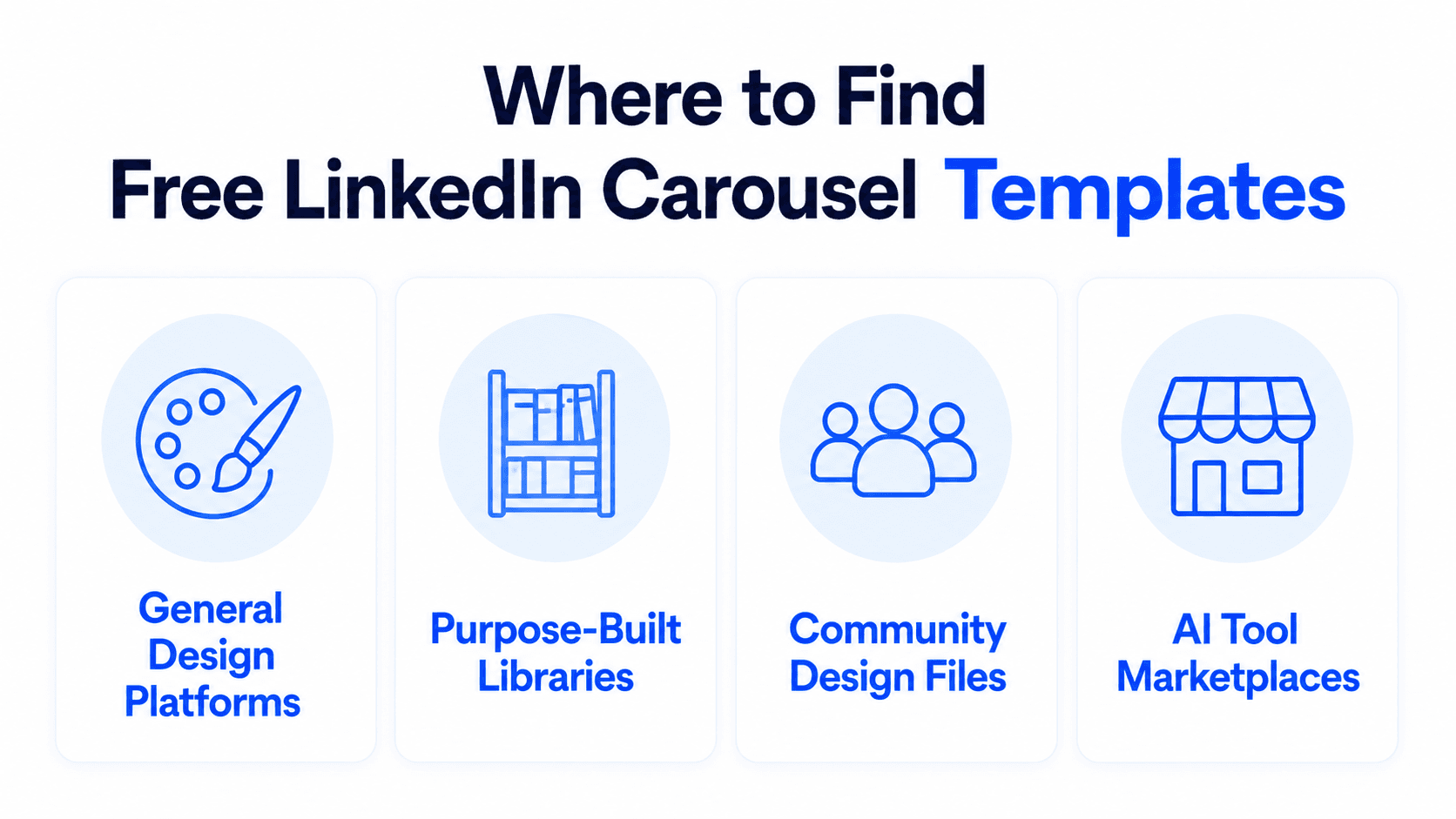
Free LinkedIn carousel templates are available through general design platforms (Canva, Adobe Express), purpose-built carousel template libraries, Figma’s community files, and some AI carousel tool marketplaces, though “free” often means free to browse rather than free to export without limits. Check the fine print before committing to one.
What “Free” Actually Means Across These Tools
“Free” carries different fine print depending on where the template comes from, and it’s worth checking before you invest time customizing one.
What to check | Why it matters |
|---|---|
Watermark on export | Some free tiers add a visible brand watermark unless you upgrade |
Export format restrictions | A few tools limit free exports to lower resolution or a single format |
Template count on the free tier | Free libraries range from a handful of designs to hundreds; verify what’s actually free vs. paid-tier-only |
License terms | Check whether commercial use is permitted on the free tier specifically |
Account requirement | Some tools require signup before you can export, even on templates marked free |
Free to browse vs. free to use | Some AI carousel tools let you browse and preview their full template library for free, but charge in-app credits the moment you actually apply one to your content, the same cost as generating a design from scratch. “Free” in that context means free to look at, not free to use |
None of this makes free templates a bad option, it just means “free” is worth a 30-second check rather than an assumption, since the fine print varies tool to tool.
Where to Find Free LinkedIn Carousel Templates
General design platforms with LinkedIn-specific template sets. Canva and Adobe Express both maintain libraries of carousel-formatted templates that can be filtered or searched specifically for LinkedIn dimensions. These tend to have the largest raw template counts, since they’re general-purpose design tools with LinkedIn as one category among many.
Purpose-built carousel template libraries. Some tools build their template libraries specifically around carousel formats (LinkedIn, Instagram, and similar), rather than as one category inside a broader design tool. These tend to offer more carousel-specific layout thinking (slide numbering conventions, consistent multi-slide themes) than a general design tool’s individual-slide templates.
Community design files. Figma’s community section hosts freely duplicable carousel template files created by individual designers. These require a Figma account and some comfort with the Figma interface, but they’re genuinely free with no watermark in most cases, since they’re community contributions rather than a paid tool’s free tier.
AI carousel tool marketplaces. Some AI-powered carousel makers run their own template marketplace where users submit and browse designs made by other creators on the platform. The marketplace itself is usually free to browse, but check whether applying a template still draws from the same paid credit system as generating a carousel from scratch, since “free” here often describes browsing access rather than a free result.
Availability and exact feature sets on any of these change over time, so check current template counts, export limits, and licensing directly on each platform before committing to one for a specific campaign.
What to Check Before Using a Template
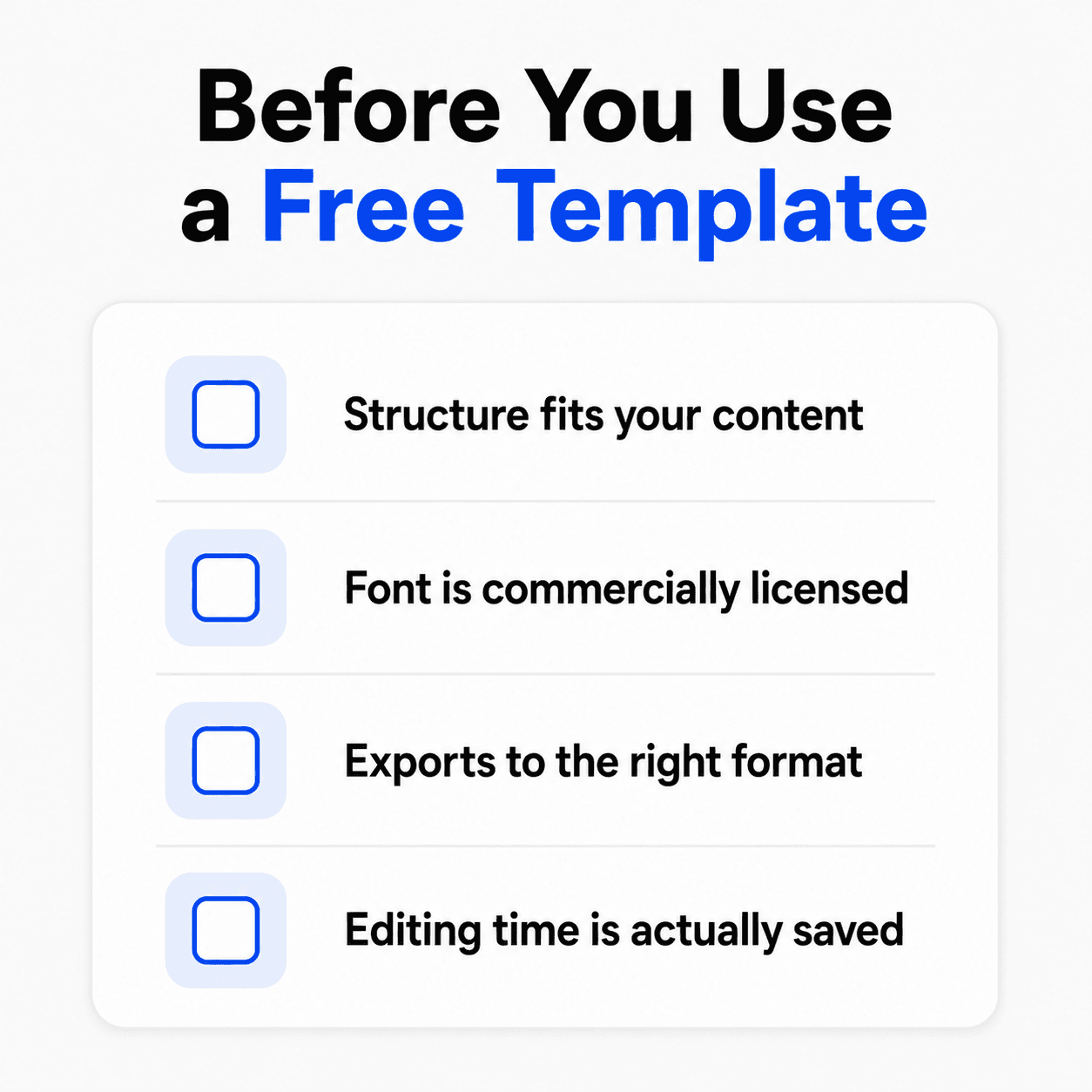
Does the structure actually fit your content? A template built for a 5-point listicle doesn’t bend well to a step-by-step tutorial with uneven section lengths. Check the template’s slide count and structure against your actual outline before customizing, not after.
Is the font licensed for your use case? Some free templates use fonts that aren’t licensed for commercial use without a separate purchase. Worth a quick check if this carousel is for business use.
Does it export at LinkedIn’s actual carousel dimensions? LinkedIn carousels render from an uploaded PDF, PPT, PPTX, DOC, or DOCX document, not individual images. Confirm the template exports to one of those formats, not just as PNGs meant for Instagram.
How much editing does it actually save you? If a template needs so much restructuring to fit your content that you’re rebuilding most of it anyway, the “free” time savings can turn out smaller than expected.
How to Judge a Template’s Quality Beyond “Free”
Price is the easiest filter, but it’s not the one that determines whether a template actually helps you. A few criteria matter more once cost is off the table.
Slide-to-slide visual rhythm. A good carousel template doesn’t just make one slide look nice, it establishes a repeatable pattern (heading placement, text hierarchy, accent color usage) that holds up across 6 to 10 slides without becoming monotonous or inconsistent. Preview the full template sequence, not just the first slide, before committing.
Text capacity per slide. Some templates are designed around very short text (a single word or number per slide), others assume several lines. Match this to your actual content style before customizing, since forcing long copy into a short-text template (or vice versa) is where a lot of restructuring time gets lost.
Editability of the underlying structure. Some templates lock certain elements (a background shape, a specific font pairing) more rigidly than others. If your brand has specific requirements, check how much of the template’s structure you can actually change before customizing it fully.
Whether the layout reads as generic or distinctive. A template used by thousands of other accounts loses distinctiveness fast, no matter how well designed it originally was. Popular free templates in particular tend to become recognizable within a niche once enough people are using the same one.
Customizing a Template Without It Looking Like a Template
If you’ve decided a template is the right starting point, a few changes go a long way toward making the final carousel feel less like an off-the-shelf layout.
Change the accent color palette, not just the primary brand color. Swapping only your logo’s main color while keeping a template’s default secondary and background colors is one of the fastest ways a carousel still reads as “that template” to anyone who’s seen the original.
Replace the default font pairing. Fonts are one of the most recognizable parts of a template, even after every other element changes. A different font pairing, especially for headlines, does more to disguise a template’s origin than almost any other single change.
Adjust the slide count to fit your content, not the template’s default. If a template defaults to 8 slides and your content genuinely needs 6, cut the extra two rather than padding your content to match the template’s structure. A template’s slide count is a starting suggestion, not a requirement.
Rework the layout of at least the hook and closing slides. These are the two slides people notice most, since they set expectations and deliver the CTA. Spending disproportionate customization effort here, even if the middle slides stay closer to the template’s original structure, changes how “templated” the whole carousel feels.
The Case for Skipping Templates Entirely
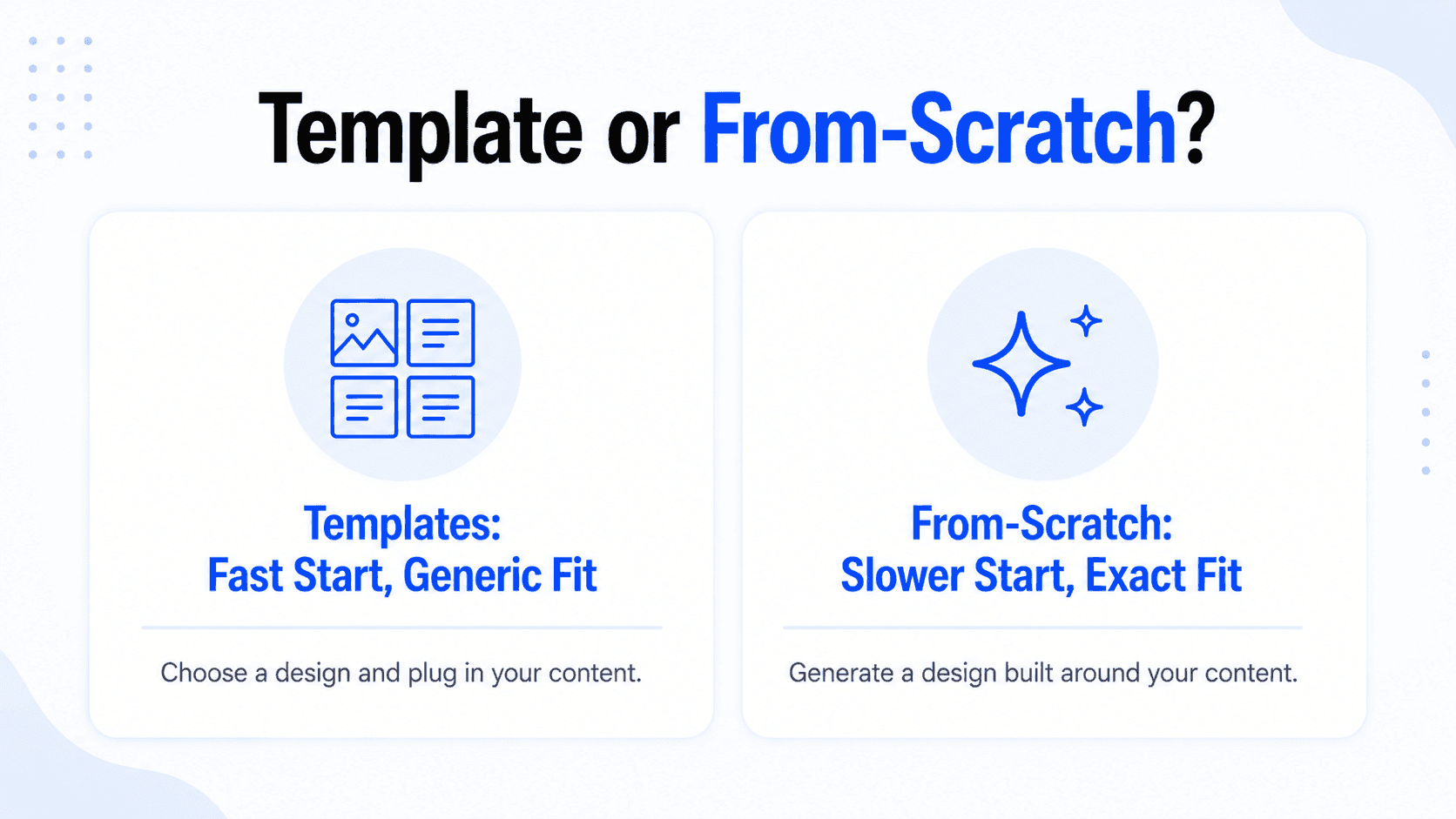
Templates solve a specific problem: not knowing where to start. If that’s genuinely your bottleneck, a template is a reasonable shortcut. But templates create a different problem for anyone posting carousels regularly: every carousel starts to look like it came from the same library, because it did, and readers who follow multiple accounts in the same niche start recognizing the same layouts across different creators.
The other friction point is fit. A template is built for generic content, then every real carousel gets forced into that generic shape, sometimes cleanly, often not. Content that’s naturally 6 slides gets padded to fill an 8-slide template, or content that needs 10 slides gets awkwardly compressed into a 6-slide one.
Generating a layout from your actual content, rather than starting from a fixed structure, avoids both problems: the design fits what you’re actually saying instead of the other way around, and it’s not pulled from the same shared library everyone else is customizing. This is the same question that comes up with slide decks: does AI actually design from scratch, or just reshuffle a template, and the answer changes what you should expect from any AI tool claiming to do either.
Building a Carousel From Scratch in Decktopus AI
Decktopus AI takes a different approach to this whole problem: there’s no template library to search through in the first place. Instead of picking a pre-built layout and fitting your content into it, you describe what you want and the design gets generated around your actual content.
1. Enter your topic as a prompt, or upload a document. Type out what the carousel needs to cover, or hand Decktopus a full document and let it extract the structure.
2. Choose your visual direction. Pick a previously used style, a Brand Import that pulls colors and typography directly from your website URL, or let the AI generate a fresh look from scratch. This replaces browsing a template library with a starting point built around your actual brand.
3. Review the card-by-card outline. Check the proposed slide breakdown before the final design is built, adjusting slide count or structure to fit your content instead of the other way around.
4. Generate the full design. Decktopus builds the complete carousel, layout, color, and typography, generated for this specific content rather than pulled from a shared library.
5. Refine with Edit with AI or Edit Text. Adjust wording or styling with a plain-language prompt and a preview before applying, or make direct manual edits.
6. Export as PDF, ready to upload to LinkedIn through “Add a document” in the post composer.
This approach trades template browsing time for a short prompt, and the output is shaped by your content rather than a fixed structure you have to adapt to.
Start building your carousel from scratch on Decktopus AI, no template required.
Signs a Template Approach Won’t Scale With You
A single free template can work fine for a one-off carousel. A few signs suggest the template approach specifically will become a bottleneck as your posting frequency increases.
You’re spending more time searching than customizing. If browsing a template library regularly takes longer than the customization itself, the “free” time savings the template was supposed to provide has already been spent before you’ve written a single line of content.
Your carousels are starting to look interchangeable with your own past posts. Reusing the same one or two templates repeatedly, even with different content, is one of the fastest ways for a regular audience to stop noticing your posts as distinct from each other.
You’re restructuring more than half the template each time. If your actual content rarely fits the template’s default slide count or text capacity, and you’re consistently splitting, combining, or cutting slides to make it fit, the template is adding overhead rather than removing it.
You’ve noticed a competitor or peer using the same template. This happens more often than it seems like it should, especially with the most popular free templates in a given niche. Once it happens once, it’s a strong signal to move to something less commonly used, or to stop templating altogether.
None of these signs mean templates are the wrong choice permanently, they’re signals worth checking against your actual posting frequency and whether the time savings templates were supposed to provide are still real.
Common Mistakes With Template-Based Carousels
Forcing content into the wrong slide count. Padding or compressing your actual content to fit a template’s fixed structure usually shows, and it’s the fastest way to make a carousel feel generic.
Skipping the license check on commercial content. Fonts and some design assets in free templates aren’t always cleared for business use on the free tier specifically.
Exporting in the wrong format for the platform. A template exported as individual PNGs won’t render as a swipeable carousel on LinkedIn, since LinkedIn only supports the document-upload format (PDF, PPT, PPTX, DOC, DOCX).
Using the same unedited template repeatedly. Recognizable, unedited templates are one of the fastest ways for an audience following multiple accounts in the same space to notice you’re using a shared library.
How to Know If a Template Is Actually Working for You
Picking a template is a starting decision, not a permanent one. A few checks tell you whether the one you picked is actually pulling its weight a few carousels in, versus quietly becoming the bottleneck the signs above describe.
Compare engagement on template-based carousels against your own from-scratch posts, if you have any to compare against. Using LinkedIn’s native post analytics, check saves and comments specifically, not just impressions. If your templated carousels are consistently underperforming your own custom ones, the template’s structure may not fit your content as well as it initially seemed to.
Track how long customization actually takes, carousel to carousel. A template that saves real time in week one but takes just as long to adapt by week four (because you’re restructuring slide count or rewriting for a different text capacity each time) isn’t delivering the time savings it was picked for anymore.
Watch for a specific, concrete signal: someone mentioning your carousel looks familiar. A comment or a private note that your layout resembles another creator’s post in the same space is a direct, unambiguous sign the template has stopped giving you distinctiveness, whatever its engagement numbers look like in isolation.
If you switch away from a template to a from-scratch approach, compare the same way. Check saves, comments, and time-to-published-carousel for a few posts before and after the switch. A prompt-based approach that doesn’t move either number, after giving it a real trial rather than one post, means the template wasn’t the actual constraint on your carousel performance.
FAQ
Are LinkedIn carousel templates actually free, or is there a catch?
It depends on the source. Some are genuinely free with no watermark, others add a visible watermark or restrict export quality unless you upgrade. Check the specific platform’s free-tier terms before committing time to customizing one.
What file format does a LinkedIn carousel template need to export to?
PDF, PPT, PPTX, DOC, or DOCX. LinkedIn carousels render from an uploaded document, not individual image files, so confirm your template exports to one of those formats before you build in it.
Does Decktopus AI have a template library I can browse?
No. Decktopus AI generates carousel designs from your content directly, whether that’s a prompt or an uploaded document, rather than offering a library of pre-built layouts to choose from and customize. That’s a deliberate difference from tools built around browsing a template gallery.
Is a template or a from-scratch design better for a LinkedIn carousel?
Depends on the situation. A template is a reasonable shortcut if you’re unsure where to start and posting occasionally. A from-scratch approach fits your actual content more precisely and avoids the “I’ve seen this layout before” problem that comes with using a shared library regularly.
Can I use a free template for commercial or business content?
Usually, but check the license terms on the specific platform first. Some free tiers restrict commercial use, or require a paid plan for fonts and assets used in the design, even when the base template itself is marked free.
How do I make a free template look less like a template?
Change more than your logo color. Swap the full accent palette, replace the default font pairing, and rework the hook and closing slides specifically, since those are the two slides people notice most and remember from a carousel.
If a template is listed as “free,” does that mean it’s free to actually use?
Not always. Check specifically, since “free” sometimes means free to browse the library rather than free to apply. Some AI carousel platforms let you preview their entire template catalog at no cost, then charge the same in-app credits to use one as they would to generate a fresh design, so the template itself saved you design-decision time, not the underlying cost.
What’s the actual time cost of customizing a template versus building from scratch?
It varies by how well the template’s default structure fits your content. A template that matches your slide count and text style closely can save real time. One that needs significant restructuring, splitting or combining slides, rewriting for a different text capacity, can end up taking close to as long as starting fresh, just with extra steps to strip out the parts of the original design that don’t fit.
How do I know if my template choice is actually working?
Compare saves and comments on your templated carousels against your own from-scratch posts, using LinkedIn’s native analytics, and track whether customization time is staying low or creeping back up carousel to carousel. If a peer mentions your layout looks familiar, that’s a direct sign the template has stopped delivering distinctiveness regardless of what the numbers say.
Need exact dimensions instead of a template’s built-in sizing? LinkedIn Carousel Size, Dimensions & Format Guide 2026 has the specs. And whether you use a template or not, LinkedIn Carousel Best Practices covers what actually makes a carousel perform.
Conclusion
Free LinkedIn carousel templates are a legitimate starting point, especially for a single post or someone still figuring out their format. The tradeoff is a generic structure you’re adapting your content to, rather than a design built around what you’re actually saying, and that tradeoff gets more noticeable the more carousels you post. If you’re posting regularly, it’s worth comparing the time template customization actually saves against a prompt-based, from-scratch approach built around your specific content each time.
Ready to build a carousel around your actual content instead of a template? Start a carousel on Decktopus AI, or see the full feature set on the carousel maker landing page.
Related posts

How AI Voice Agents Help Sales Teams Prepare and Deliver Better Presentations
Learn how AI voice agents help sales teams turn call insights into focused slides, stronger delivery, and more confident customer presentations at every stage.
Marketing

Instagram Carousel Size & Dimensions Guide (2026)
Instagram carousel size in 2026: exact dimensions for square, portrait, and landscape, plus file limits and safe zones, verified across sources.
Marketing

LinkedIn Carousel Size, Dimensions & Format Guide 2026
LinkedIn carousel size in 2026: exact dimensions, file limits, aspect ratios, and formatting rules so your slides never get cropped.
Marketing