Marketing
How to Turn a Blog Post Into a Social Media Carousel
Turn any blog post into a LinkedIn or Instagram carousel with this step-by-step text-to-carousel workflow, plus a worked example.


İlayda Tunaboylu
A blog post and a carousel are trying to do different jobs. The blog post can afford paragraphs, context, and a slow build. The carousel has one to two seconds per slide to keep someone swiping. Turning one into the other isn’t just formatting, it’s deciding what to cut, since most of what makes a blog post thorough is exactly what makes a carousel feel bloated.
The upside is that a blog post you’ve already written has done the hardest part: the research, the structure, the argument. This guide covers how to pull that structure out and rebuild it as a carousel, whether you’re working from a full blog post, a URL, or just the plain text of an article. This is one piece of a broader repurposing habit, see the complete guide to repurposing content and long-form vs. short-form content for the wider strategy this workflow fits into.
Once you’ve got the structure pulled out, how to make a LinkedIn carousel and how to make an Instagram carousel post cover the actual build and publishing steps for each platform, and 10 LinkedIn Carousel Ideas That Get Saves & Shares is useful if a blog post isn’t quite the starting point you need.
What Does Content Repurposing Mean?
Content repurposing means taking a piece of content you’ve already created and turning it into a new format for a different channel, rather than starting from a blank page every time. A blog post repurposed into a carousel keeps the original research, structure, and argument intact, only the format and pacing change to fit how people actually consume content on LinkedIn or Instagram. It’s not the same thing as just posting a link to the blog with a caption; that’s sharing, not repurposing. Repurposing means the blog’s ideas get rebuilt natively for the new format, one point per slide, a hook instead of an SEO headline, which is exactly what the rest of this guide walks through.
Quick Answer
To turn a blog post into a social media carousel, pull out the post’s structure, condense each section into one idea per slide, rewrite the opening as a hook instead of an SEO headline, then feed the outline into an AI tool like Decktopus AI to generate the design. Export as PDF for LinkedIn or PNG for Instagram.
What Is a Social Media Carousel?
A social media carousel is a single post built from multiple slides, images on Instagram, a multi-page PDF document on LinkedIn, that viewers swipe through one at a time instead of seeing one flat post. The two platforms render the format differently under the hood (LinkedIn needs one uploaded document; Instagram needs a set of separate image files at a matching aspect ratio, per Instagram’s Help Center), but the underlying idea is the same: break one piece of content into a sequence instead of compressing it into a single image or paragraph. That’s exactly what makes a blog post, which is already structured into sections, a natural source for one.
Why Repurpose a Blog Post Instead of Starting From Scratch?
A blog post you’ve already published has already done the hard part, the research, the structure, the argument, so repurposing it into a carousel skips straight to formatting instead of starting an idea from zero. A few concrete reasons it’s worth doing specifically with a blog post rather than an idea you haven’t written down yet:
It extends the life of content that’s already sitting there. A blog post gets one wave of traffic around publication and then mostly sits idle afterward. A carousel gives that same research a second and third audience, on a platform where your blog itself doesn’t reach people directly.
It reinforces topical authority. When a carousel points back to the source post, whether through a caption link or a closing-slide CTA, it signals to both readers and search engines that you have depth on the topic rather than one isolated piece of content.
It’s a faster path to a finished carousel than starting blank. Deciding what to say is usually the hardest part of building a carousel from nothing. A blog post has already made those decisions; repurposing it is editing, not inventing.
Why a Paragraph Doesn’t Become a Slide by Shrinking the Font
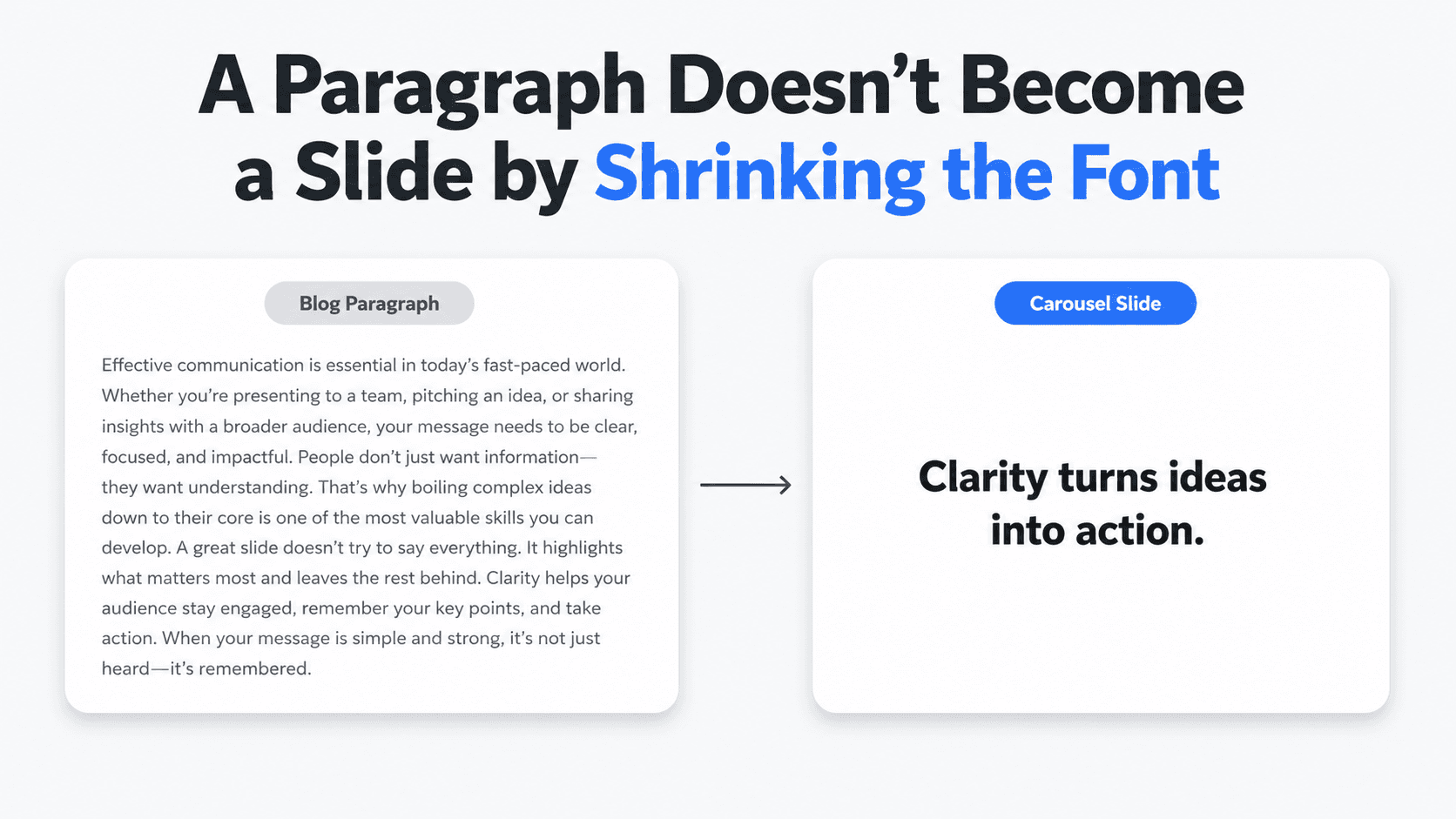
The most common failure mode in blog-to-carousel repurposing isn’t a design problem, it’s a compression problem people don’t realize they haven’t solved. Taking a 150-word paragraph, shrinking the font, and dropping it onto a slide doesn’t make it a slide. It makes it a paragraph that happens to live on a slide, and it reads exactly as poorly as that sounds.
A blog paragraph is written to be read at a reader’s own pace, with the option to reread a sentence, skip ahead, or sit with an idea for a moment. A carousel slide gets one to two seconds of attention before someone decides whether to keep swiping. Those are fundamentally different reading conditions, and content written for one doesn’t survive the transition to the other just by resizing.
The actual work is deciding what the paragraph is really saying, in its simplest form, and rebuilding that as a slide-native sentence. A paragraph explaining why cold email subject lines fail might reduce to a single line: “Generic subject lines get ignored because they look like every other email in the inbox.” That’s the sentence that goes on the slide. The paragraph’s supporting detail, the examples, the caveats, either becomes its own additional slide or gets cut entirely, not summarized into a smaller font.
Is Your Blog Post Carousel-Ready?
Not every post converts equally well. A quick test: if your blog post has 5 or more distinct sections or subheadings, it’s carousel-ready, since each section maps to roughly one slide.
Blog post type | Carousel potential | Why |
|---|---|---|
How-to guides | Strong | Each step maps to one slide |
Listicles (top 10, best X) | Strong | Each item becomes its own slide |
Data or research posts | Strong | Stats translate well into bold visual slides |
Case studies | Strong | Before/after results tell a visual story |
Opinion or thought leadership | Moderate | Key arguments work, but need tighter editing |
Short news updates | Weak | Rarely enough substance for 6+ slides |
Two Ways to Repurpose a Blog Post
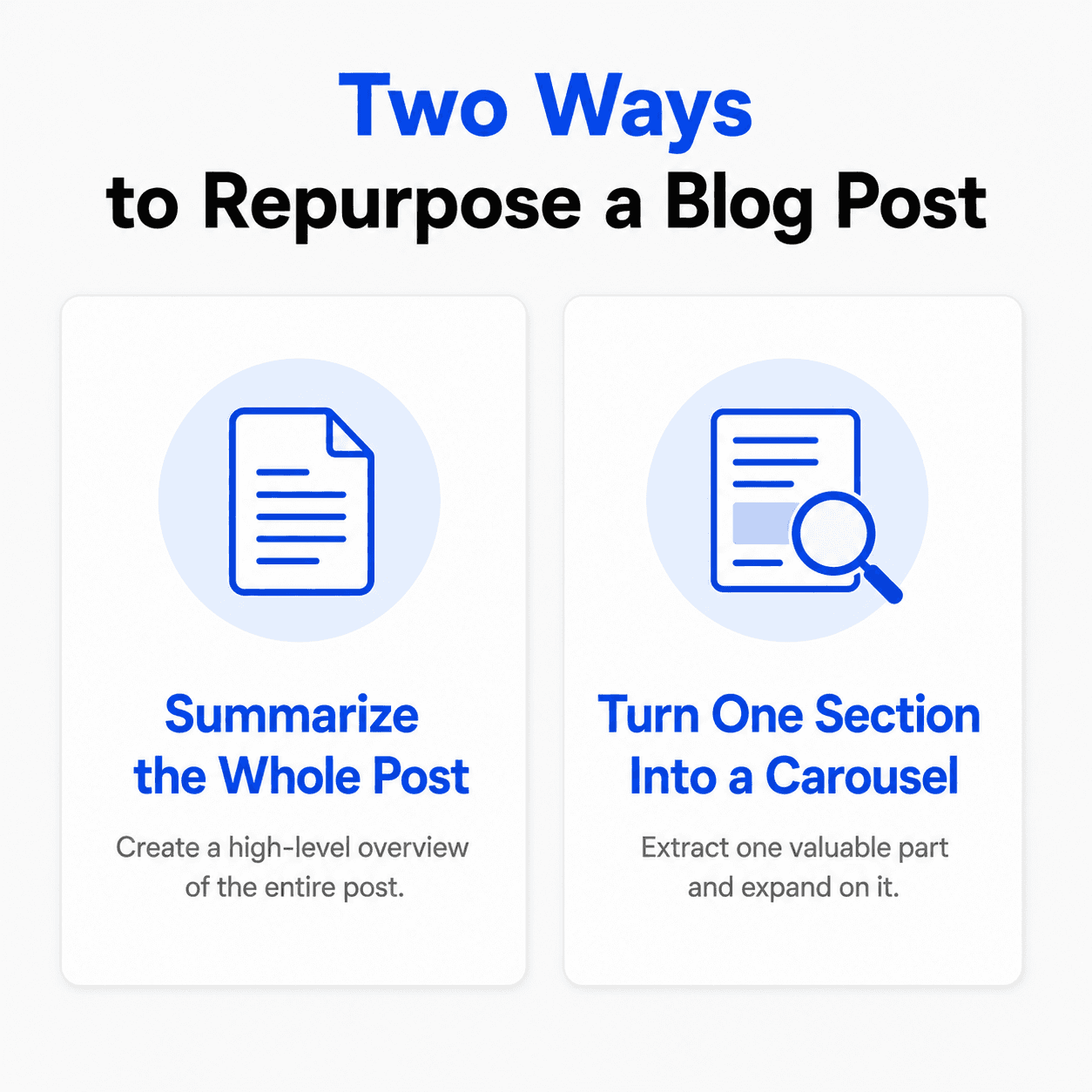
Summarize the whole post. Take the H1 as your hook, then turn each H2 into its own slide with the condensed main point underneath. This works when the value of the post is in the full sweep of ideas, not any single section.
Turn one section into its own carousel. Pick the single strongest H2 (or even H3) and build a focused, actionable carousel just from that section. This often performs better than a full summary, since it goes deeper on one specific, useful idea instead of skimming the whole post.
Both are legitimate starting points. A single long blog post can realistically produce more than one carousel using these two methods on different sections.
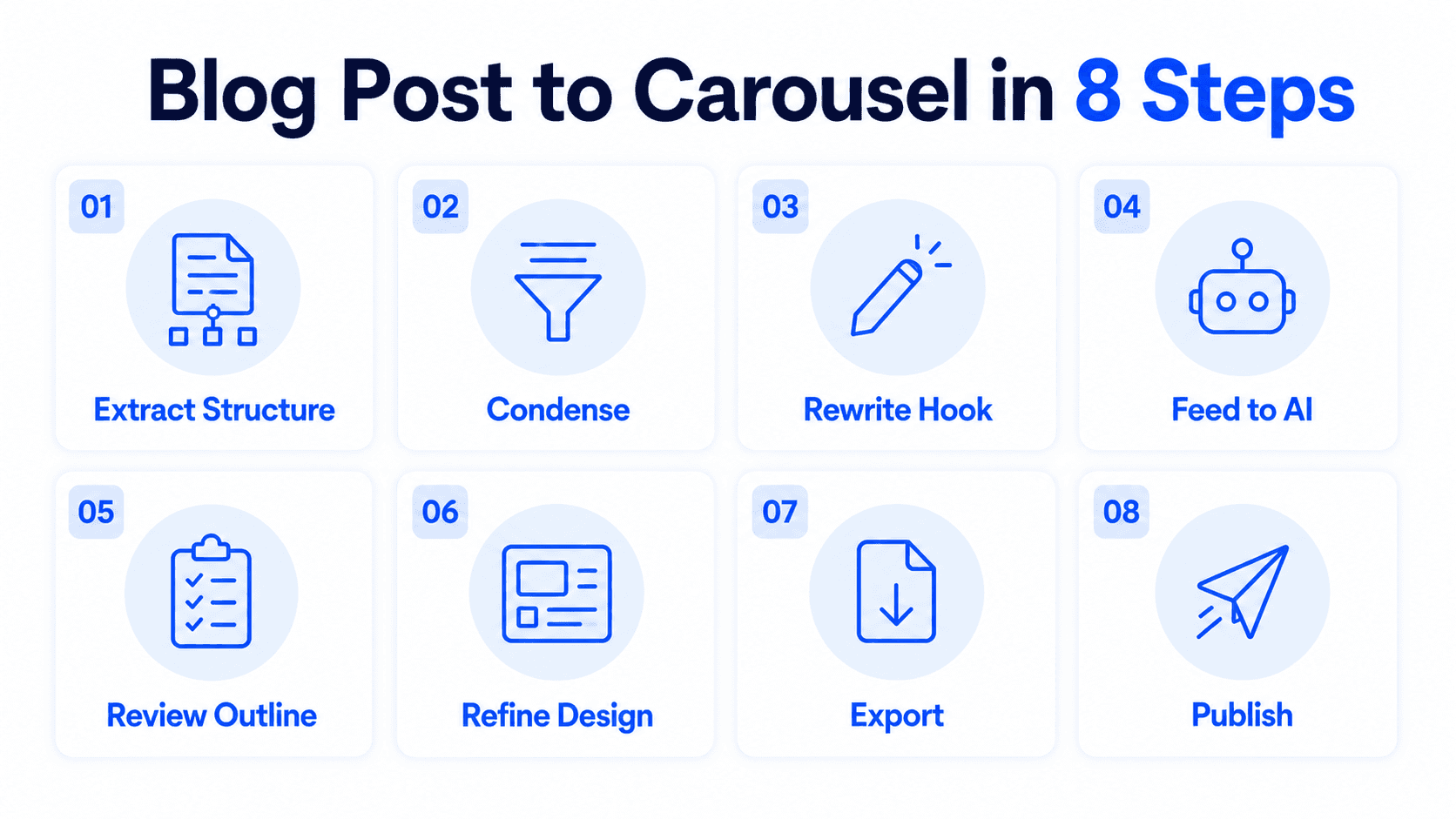
Step-by-Step: Blog Post to Carousel
Step 1: Pull out the structure
Read through the post and extract either the H1 and H2s (for a full summary) or the H2 and any H3s within one section (for a focused carousel). Write these out as a plain-text outline before touching a design tool.
Step 2: Condense each point
Blog posts have room for paragraphs. Carousels don’t. Cut each point down to one to three short sentences, the version you’d say to a friend rather than write for a search engine. If a point still needs multiple sentences to make sense, it’s probably two slides, not one.
Step 3: Rewrite the hook
Don’t reuse your blog post’s SEO headline as slide one. A title written for search intent (“How to Turn a Blog Post Into a Social Media Carousel”) and a hook written to earn a swipe are different jobs; rewrite the H1 for curiosity or a specific promise rather than keyword coverage.
Step 4: Feed the outline (or the full post) into Decktopus AI
Rather than manually laying out each slide, give your condensed outline, or the entire blog post as a document, to Decktopus AI. It accepts both a short prompt and a full document upload, so you can hand it the whole article and let it extract structure, or hand it your own pre-condensed outline if you want more control over the cut.
Step 5: Review the card-by-card outline
Decktopus shows a reviewable, editable outline before building the final design. This is where you catch a section that got condensed too aggressively, or one that still needs to be split across two slides.
Step 6: Refine the design
Use Edit with AI for structural or stylistic changes with a plain-language prompt and a preview before applying, or Edit Text for direct, small edits.
Step 7: Export and choose your CTA
Export as PDF for LinkedIn or PNG for Instagram. End on a clear call to action: pointing back to the original post, prompting a save, or inviting a follow, matched to what the carousel is actually for.
Step 8: Publish per platform
Upload the PDF to LinkedIn through “Add a document,” or the PNG set to Instagram’s carousel picker. Write a caption with a hook in the first line or two, since that’s all that shows before truncation on either platform.
Worked Example: Listicle
Take a hypothetical blog post: “5 Mistakes Killing Your Email Open Rates,” with five H2 sections, one per mistake.
Slide 1 (hook): “5 mistakes killing your email open rates (you’re probably making at least one)”
Slide 2 (mistake 1): Condensed to one sentence plus the fix
Slide 3 (mistake 2): Condensed to one sentence plus the fix
Slide 4 (mistake 3): Condensed to one sentence plus the fix
Slide 5 (mistake 4): Condensed to one sentence plus the fix
Slide 6 (mistake 5): Condensed to one sentence plus the fix
Slide 7 (CTA): “Read the full breakdown (link in the comments), or save this for your next campaign.”
Notice the blog post’s original paragraph-length explanation for each mistake gets cut to one line plus a fix on the slide; the depth lives in the linked post, not the carousel.
Worked Example: How-To Guide
Listicles map onto carousels almost directly, one item per slide. A how-to guide takes more editorial judgment, since blog steps are often uneven in length. Take a hypothetical post: “How to Negotiate a Vendor Contract,” with six numbered steps of wildly different depth, step 3 alone runs four paragraphs while step 6 is a single sentence.
Slide 1 (hook): “The 6-step process I use before signing any vendor contract.”
Slide 2 (step 1): Condensed to the core action in one sentence.
Slide 3 (step 2): Same.
Slide 4-5 (step 3, split across two slides): The original post’s longest step gets split rather than compressed into one overloaded slide, since it genuinely covers two distinct ideas (what to check, then what to push back on).
Slide 6 (step 4): Condensed.
Slide 7 (steps 5 and 6 combined): The blog’s two shortest steps, each originally a single sentence, get combined onto one slide since neither carries enough weight alone.
Slide 8 (CTA): “Save this before your next contract review.”
This is the judgment call that a mechanical one-H2-per-slide rule misses: section length in the source post doesn’t always map cleanly to slide count. A long section sometimes needs to split, and several short ones sometimes need to combine, based on how much each idea actually carries, not how the blog post happened to organize it.
Building This in Decktopus AI
Here’s how that worked example moves from a full blog post to a finished carousel inside Decktopus AI.
1. Upload the blog post as a document, or paste the condensed outline. Decktopus accepts a full document, so you can hand it the entire “5 Mistakes” post rather than manually extracting each point yourself, or paste in your own tightened seven-slide outline if you’ve already done that work.
2. Choose your visual direction. Pick a previously used style, a Brand Import pulling colors and typography from your website URL, or a fully AI-generated look built from scratch.
3. Review the card-by-card outline. Check that each mistake got its own slide and that none of them still reads like a full paragraph before the design is finalized.
4. Generate the full design. Decktopus builds the complete visual carousel from the approved outline, generated from scratch rather than dropped into a template.
5. Refine with Edit with AI or Edit Text. Tighten any slide that’s still too dense, or fix a specific word choice directly.
6. Export as PDF or PNG, depending on whether this carousel is headed to LinkedIn or Instagram.
Start repurposing your blog post on Decktopus AI and see the outline it generates from your own content.
Common Mistakes
Reusing the blog’s paragraph structure directly. A paragraph that reads fine on a blog page reads as a wall of text on a slide. Every point needs re-cutting for the format, not just resizing.
Keeping the SEO headline as the hook. A title built for search intent rarely earns a swipe. Rewrite it specifically for slide one.
Summarizing everything instead of picking a focus. Trying to cram an entire long-form post into one carousel usually means every point gets shortchanged. A focused carousel on one section often performs better than a shallow full summary.
Forgetting the CTA needs a destination. If the goal is driving traffic back to the original post, say so explicitly on the last slide rather than a generic “follow for more.”
Using identical carousels on LinkedIn and Instagram. Same core content, different execution. LinkedIn carousels tend to run more text-dense; Instagram slides typically need shorter copy per slide and a portrait or square export instead of a PDF.
Not signaling that slide one is swipeable. Some readers don’t instinctively know a carousel post continues past the first slide. A small “swipe” label or arrow on the first slide costs nothing to add and reduces the drop-off between slide 1 and slide 2.
Prioritizing Which Posts to Repurpose First
If you’re sitting on a blog archive rather than a single post, not every article is worth the repurposing effort equally. A few filters help narrow it down.
Start with proven performers. A post that already ranks well or drove strong traffic has demonstrated its topic resonates; that’s a safer repurposing bet than an untested piece, since the carousel inherits the underlying idea’s proven appeal.
Favor evergreen over time-sensitive content. A carousel takes real effort to design well, so it’s worth spending that effort on a post whose value doesn’t expire in a month. A “how-to” or “mistakes to avoid” post ages better than a news-reactive one.
Check for a natural slide count first. Skim the H2 structure before committing. A post with 4 to 8 clear sections converts cleanly; a post that’s really one long argument without clean subheadings will need more restructuring work to find the slide breaks.
Look for posts with a concrete example or data point. A post you can end with genuine proof, a result, a specific number, a real before-and-after, gives the carousel a stronger closing slide than one that can only end with a generic summary.
How to Know If the Repurposed Carousel Actually Worked
Repurposing a blog post into a carousel has two separate success conditions worth checking separately: did the carousel perform on its native platform, and did it actually drive anything back to the original post.
Check saves and comments (LinkedIn) or saves and shares (Instagram) against your own other carousels first. A repurposed carousel is competing with everything else in your feed, not with the blog post it came from, so judge it the same way you’d judge any carousel: against your own account’s history, not an external number. If it underperforms, the likely causes are specific and checkable, a hook that kept the SEO headline instead of being rewritten, or slides that read like shrunk paragraphs instead of re-cut sentences.
If the goal included driving traffic back to the post, check whether the CTA actually converted. A caption or closing slide that says “read the full post” only means something if you’re tracking click-throughs or comment-based link requests back to it. If the carousel got strong engagement but nobody asked for or clicked through to the source post, the CTA slide itself, not the repurposing job, is usually the place to look.
Compare which of the two repurposing methods performed better for a given post. If you’ve tried both a full-post summary and a single-section deep dive from the same or similar posts, compare their saves and comments against each other. This guide’s advice to prefer a focused single-section carousel over a shallow full summary is worth testing against your own results rather than taking as a fixed rule.
Watch whether your prioritization filters are actually predicting performance. If you’ve been repurposing posts based on past traffic, evergreen topic, and clear section structure (the filters above), check whether those posts are in fact outperforming ones you repurposed without applying the filters. If they’re not, the filters need adjusting to whatever’s actually predictive for your specific audience.
FAQ
Can I turn any blog post into a carousel?
Most can, especially how-to guides, listicles, and data-driven posts. Short news updates or very time-sensitive content usually don’t have enough substance for 6 or more slides.
How many slides should a blog-to-carousel post have?
6 to 10 is the common range. If your condensed outline only supports 5 solid slides, don’t pad it to hit a number; a tight 5-slide carousel outperforms a padded 10-slide one.
Should I post the same carousel on LinkedIn and Instagram?
Use the same core content but adjust execution. LinkedIn carousels export as a PDF and tend to carry more text per slide; Instagram carousels export as individual images with less text and more visual emphasis.
Does repurposing a blog post into a carousel hurt my SEO?
No. Carousels live on LinkedIn’s or Instagram’s platform, not your website, so there’s no duplicate content concern. A carousel with a “read the full post” CTA can drive traffic back to the original article instead.
Can I feed a URL directly into Decktopus AI instead of copying the text out?
Decktopus AI accepts a prompt or an uploaded document as source material. If you have the blog post’s text available (copied from the page or exported from your CMS), you can upload it as a document; check the product for current URL-specific input support if you want to paste a link directly.
What if my blog post is too long for one carousel?
Split it. Use the “turn one section into its own carousel” method from a single strong H2, and you can produce more than one carousel from the same source post, one per major section.
What if my blog post’s sections are wildly uneven in length?
Don’t force a one-section-per-slide rule if it doesn’t fit. As the how-to guide example above shows, a long section sometimes needs to split across two slides, and several short sections sometimes work better combined onto one. Match the slide breakdown to how much weight each idea actually carries, not to how the original post happened to organize its headings.
How do I decide which method to use, full summary or single-section deep dive?
Look at where the real value sits in the post. If every section is roughly equally useful and the value is in seeing the whole picture, summarize the whole thing. If one section is clearly the strongest, doesn’t need the rest of the post’s context to make sense on its own, a focused carousel on just that section usually performs better than a shallow summary of everything.
How do I know if repurposing a blog post into a carousel actually worked?
Judge the carousel on its own platform’s engagement (saves and comments on LinkedIn, saves and shares on Instagram) against your own past carousels, separately from whether it drove clicks back to the original post. Weak engagement usually traces back to a hook that kept the blog’s SEO headline, or slides that read like shrunk paragraphs instead of re-cut sentences.
Repurposing specifically for TikTok? The TikTok Carousel Guide covers that platform’s format in detail.
Conclusion
Turning a blog post into a carousel isn’t a resizing exercise, it’s a re-cutting exercise: the same ideas, stripped down to one point per slide, with a hook rewritten specifically for the swipe rather than search intent. Done well, one blog post can produce more than one carousel across more than one platform, all from research you’ve already done.
Ready to turn your next post into a carousel? Start a carousel on Decktopus AI, or see the full feature set on the carousel maker landing page.
Related posts

How AI Voice Agents Help Sales Teams Prepare and Deliver Better Presentations
Learn how AI voice agents help sales teams turn call insights into focused slides, stronger delivery, and more confident customer presentations at every stage.
Marketing

Instagram Carousel Size & Dimensions Guide (2026)
Instagram carousel size in 2026: exact dimensions for square, portrait, and landscape, plus file limits and safe zones, verified across sources.
Marketing

LinkedIn Carousel Size, Dimensions & Format Guide 2026
LinkedIn carousel size in 2026: exact dimensions, file limits, aspect ratios, and formatting rules so your slides never get cropped.
Marketing