Marketing
How to Make an Instagram Carousel Post (Complete Guide)
Learn how to make an Instagram carousel post from planning to publishing, with the exact upload steps and a worked example for 2026.


İlayda Tunaboylu
Learning how to make an Instagram carousel post comes down to two things: designing slides people actually swipe through, and knowing Instagram’s upload mechanics well enough that nothing looks cropped or out of order once it’s live. Unlike LinkedIn, Instagram carousels are built from individual images or video clips rather than a single PDF, which changes how you export your design.
There’s a third piece worth naming upfront: Instagram gives a carousel a second chance that other formats don’t get. If someone scrolls past your first slide without swiping, Instagram sometimes re-serves the post later starting from slide two, effectively giving you a second cover slide. That only matters if slide two is also strong enough to earn attention on its own, which is one more reason “one clear idea per slide” isn’t just a design nicety here.
This guide walks through planning, content ideas, the exact publishing steps on mobile and desktop, and a worked example you can copy the structure of. If you’re starting from an existing blog post rather than a blank outline, How to Turn a Blog Post Into a Social Media Carousel covers that specific workflow, and Best AI Carousel Makers in 2026 compares the tools you’d use to build one beyond Decktopus AI.
What Is an Instagram Carousel?
An Instagram carousel is a single post that holds multiple images or videos, which viewers swipe through one slide at a time instead of seeing just one photo. Each slide can carry its own visual, so the format works for anything that benefits from being broken into steps or parts: tutorials, listicles, before-and-afters, product features, or a story told across several frames. Since every slide lives inside one post, the whole sequence shares a single caption and a single set of comments. For the exact pixel dimensions and file limits behind the steps in this guide, see the Instagram Carousel Size & Dimensions Guide 2026.
Quick Answer
To make an Instagram carousel post, plan one idea per slide, design or generate the slides at a consistent aspect ratio (square, portrait, or landscape), export as PNG, then upload the images as a carousel through Instagram’s post composer on mobile or desktop. Instagram supports up to 20 slides per post.
What You’ll Need
A content outline (a topic, tip list, or story you’re turning into slides)
A carousel design tool that exports individual images at a consistent aspect ratio, whether that’s Decktopus AI or a manual tool
The Instagram app or instagram.com, since both support carousel uploads
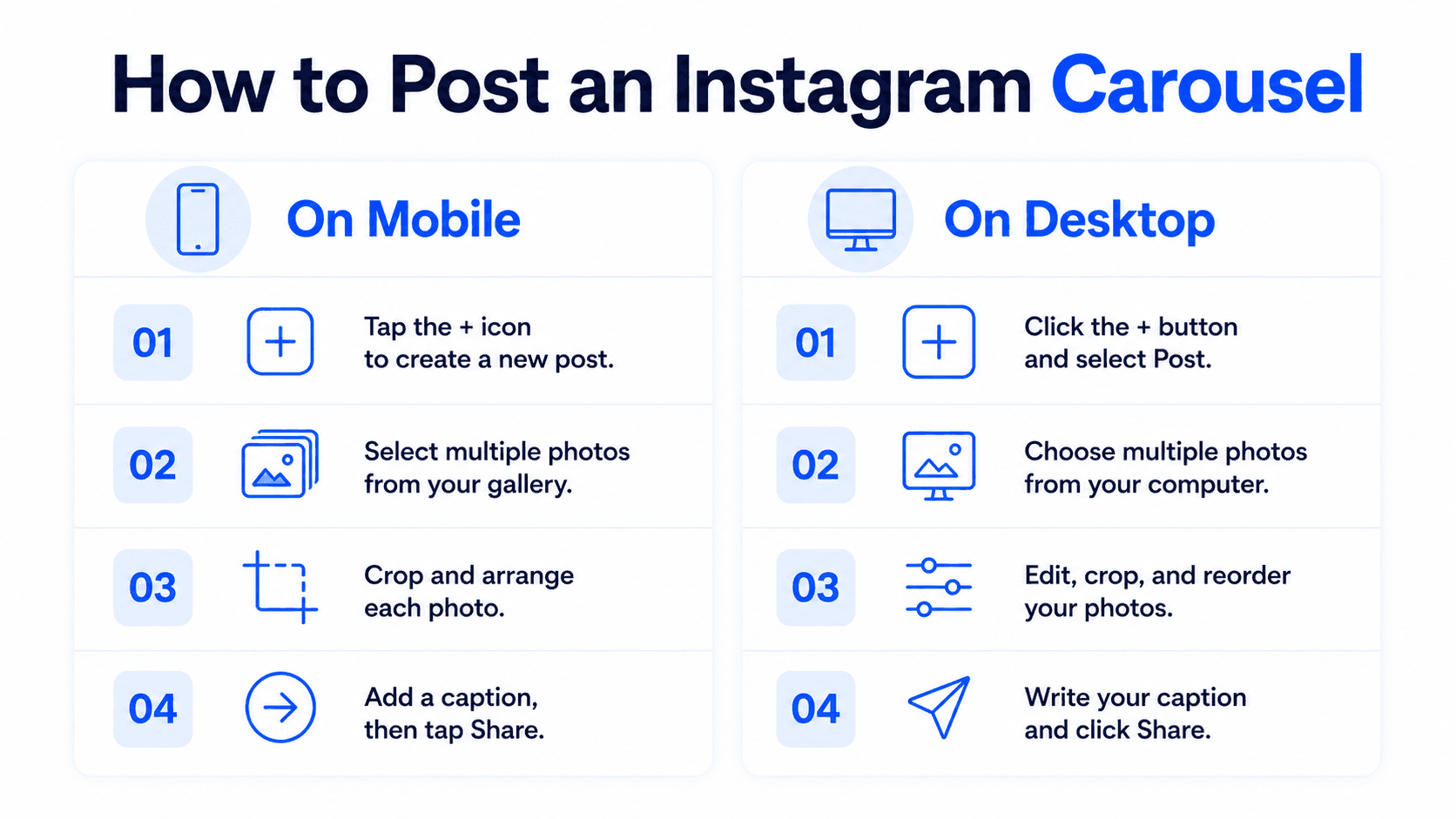
Step-by-Step: How to Make an Instagram Carousel Post
Step 1: Plan the carousel before designing anything
Decide on one idea per slide and a clear order: a hook slide first, supporting content in the middle, and a call to action last. Instagram carousels can run up to 20 slides, but that’s a platform limit, not a target. Most educational carousels land somewhere between 7 and 12 slides, since padding a carousel just to use more slides tends to lose people partway through.
Write your outline as one line per slide before you open any design tool. If a line needs more than about three to four short sentences to explain, split it into two slides instead of cramming it onto one.
Step 2: Generate the carousel design
Give your outline to Decktopus AI rather than starting from a blank canvas. Enter a prompt or upload a full document, and the tool builds a complete, card-by-card carousel with the visual design generated from scratch. Choose your visual direction before generation: a previously used style, a Brand Import that pulls colors, typography, and your logo from your website URL, or a fully AI-generated look.
Step 3: Review the outline before the final design
Decktopus AI shows a card-by-card outline you can review and edit before it builds the finished visuals. This is the point to catch a slide trying to cover two ideas at once, since Instagram rewards one clear idea per slide more than density. Reviewing at this stage is faster than reviewing finished visuals, since you’re judging structure rather than getting distracted by color choices.
Step 4: Refine the slides
Use Edit with AI to describe a change in plain language (tighten slide 3’s copy, adjust the color accent) with a preview before it applies, and undo available if needed. Use Edit Text for direct manual edits to the copy. Save Edit with AI for anything structural, and Edit Text for small, exact fixes.
Step 5: Export as PNG, one consistent aspect ratio
Export the finished carousel as PNG, in standard or compressed quality. Unlike a LinkedIn carousel, which uploads as a single PDF, Instagram needs individual image files, and every slide must share the same aspect ratio, since Instagram crops all later slides to match whatever ratio the first slide uses. Double-check this before uploading, since a mismatched ratio on even one slide will get auto-cropped in a way you don’t control.
Step 6: Open Instagram and start a new post
On mobile, tap the “+” icon at the bottom of the screen and select “Post.” On desktop, go to instagram.com and click the “+” icon in the sidebar. Either works for a carousel upload; desktop tends to make multi-file selection a little faster if you’re uploading many slides at once.
Step 7: Select your images as a carousel
On mobile, tap the carousel icon (it looks like two overlapping squares) in the photo picker, then tap each image in the order you want it to appear; a number badge marks each slide’s position. On desktop, click “Select from computer” and choose multiple files (hold Ctrl on Windows or Cmd on Mac), or drag them into the upload window, then drag to reorder in the preview bar.
Step 8: Review and adjust individual slides
Instagram lets you apply filters or make small adjustments to each slide independently after you tap “Next.” If your carousel was fully designed in Decktopus AI, this step is mostly a final check rather than active editing, since the design work already happened before export.
Step 9: Write your caption
Write a caption that adds context the slides don’t cover, rather than repeating them. Only the first line or two show before the “more” truncation, so lead with a hook there. If you want, add music (optional, and it plays across the whole carousel as people swipe). See the dedicated caption section below for more on what actually earns engagement here.
Step 10: Publish
Tap “Share” on mobile or click “Share” on desktop. Your carousel is live.
Carousel Post Ideas That Perform Well
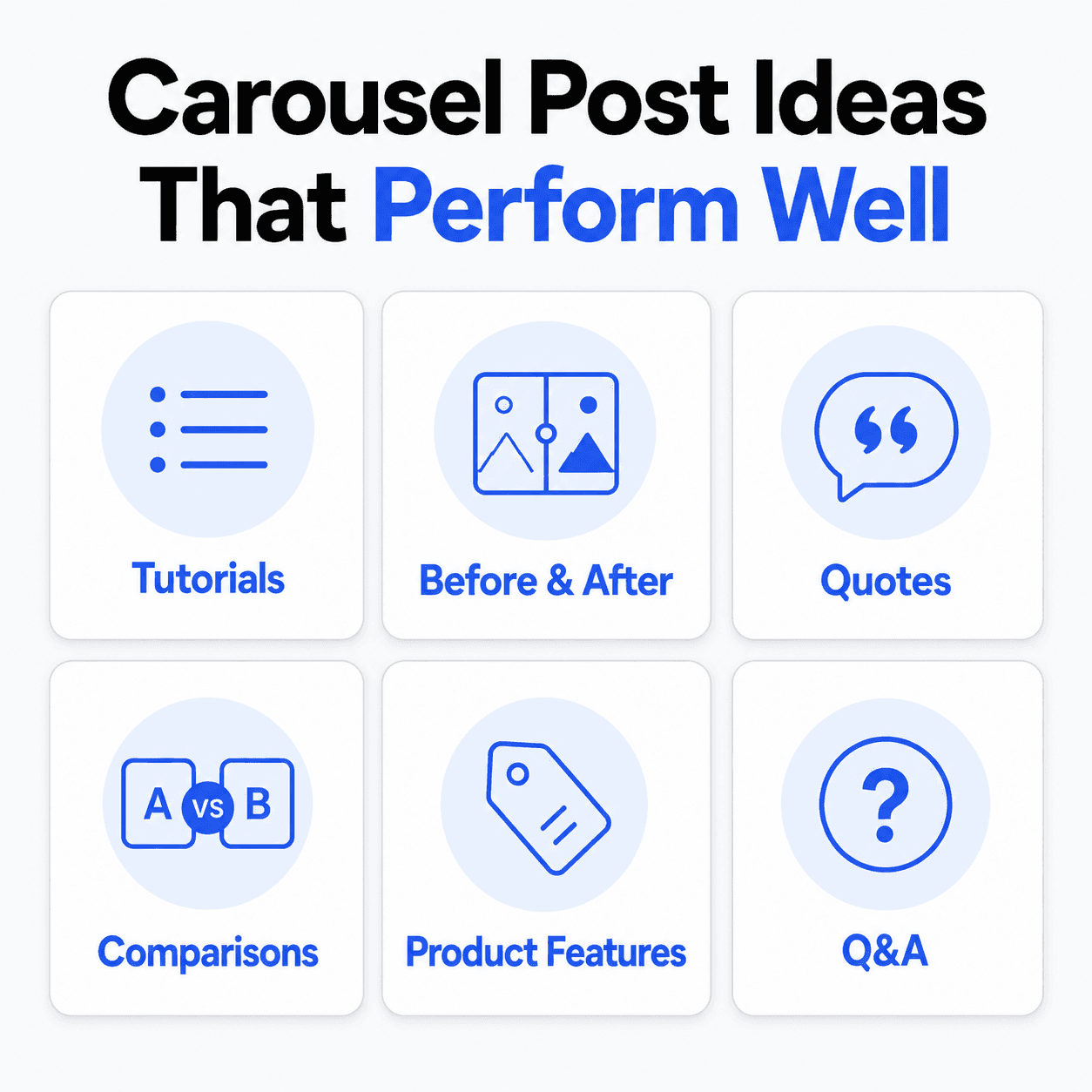
Not every topic fits the carousel format equally well. These formats consistently work because each one gives the swipe a clear job to do:
Educational tutorials. Step-by-step guides where each slide covers one step. These drive saves, since people bookmark reference content to come back to.
Listicles and tips. “10 caption ideas,” “5 mistakes to avoid,” numbered content creates a natural swipe incentive since the count on slide 1 tells people exactly how far they have left to go.
Before and after. Transformation content is inherently compelling on its own; fitness, design, and process-improvement niches use this format especially well.
Myth vs. reality. Pairing a common misconception with the actual answer, one pair per slide, tends to generate comments and shares rather than just likes, since it invites people to react.
Behind-the-scenes. A look at how something gets made or how a team works. This adds personality without needing a polished narrative arc.
Data and findings. Breaking a stat, survey result, or research finding into one insight per slide keeps dense information digestible rather than dumping it all into a single caption.
Seamless panoramic images. One wide image split evenly across every slide so swiping feels like scrolling across a single continuous photo. Works well for landscapes, event coverage, or any visual that benefits from a wide reveal instead of a cropped square. Whichever formats you rotate through, thinking about content types that boost engagement more broadly helps avoid leaning on the same one every time.
Worked Example
Here’s how the steps above look applied to a real topic: “5 Free Tools Every Small Creator Should Try.”
Slide 1 (hook): “5 free tools every small creator should try in 2026”
Slide 2 (tool 1): A quick description and use case
Slide 3 (tool 2): A quick description and use case
Slide 4 (tool 3): A quick description and use case
Slide 5 (tool 4): A quick description and use case
Slide 6 (tool 5): A quick description and use case
Slide 7 (CTA): “Save this for your next content session. Which one are you trying first?”
This example follows the “listicle” pattern above: the numbered format on slide 1 sets an expectation (five items) that the following slides deliver on one at a time, and the closing slide asks a specific question rather than a generic “follow for more.”
Fed into Decktopus AI as a prompt or short document, this becomes a reviewable seven-card outline, then a fully designed carousel you can refine with Edit with AI before exporting as PNG.
Building This Carousel in Decktopus AI
Here’s what that worked example actually looks like inside Decktopus AI, from prompt to export.
1. Enter the topic. Type the seven-slide outline above into the prompt, or paste it as a short document. Decktopus AI accepts both a topic prompt and a full document upload.
2. Choose your visual direction. Pick from a previously used style, a Brand Import (Decktopus pulls colors, typography, and logo from your website URL), or a fully AI-generated look built from scratch rather than a template.
3. Review the card-by-card outline. Before Decktopus builds the final design, it shows all seven slides as a reviewable outline, so you can catch, for example, if “tool 3” needs more room than the others before it’s a finished design.
4. Generate the full design. Decktopus AI builds the complete visual carousel, layout, color, typography, generated from scratch rather than pulled from a template library.
5. Refine with Edit with AI. If a slide’s copy runs long or the color accent needs adjusting, describe the change in plain language. Decktopus previews the edit before applying it, with undo available. For small manual fixes, Edit Text lets you edit directly.
6. Export as PNG. Standard or compressed quality, exported as individual image files (not PDF, since Instagram needs images at a consistent aspect ratio rather than a multi-page document). From here, it’s Steps 6 through 10 above: open Instagram, select the images as a carousel, review, caption, and publish.
Start your Instagram carousel on Decktopus AI and try this exact workflow with your own content.
Instagram Carousel Platform Limits
Requirement | Limit |
|---|---|
Maximum slides | 20 per post |
Supported image formats | JPEG, PNG |
Supported video formats | MP4, MOV |
Video length per slide | Up to 60 seconds |
Aspect ratio | Set by the first slide; all others are cropped to match |
These are Instagram’s platform limits, not performance targets. A 20-slide carousel is allowed; it’s not automatically better than a tight 8-slide one, and padding to hit the max slide count tends to hurt completion rate more than it helps reach. Exact recommended pixel dimensions for Instagram versus LinkedIn differ and deserve their own breakdown rather than an estimate here.
For the exact pixel dimensions, file size limits, and safe zones behind these numbers, see the Instagram Carousel Size & Dimensions Guide 2026.
Common Mistakes That Hurt Carousel Performance
Mismatched aspect ratios across slides. Since Instagram crops every slide to match the first one’s ratio, an inconsistent slide can get cropped in a way that cuts off text or a key visual. Design every slide at the same dimensions from the start.
A weak or generic first slide. A title-card-style opener (“My Tips for Marketing”) doesn’t earn a swipe the way a specific hook does. The first slide’s only job is to make the second slide feel worth seeing.
Too much text per slide. If a slide reads like a paragraph, it’s too dense. One headline plus two or three short supporting lines is the ceiling before it should split into two slides.
No clear structure. A carousel without a beginning, middle, and end (just a loose pile of tips) loses people faster than one with a clear narrative thread, even if the individual tips are good.
Forgetting accessibility. Low-contrast text or fonts under roughly 24pt on a 1080px canvas are hard to read on a phone screen, which is where most people will see the post. Instagram also lets you write separate alt text for each slide in a carousel, worth doing since most creators skip it entirely.
Skipping the proofread. Once published, a carousel’s slides can be deleted individually but not edited or reordered. A typo lives on the post permanently unless you delete and repost.
Writing a Caption That Earns the Swipe
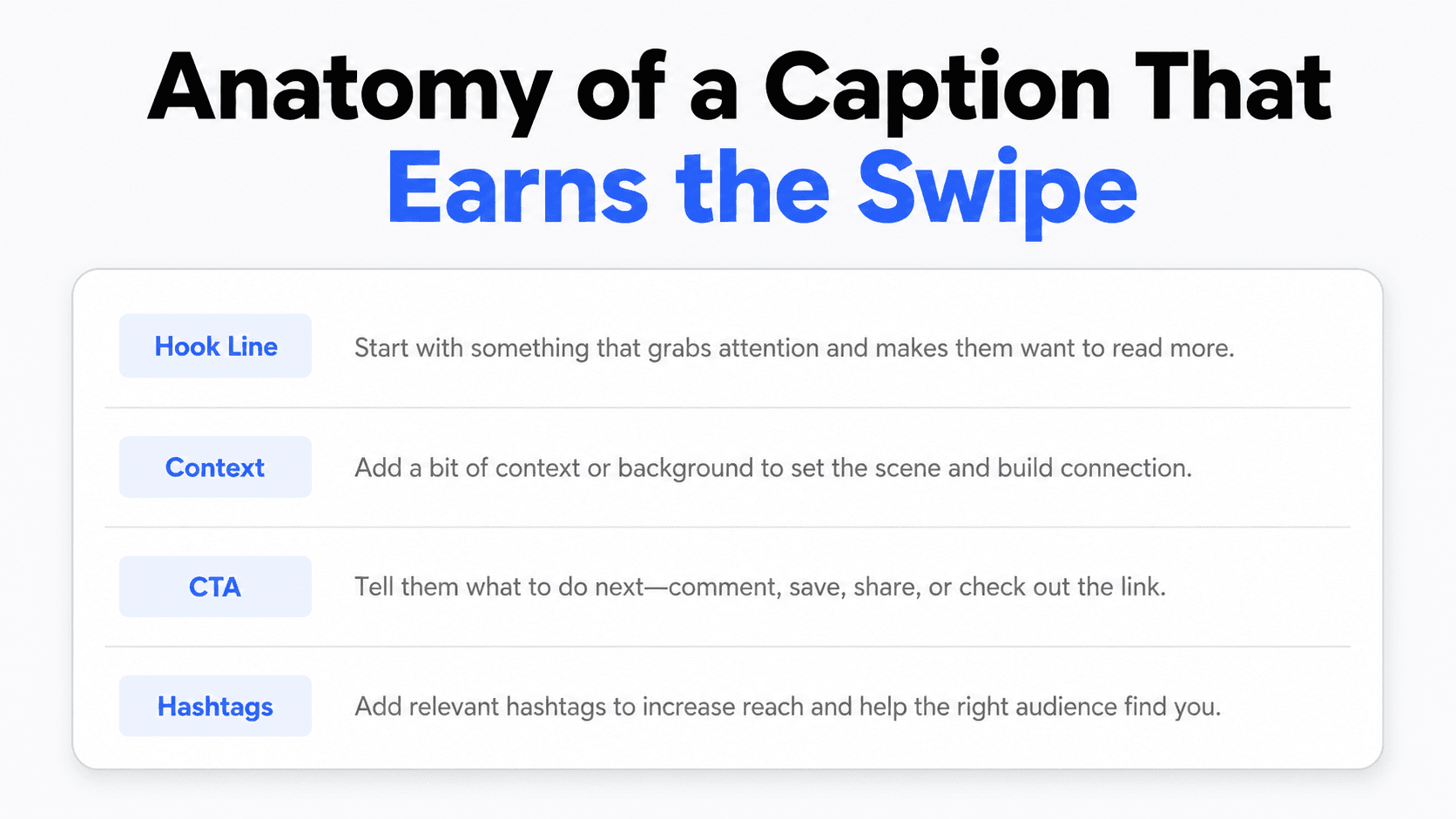
The caption’s job is different from the slides’ job. Slides deliver the content; the caption’s only real task is convincing someone to swipe in the first place, since only the first line or two show before the “more” truncation.
Lead with a hook, not a summary. If your carousel is “7 Instagram tips,” don’t restate the tips in the caption, share why you made the post, a personal experience related to the topic, or a question that the carousel answers.
Keep the visible portion (before truncation) doing the heaviest lifting: a bold claim, a question, or a specific number performs better here than a generic opener.
Close with an explicit ask. “Save this for later” (drives saves, a strong algorithmic signal), “share with someone who needs this” (drives shares), or a direct question inviting a comment all give people a specific next action instead of leaving it to chance.
How to Know If Your Instagram Carousel Actually Worked
Publishing is the easy half. Knowing whether the carousel actually did its job takes checking specific numbers in Instagram Insights, not just glancing at the like count.
Saves and shares matter more than likes for a carousel specifically. A carousel people save is one they found valuable enough to reference later, which is a strong signal the structure (one idea per slide, a real hook, a real close) actually delivered on its promise. Shares mean the content was worth passing along, which tends to happen most with listicles, before-and-afters, and myth vs. reality formats. If likes look normal but saves and shares lag your other posts, that’s usually a structure or specificity problem, not a topic problem.
Check completion signals through Insights, specifically how far people got before dropping off. Instagram’s post insights show reach and interactions per post; a carousel with strong reach but weak saves and comments relative to your average suggests people saw it but didn’t swipe deep enough to find the value. Since slide two sometimes gets re-served as a second cover, weak overall performance despite a strong slide-one hook is worth checking against whether slide two can also stand on its own.
Compare against your own past carousels, not an external benchmark. Engagement rates vary too much by niche, account size, and posting frequency for a general percentage to mean much (which is also why this article doesn’t cite one). What’s useful is whether this carousel’s saves and shares beat your last several, using the same account and audience.
If a specific carousel underperforms, trace it to a specific mistake before assuming the topic failed. Weak saves often point back to a first slide that read like a title card instead of a hook, or a caption that gave away the whole carousel before anyone swiped. Weak shares often mean the content wasn’t specific enough to feel worth passing along. Treating an underperforming carousel as a diagnostic question, rather than just moving to the next topic, is what actually improves the next one.
FAQ
How many slides can an Instagram carousel have?
Up to 20. This was raised from a 10-slide limit in 2024. It’s a platform ceiling, not a performance target; most educational carousels perform well with 7 to 12 slides. Instagram’s Help Center has the current carousel specs if limits change again.
Can I mix photos and videos in one Instagram carousel?
Yes. Instagram supports mixed-media carousels natively, with each video clip capped at 60 seconds.
What file format does Instagram need for carousels?
Individual image files (JPEG or PNG) or video files (MP4 or MOV), not a single PDF. This is different from LinkedIn, which requires a multi-page PDF, PPT, PPTX, DOC, or DOCX document.
Can I edit an Instagram carousel after posting?
More than before. Instagram added the ability to reorder slides after publishing (tap the post, then Edit, then long-press a slide to drag it into a new position), so you no longer need to delete and repost just to fix a sequencing mistake. You still can’t add brand-new slides to a published carousel, only reorder or delete existing ones.
Do I need design skills to make an Instagram carousel?
No, not if you’re using a tool that generates the design for you. Decktopus AI builds the full visual layout from a prompt or document, so you’re not manually building each slide from scratch in a design tool.
Can I schedule an Instagram carousel post?
Yes, through Instagram’s own scheduling option (available from “Advanced settings” before you share) or through third-party scheduling tools. Instagram’s native scheduler only lets you pick a date up to 75 days out; for anything further ahead, you’ll need a third-party scheduler. Decktopus AI doesn’t include scheduling or publishing; carousels are exported for you to post through Instagram directly or through a scheduler of your choice.
Can I add music to an Instagram carousel post?
Yes, Instagram lets you add a single audio track that plays across the whole carousel as people swipe, the same way you’d add music to a single-image post. It’s optional, but it does one useful thing beyond mood: audio makes a carousel eligible to surface alongside video content in places like the Reels feed, which is normally reserved for video. That’s a meaningful reach lever if slides alone aren’t getting the post shown outside your existing followers.
Do Instagram carousels perform better than single-image posts?
Multiple sources report carousels outperforming single-image posts and Reels on engagement, but the specific percentages vary a lot between sources, so we’re not citing a number here until we have a verified source for this cluster.
What content works best for a first Instagram carousel?
A numbered listicle format (“5 tips for X”) is the most forgiving starting point, since the structure is built in: slide 1 sets a count, each following slide delivers one item, and the last slide closes with an ask. Educational, step-by-step content is a close second.
Does Instagram re-show a carousel to people who scrolled past it?
Some sources describe Instagram re-serving a carousel starting from the second slide to users who scrolled past without swiping the first time. If that’s accurate for your account, it’s one more reason slide two should also be able to stand on its own rather than only making sense after slide one.
How do I know if my Instagram carousel actually performed well?
Check saves and shares in Instagram Insights against your own past carousels, since those two signals matter more for this format than likes. If both lag your usual numbers, look first at whether the first slide read like a hook or a title card, and whether the caption gave away the content before anyone had a reason to swipe.
Repurposing the same photos for TikTok? The TikTok Carousel Guide covers what changes for that platform’s format.
Conclusion
Making an Instagram carousel post comes down to planning one clear idea per slide with a real hook and a real ending, then getting the export right (individual images, one consistent aspect ratio, not a PDF) before you upload through Instagram’s carousel picker. Get both right and the format does what it’s built to do: hold attention longer than a single image and earn the saves and shares that keep it circulating.
Ready to build one? Start a carousel on Decktopus AI, or see the full feature set on the carousel maker landing page.
Related posts

How AI Voice Agents Help Sales Teams Prepare and Deliver Better Presentations
Learn how AI voice agents help sales teams turn call insights into focused slides, stronger delivery, and more confident customer presentations at every stage.
Marketing

Instagram Carousel Size & Dimensions Guide (2026)
Instagram carousel size in 2026: exact dimensions for square, portrait, and landscape, plus file limits and safe zones, verified across sources.
Marketing

LinkedIn Carousel Size, Dimensions & Format Guide 2026
LinkedIn carousel size in 2026: exact dimensions, file limits, aspect ratios, and formatting rules so your slides never get cropped.
Marketing