AI & Tools
How to Edit NotebookLM Slides in 2026 (Full Guide + Best Workaround)
Can you edit NotebookLM slides? Learn what NotebookLM revisions allow, why PPTX exports still have limits, and the best way to fully edit AI-generated slides.


Decktopus Content Team
NotebookLM’s slide generation is impressive. Upload your sources, click a button, and you get a polished deck in minutes. The problem is what happens next.
The slides are generated as flat images. There are no selectable text boxes, no moveable elements, no direct formatting controls. If you want to fix a typo, adjust a color, or change a single word, you have to go back to the AI, prompt it again, and regenerate the whole deck. Every revision creates an entirely new version, and there are daily limits on how many decks you can generate.
Google has improved this. Since February 2026, you can now use a per-slide revision interface and export as PPTX. But the PPTX file still isn’t truly editable, because the slides are rendered as image layers inside a PowerPoint container, not as real text boxes and objects.
This guide covers every method available to edit NotebookLM slides in 2026, including the best workaround for proper, element-level editing, and how to skip the problem entirely.
Can You Edit NotebookLM Slides?
Yes, but only to a certain extent.
NotebookLM is excellent at transforming research materials into structured presentation content. It helps you summarize documents, build logical slide flow, extract key insights, and create presentation drafts quickly.
However, many users discover that editing flexibility is limited once the deck is generated. Common pain points include limited design customization, no brand styling, basic visual control, time-consuming manual refinement, and no way to make small precise fixes without regenerating the whole deck.
That makes NotebookLM a strong first-draft generator, but not always a final presentation builder. If you’re looking for a tool that handles both generation and editing in one place, it’s worth understanding what AI presentation tools can do beyond just creating a first draft.
What NotebookLM’s Built-In Editing Actually Lets You Do
Since the February 2026 update, NotebookLM supports slide-level revisions. Here’s how it works:
Open your notebook and go to the Studio panel.
Find your slide deck and click the pencil icon next to the title.
Each slide gets its own prompt box. Type your revision instructions.
Batch your changes before generating, as each revision creates a new deck.
Click “Generate revised deck.”
This is a real improvement. You no longer have to regenerate the entire deck blind. But there are significant limits worth knowing:
Adding or removing slides is not supported.
Sources are not referenced during revisions, only during initial generation.
Every revision generates a new deck, not just the changed slides.
There are quota limits on how many total revisions you can make.
The exported PPTX still contains image layers, not editable objects.
For quick structural changes through AI prompting, the built-in tools work. For anything more precise, like fixing a specific word, matching a brand color, or adjusting spacing, you’re still stuck in a loop.
The Core Problem: Slides as Images, Not Objects
NotebookLM generates slides using AI image rendering. The visual and content layers are the same thing. This means even when you export to PDF or PPTX, you’re not getting a standard presentation file with independent elements you can click and change.
This is why so many people search for ways to edit NotebookLM slides after generating them. The tool is great at turning dense research into structured decks. It’s much less useful when you need a finished, polished presentation you can customize for a specific audience, brand, or purpose.
If you’re frustrated by this limitation, you’re not alone. It’s one of the main reasons professionals look for PowerPoint alternatives that offer more control over the final output.
Method 1: Use NotebookLM’s Revision Mode (Built-In)
Best for: structural changes, content rewrites, adding more detail to a specific slide.
How to do it:
Open your notebook in NotebookLM.
In the Studio panel, select your slide deck.
Click the pencil (revise) icon.
Enter instructions for each slide you want to change.
Batch your changes before generating.
Click “Generate revised deck.”
Limitations: No element-level control. Can’t add or remove slides. Quota limits apply. Layout may shift between revisions.
Method 2: Export as PPTX and Edit in PowerPoint
Since February 2026, NotebookLM supports PPTX export.
How to do it:
In the Studio panel, open your slide deck.
Click the three-dot menu next to the deck title.
Select “Download as PPTX.”
Open in PowerPoint or Google Slides.
Limitations: The PPTX contains image layers, not real editable objects. You’ll see the slides visually, but you can’t click into text boxes, reformat elements, or make precise layout changes. It’s more of a snapshot than an editable file. If you’re choosing between presentation tools for your editing workflow, this comparison of Google Slides vs PowerPoint covers the key differences worth knowing.
Why Decktopus Works Where Others Don’t
Most PDF-to-presentation converters treat your NotebookLM export as a flat image and simply place it inside a slide container. You end up with the same problem you started with: a visual you can see but can’t touch.
Dedicated presentation tools like Decktopus take a different approach. Instead of treating the file as a flat image, they attempt to rebuild slide content into editable elements. When you import your NotebookLM PDF, Decktopus reads the structure, extracts individual elements like titles, body text, bullet points, and visuals, and rebuilds each one as a separate, editable object.
The result is a real presentation where every element is independent. You can click on a title and change it. You can select a bullet point and rewrite it. You can move elements, adjust layouts, and swap visuals.
From there you have two ways to edit:
Edit with AI: Use the prompt bar at the bottom of the editor. Type instructions like “Make this more concise” or “Rewrite this for a non-technical audience” and Decktopus applies the change instantly. You can also use quick-action buttons like Make it concise, Simplify, Add more details, or Make it more minimal.
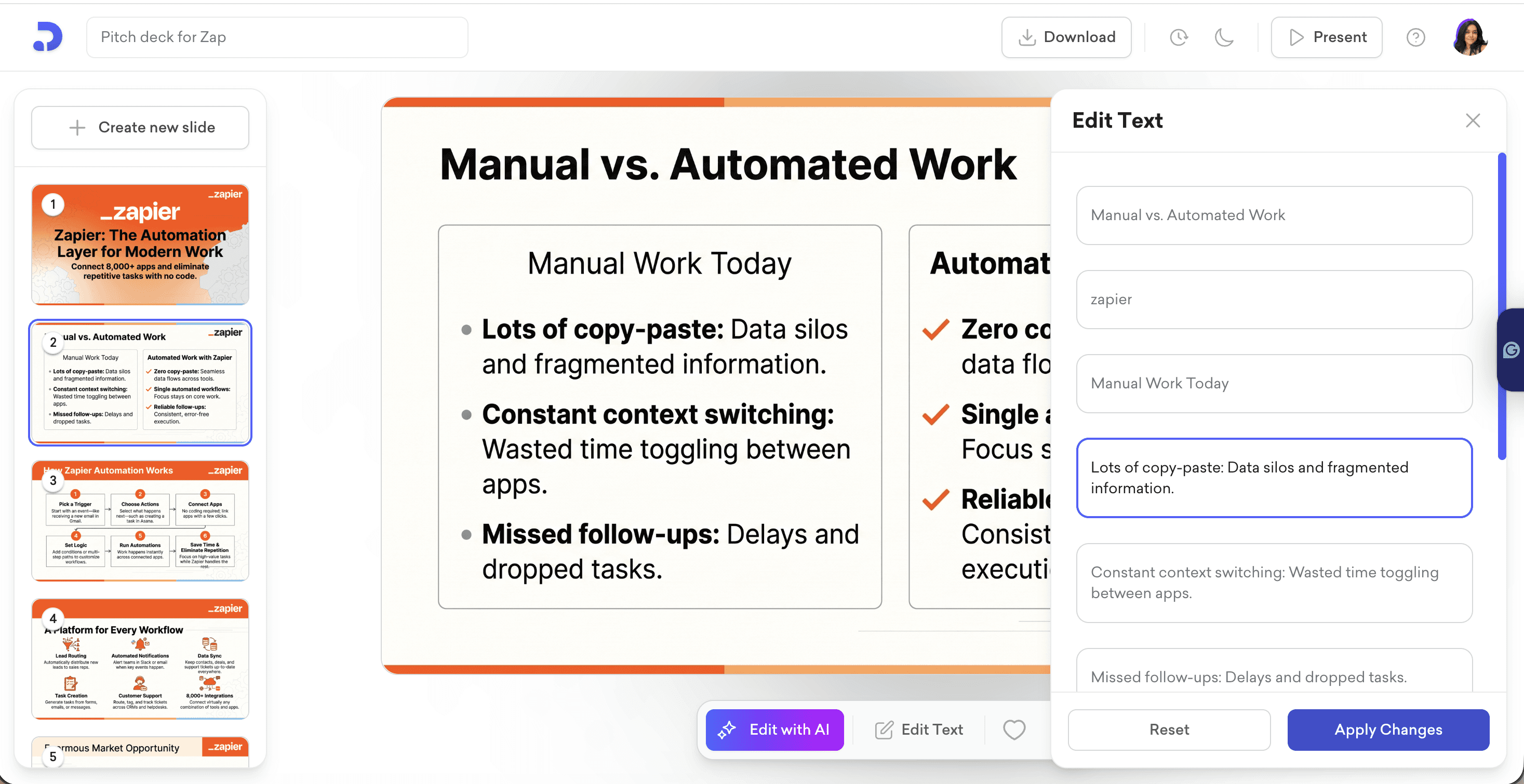
Edit Text: Click the Edit Text button to open the manual editing panel on the right side. Every text element on the slide is listed individually, so you can click into any one and change it directly. Hit Apply Changes when done.
All edits are saved in version history, so you can always go back.
This is the core difference. NotebookLM gives you a rendered image of a slide. Decktopus gives you the slide itself. You can read more about how Decktopus compares to other AI presentation makers if you want a broader picture of the landscape.

Method 3: Export as PDF and Import into Decktopus
This is the most practical method for getting a genuinely editable, brand-ready presentation from your NotebookLM slides.
How to do it:
Step 1: Export your NotebookLM deck as PDF.In the Studio panel, open your slide deck, click the three-dot menu, and select “Download as PDF.”
Step 2: Import into Decktopus.Go to Decktopus, create a new presentation, and use the PDF import feature to upload your NotebookLM PDF. Decktopus extracts the content and converts it into an editable presentation.
Step 3: Apply your brand. Once imported, apply your brand kit automatically. Your colors, fonts, and logo are applied across all slides without manual setup. You can also import your brand directly from your company website if you haven’t set one up yet.
Step 4: Edit in the editor. Once the editor opens, your full presentation is ready. You can present or share it straight away, or refine it further if you’d like. If you want to make changes, you have two options:
Edit with AI: Use the prompt bar at the bottom of the editor. Type instructions like “Make this slide more concise” or “Rewrite this in a more professional tone” and Decktopus applies the change instantly. You can also use quick-action buttons like Make it concise, Simplify, Add more details, or Make it more minimal.
Edit Text: Click the Edit Text button to open the manual editing panel on the right side. Every text element on the slide is listed individually, so you can click into any one and change it directly. Hit Apply Changes when done.
All edits are saved in version history, so you can always go back.
Step 5: Download or share. When your presentation is ready, download as PDF or PowerPoint, get a shareable link, or go straight into presentation mode from the editor.
NotebookLM vs Decktopus: What Each Does Best
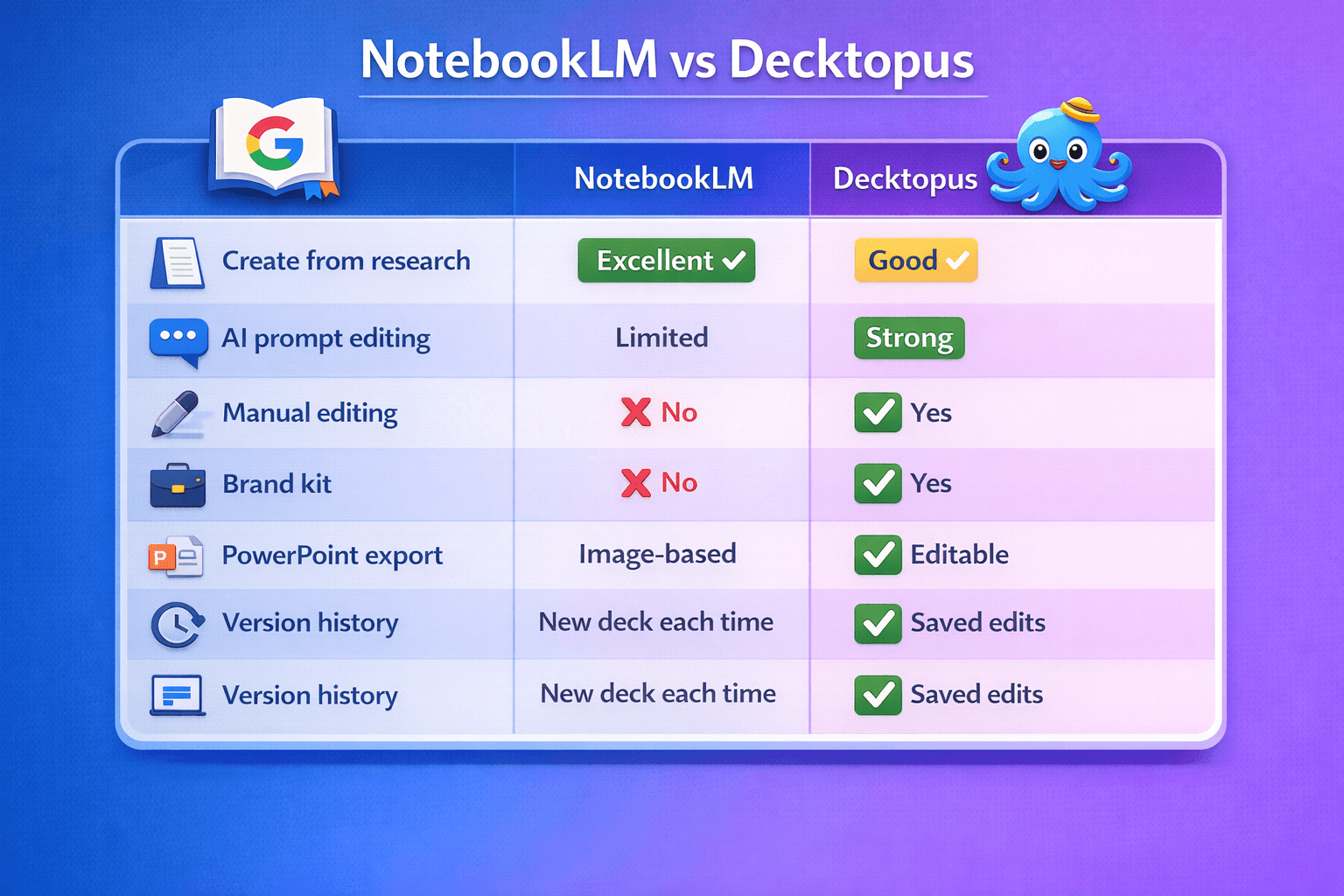
The best workflow is to use both. NotebookLM is excellent at turning dense source material into a structured first draft. Decktopus is where you take that draft and turn it into a finished, branded presentation you can actually use. For a deeper look at how AI is changing presentation creation in general, this guide on how AI helps create stunning presentations is worth reading.
You Don’t Have to Start with NotebookLM
The workflow above assumes you already have a NotebookLM deck you want to improve. But many users skip NotebookLM entirely and build their presentation directly in Decktopus from the start.
The process is straightforward:
Describe your topic. Type what your presentation is about, for example “Q3 investor update” or “competitive analysis for a SaaS product.” You can also upload your own documents, research files, or PDFs and Decktopus will pull from them directly, just like NotebookLM does with its sources.
Choose your style. Apply a saved brand kit, import your brand from your company website, or let AI generate a style based on your content.
Get a complete deck. Decktopus builds the structure, writes the content, and applies your visual style automatically. No source material locked into flat images. Every element is editable from the start.
Refine with prompts or manually. Use the AI prompt bar to adjust any slide, or switch to manual editing to make precise changes directly.
Download or share. Export as PDF or PowerPoint, share via link, or present directly from the editor.
The result is the same quality of AI-generated content you’d get from NotebookLM, but with full editing control built in from the beginning. No export, no import, no workarounds needed.
Why This Workflow Makes Sense
Both NotebookLM and Decktopus use AI to handle the heavy lifting of presentation creation. The difference is what happens after the initial generation.
NotebookLM locks you into a loop of prompting and regenerating. Decktopus gives you direct control. You can edit with a prompt, edit manually, apply your brand, and export to any format, all without hitting daily limits or losing your previous work.
This is also why many professionals who previously used ChatGPT to draft slide content have moved to tools like Decktopus. If you’re curious about that comparison, this blog on whether ChatGPT can create PowerPoints explains the gap between content generation and actual presentation building.
Who This Workflow Is For
Founders — Turn investor research and notes into polished pitch decks without rebuilding from scratch.
Marketers — Convert reports and campaign data into branded strategy decks ready to share with stakeholders.
Consultants — Transform client research into presentation-ready deliverables in a fraction of the time.
Students and educators — Upgrade AI-generated study or lecture slides with better structure and visual clarity.
Quick answer: If NotebookLM generated your slides but you need proper editing, brand control, and a file you can actually work with, importing into Decktopus is the fastest path to a finished presentation. And if you want to skip NotebookLM entirely, Decktopus builds the whole thing from a prompt with full editing control from the start.
FAQ
Can I edit NotebookLM slides directly?
Since February 2026, you can use per-slide AI revision prompts. But you can’t do element-level editing like changing a single word, adjusting spacing, or moving objects. For that, you need to export and edit in another tool.
Does the NotebookLM PPTX export give me an editable file?
Not fully. The PPTX contains image layers rather than real text boxes and objects, so you can’t edit content directly in PowerPoint the way you normally would.
What’s the best way to edit NotebookLM slides?
Export as PDF, import into Decktopus, and use the AI prompt bar or manual editing to make changes. You get full control without daily limits or layout shifts.
Can Decktopus match the style of my NotebookLM slides?
Once you import your PDF, you can apply your own brand kit or import your brand from your company website. You’re not locked into NotebookLM’s visual output.
Is there a limit to how many edits I can make in Decktopus?
No. Unlike NotebookLM’s revision quota, Decktopus doesn’t limit how many times you can edit a slide.
Can I use Decktopus instead of NotebookLM?
Yes. You can build a complete presentation directly in Decktopus by describing your topic or uploading your source files. Every element is editable from the start, so there’s no need to export or import anything.
Is Decktopus free?
Decktopus has a free trial. You can import your NotebookLM PDF and start editing without a paid subscription.
Try Decktopus for free and edit your NotebookLM slides today.
Related posts

8 AI Startups That Nailed Their Branding with a .AI Domain
Artificial intelligence continues to reshape the way we live and work. As an essential tool now powering a great number of industries, it’s no surprise that AI is driving a new era of search, too.
AI & Tools

5 Best AI Audio Enhancement Tools in 2026
AI Audio Enhancement Tools: Elevating Your Sound Experience
AI & Tools

AI Checker 2026: Unveiling the Latest in AI Detection Technology - ChatGPT, GPT-3, and Beyond
Explore the power of AI content checkers with our comprehensive guide. Discover how these intelligent tools enhance accuracy and efficiency in various applications. Stay ahead in 2026 with insights on the latest advancements and practical tips for leveraging AI checkers and chatgpt detectors effectively.
AI & Tools